Author Archives: purpleblob

SignalR .NET client

I’ve been using SignalR from a browser but decided I wanted to try the .SignalR .NET Client code as well to see how to implement such an app. I’m not going to cover the server exception to show the Hub

public class MonitorServiceHub : Hub
{
   public void ProjectUpdate(string message)
   {
      Clients.All.projectUpdated(message);
   }
}

It’s very simple as you see. This pushed messages out to anything subscribed to the “projectUpdated” function.

So in JavaScript we have the following for the browser

<script>
var monitor = $.connection.monitorServiceHub;
monitor.client.projectUpdated = function (message) {
   $('#latest').append('<li>' + message + '</li>');
}
$.connection.hub.start().done(function () {
   monitor.server.projectUpdate("Starting Monitor");
});
</script>

So how to we create a SignalR client ?

  • Create a new Console application in Visual Studio 2012
  • Use NuGet to add the Microsoft ASP.NET SignaalR Client
  • Now, simple add the following code
    static void Main(string[] args)
    {
       HubConnection connection = new HubConnection("http://localhost/test/");
       IHubProxy proxy = connection.CreateHubProxy("monitorServiceHub");
       connection.Start().ContinueWith(task =>
       {
          proxy.Invoke("ProjectUpdate", ".NET Client Connected");
    
          proxy.On<string>("projectUpdated", (message) =>
          {
             Console.WriteLine(message);
          });
       });
       Console.Read();
    }
    

Obviously replace the http://localhost/test/ with the location of your server. This line creates the connection (as the name suggests) and then we create the proxy. Notice we use the camel case name as created by the proxy. Next we start the connection and set up a ContinueWith where the communications takes place. I’ve added code to send a message out (just to demonstrate how) using Invoke, so all clients will see when the .NET client connects. Notice this uses the method name on the class not the camel case naming. Finally we in essence subscribe to the projectUpdated messages/function and simply output whatever message we get to the Console.
Publishing an ASP.NET site to Windows 7 and IIS 7.5

I’ve just started developing a new ASP.NET MVC application on Windows 7 using IIS 7.5 and wanted to publish it to IIS. The steps are simple.

  • Right mouse click on your project and select Publish.. or select the Build menu and select Publish Selection.
  • If you do not have a profile select <New..> from the drop down and create one
  • Select Next and in my case I was deploying to a file system, so selected Publish Method: File System.
  • Browse to the target path (for example C:\inetpub\wwwroot\MyApp)
  • Set Destination URL to localhost
  • Select Next, I set this to Release configuration and delete all existing files prior to publish (obviously you choose what options you wish)
  • Select Next, the n Publish

The files and folders are copied and ready to access.

Now I was using a machine not yet set up correctly for hosting IIS and the first thing I got when trying to view http://localhost/MyApp was HTTP Error 403.14 – Forbidden. I needed to set Internet Information Services (IIS) Manager up to see the MyApp folder as an application.

  • So open IIS Manager and right mouse click on MyApp (under Sites/Default Web Site in my case).
  • Right mouse click on MyApp and select Convert to Application
  • Accept the defaults and press OK

Now reload the web page. If you get the following error in your browser Handler “ExtensionlessUrlHandler-Integrated-4.0” has a bad module “ManagedPipelineHandler” in its module list. Try opening a Visual Studio command  prompt as Administrator and type/paste

aspnet_regiis -i

(this should be available from C:\Windows\Microsoft.NET\Framework\v4.0.30319)

or to check if this is installed select the Application Pools in IIS Manager and you should see ASP.NET v4.0 (probably along with ASP.NET v4.0 Classic, Classic .NET AppPool and DefaultAppPool).

Now reload the web page and all should be working.

Note: For deploying ASP.NET MVC, make sure you set System.Web.Routing, System.Web.Mvc and System.Web.Abstractions to Copy Local = True as per documentation on http://msdn.microsoft.com/en-us/library/dd410407(v=vs.90).aspx

SQL Server creating a readonly user

I created a database in SQL Server (previously created in the post on Entity Framework – Code First). I decided I wanted to limit the access to the db to a readonly user.

So in SQL Server Management Studio I carried out the following

  • In the Server/Security/Logins right mouse click and create a new login. Login name “readonly” and set as SQL Server authentication, assign the password “readonly” for this example. Press OK.
  • Under the Databases section select the database we want to apply this user to, so in this case StorePlanDatabase
  • In the Security/Users section, right mouse click and select New User…
  • Click the ellipse (…) button next tot he Login name textbox
  • Check the [readonly] user
  • Next select the Securables item on the left of the dialog and press the Search button
  • Select specific objects…, press OK
  • Select Object Types…
  • Check the Tables option
  • Select Browse.. and check the tables you want to alter permissions for (in my case the three tables I added)
  • Now Grant Select permission to each table and press OK

Now to test this, I’m going to change the connection string in the client application from the Code First post to something this

Server=MyServer;Database=StorePlanDatabase;User Id=readonly;Password=readonly

and with the following simply code to test this

using(StorePlanDatabase context = new StorePlanDatabase())
{
   foreach(var p in context.Products)
   {
      Console.WriteLine(p.Name);
   }
}

This should now list the names of all our products stored in the database, but it doesn’t prove the permissioning worked, so if we replace the foreach loop above with

Product peas = new Product
{
   Name = "Peas",
   UPC = "9999"
};

context.Products.Add(peas);
context.SaveChanges();

We’ll get an exception due to not having valid INSERT permissions.

Writing a Windows Service

Creating

The steps for creating a Windows Services are pretty simple.

Open Visual Studio and create a new Windows Service Project. This will create a Program.cs with the relevant code to instantiate the service and then run it. The defaults service files (Service1.cs) contains an object derived from the ServiceBase. Here we implement our code. So when the Service starts the Onstart method is called, here we run whatever code we require to run the service and the OnStop (as the name suggests) we stop the code. There’s also OnPause and OnContinue overrides if needed.

Next we need to create an installer to allow the service to be installed in the Services control app.

Open the Service1.cs (or whatever the service is now called) designer and right mouse click on the background. Select Add Installer. An installer has been added which has the service name of your service and is set-up by default to install on the user’s account and in Manual startup mode. Obviously changes these to suit, plus add a description of the service which will be displayed in the Service control app.

If, on the other hand, you don’t have a Service1 designer or you wish to add an installer by hand, simple create a new C# class and add the following (bare minimum) code

[RunInstaller(true)]
public partial class MyInstaller : Installer
{
   private ServiceProcessInstaller serviceProcessInstaller;
   private ServiceInstaller serviceInstaller;

   public MyInstaller()
   {
      serviceProcessInstaller = new ServiceProcessInstaller();
      serviceInstaller = new ServiceInstaller();

      serviceProcessInstaller.Password = null;
      serviceProcessInstaller.Username = null;
			
      serviceInstaller.ServiceName = "Orchestator.Service";

      Installers.AddRange(new Installer[] { serviceProcessInstaller, serviceInstaller });
   }
}

Note: The username and password are set to null, hence when you try to install this service it will ask you for the username and password to login with. Alternatively you can set the Account on the serviceInstaller to ServiceAccount.LocalService which will not require the username/password dialog to be displayed as per the following code

serviceProcessInstaller.Account = ServiceAccount.LocalService;

Installing

To install the service without creating a fully fledged setup application simply run

installutil.exe

and to uninstall

installutil.exe /u

If you have no supplied the username and password you’ll be prompted to supply it, you will need to supply the fully qualified username, including domain or for a local user account use .\username (where .\ indicates the local machine). .\ on it’s own can be used to indicate the local machine but in the Services applet it will display .\ as Log On As, whereas you might notice other local service logins show Local Service. We can easily alter out Installer class to allow for this as outlined previously.

Debugging

Due to the time limit for startup (30 seconds) it can be difficult to debug a service as it starts. The best solution to this is to create a console app which mimics the startup process. Once the service is running we can attach to it’s instance like any other app.

Using jQuery in TypeScript

As somebody who mainly develops in C# I do miss strong typing when using JavaScript. So I’ve started to use TypeScript which solves this. But let’s face it, this would be of little use without jQuery (and other frameworks). So here’s the steps to get jQuery running with TypeScript.

  1. If you have already installed TypeScript, grab the latest VS2012 integration from http://www.typescriptlang.org/
  2. Next up, create a new project, navigate to Other Languages | TypeScript and create a new TypeScript project
  3. From the References section in the solution explorer, right mouse click and select Manage NuGet Packages and search for jquery.TypeScript.DefinitelyType and install – this will install a .ts file which includes the jQuery TypeScript definition to allows us to work with code completion
  4. Now either from NuGet, install jQuery or download from http://jquery.com/
  5. To reference the jQuery TypeScript file put /// at the top of the app.ts file, this will allow VS2012 to reference the types in the .ts file
  6. You’ll need to add a script to the default.htm file

Now we’ve got jQuery up and running in TypeScript.

Note: One problem I found on one of my machines was the code complete didn’t work for TypeScript, reading up on this on it appeared (as suggested in one of the posts) that MySQL Connector Net 6.6.5 was causing the problem. Open Control Panel | Programs | Programs and Features, location My SQL Connector 6.6.5 if its installed. Right mouse click on it and select Change and remove the Visual Studio Integration.

A using clause inside a namespace is different to a using clause outside a namespace

For some reason I always forget the difference between using a using clause inside a namespace as opposed to outside. Occasionally I come across other people’s code where they’ve obviously explicitly copied their using clauses inside their namespace, being that by default creating a new C# file will place the default using clauses at the top of the file (outside the namespace).

So what’s the difference ?

If we have a class sitting in a namespace such as MyNamespace.MyClasses (with using System; outside the namespace) such as

using System;

namespace MyNamespace.MyClasses
{
   class MyClass
   {
      void MyMethod()
      {
         String s = String.Empty;
         // do something
      }
   }
}

It’s happily using the System.String object, but then along comes a new developer on the project who creates a String class specific to the project.

So the new class is added to the MyNamespace namespace in the following way

namespace MyNamespace
{
   class String
   {
   }
}

At this point our previous code will fail with a ‘MyNamespace.String’ does not contain a definition for ‘Empty’. This is because when the compiler searches for the String class it starts in the MyNamespace.MyClasses namespace then the MyNamespace namespace and then finally the using clauses outside of the namespace. So in this instance it finds a matching String class in the namespace MyNamespace and unless the String is fully qualified (i.e. System.String s = System.String.Empty; will try to use this. Obviously this is the wrong String class.

If we move the using System; inside the namespace of MyClass, such as

namespace MyNamespace.MyClasses
{
   using System;
   
   class MyClass
   {
      void MyMethod()
      {
         String s = String.Empty;
      }
   }
}

In this instance the compiler searches the MyNamespace.MyClasses namespace and then the using clauses within that namespace and so can resolve the String.Empty const and the newly added String class can still be implemented without being mistakenly used.

JavaScript – Encapsulation

In JavaScript everything is an object from the obvious, such as arrays, strings etc. through to functions.

So how do we handle encapsulation such that we will have private and public data and methods ?

Well, because functions are themselves objects we can declare private data internally (within the function) and then using the prototype property we can add methods to the function that are public.

Below is a very simple example of encapsulation. The variable balance is private as it’s declared within the scope of the BankAccount function.

function BankAccount() {
   var balance = 0;

   BankAccount.prototype.add = function(amount) {
      balance += amount;
   }

   BankAccount.prototype.subtract = function(amount) {
      balance -= amount;
   }

   BankAccount.prototype.getBalance = function() {
      return balance;
   }
};

The functions add, subtract and getBalance are public and thus we can interact with this object using the following

var bankAccount = new BankAccount();
bankAccount.add(100);
bankAccount.subtract(10);

var current = bankAccount.getBalance();

If we wanted to make the balance variable public, we could simply alter the var balance = 0 to this.balance = 0 but of course this allows us to change the balance variable without going through the add/subtract methods.

To implement a more property like variable (as per C# for example) whereby we have methods to get/set the property we might look to implement something like

function BankAccount() {
   var balance = 0;

   this.__defineSetter__("balance", function(x) {});
   this.__defineGetter__("balance", function() { return balance; });
   
   // rest of the methods as before
};

Here we define a getter such that we can access in this way bankAccount.balance but we’ve defined a setter that does nothing so whilst a setter exists it doesn’t alter the balance.

JavaScript Refresher – Properties, Methods and Types

Properties and Methods

JavaScript is a dynamic language. We do not need to declare properties or methods on an object prior to using them, for example the following will automatically add a new property and method to an object

var o = new Object();
o.Message = "Clicked";
o.Clicked = function() {
   alert(this.Message);
}

So in the above code we create an instance of an Object and then by calling o.Message we basically add a new property to the object o. Next we create a method on the object. Note: We need to use “this” to access the property from within the method otherwise the code tries to access an undefined variable.

We can actually add properties and methods as well as access them using indexer notation, for example

var o = new Object();
o["Message"] = "Hello";

and this allows us to even call methods dynamically such as

var clicked = "Clicked";

var o = new Object();
   o["Message"] = "Clicked";
   o["Clicked"] = function() {
      alert(this["Message"]);
   }


   o[clicked]();

So in the above we can dynamically change the method called (assuming we had more than one method).

We can also iterate over the members of an object using the following

var o = new Object();
   o["Message"] = "Clicked";
   o["Clicked"] = function() {
      var s = "";
      // iterate over the object
      for(var p in o)
      {
         s = s + p + ";"
      }
      alert(s);
   }

Using the for..in loop we simply iterate over and object, the string “s” will be “Message;Clicked”.

Finally, we can add properties and methods, but we can also delete them using

delete o.Message;

This deletes the Message property from the object o.

Types

JavaScript is loosely types. We declare variables using the var keyword and a variable can change type at any time, for example

var tmp = 3.1415926;
tmp = "Hello";

The runtime will not complain about the type conversion from a floating point number to a string.

JavaScript has a small number of types which include, string, number, boolean, array and object.

  • A string may be declared using either double quotes or single quotes, obviously this helps when the string is declare inline.
  • A number can be declared with or without decimal places (in other words it can be floating point or an integer).
  • A boolean may be true or false (as one would expect)
  • An array can be declared in various ways (described later) and can store heterogeneous data types
  • An object can be declared and properties and methods assigned to it (see above)

If a var is not assigned a value it is “undefined” (which is itself a type), basically this is a variable that has no value, but we can also use null to denote an “empty” value.

Declaring Arrays

Arrays can be declared in various ways, for the first example we declare an array and then we dynamically add items by creating an index to them

var vowels = new Array();
vowels[0] = "a";
vowels[1] = "e";
vowels[2] = "i";
vowels[3] = "o";
vowels[4] = "u";

A couple of alternatives are

var vowels1 = new Array("a", "e", "i", "o", "u");
var vowels2 = ["a", "e", "i", "o", "u"];

JavaScript Refresher – Using JavaScript in HTML

How to use JavaScript in an HTML file

JavaScript is a dynamic loosely typed language which is now the lingua franca of the browser now.

We can add JavaScript to a web page as inline, embedded or in an external .js file. For example

Inline

<input type="button" value="Click Me!" onClick="alert('Clicked');" />

In the above the inline JavaScript will display an alter in response to the button being clicked.

Embedded

The same code as above but with the JavaScript embedded would look more like

<script>
function clicked() {
   alert('Clicked');
}
</script>

<input type="button" value="Click Me!" onClick="clicked();" />

I’ve removed superfluous code but the usual place to put the script is in the section.

External File

If we have a file name (for example) scripts.js then we’d place the scripting code in that file as below

function clicked() {
   alert('Clicked');
}

and in the of the HTML file we’d have the reference to the script

<script type="text/javascript" language="javascript" src="scripts.js"></script>

MSMQ

Funnily enough I’ve never used MSMQ in a project having spent most of my time using TIB RV and ActiveMQ, but time to change that. This is a quick start to getting up and running with the key parts of MSMQ.

First off, to use MSMQ from a .NET project add a reference to System.Messaging.

Create a queue

To create a queue programatically use the following (this sample creates a private queue named test)

const string QUEUE_NAME = @".\private$\Test";

if(!MessageQueue.Exists(QUEUE_NAME))
{
   MessageQueue.Create(QUEUE_NAME);
}

Note: If you try to create the queue when it already exists you will get a MessageQueueException – A queue with the same path name already exists. Hence the use of the MessageQueue.Exists method.

Deleting a queue

To delete the queue we’ve just created we can use the following

const string QUEUE_NAME = @".\private$\Test";

if(MessageQueue.Exists(QUEUE_NAME))
{
   MessageQueue.Delete(QUEUE_NAME);
}

Note: If you try to delete a queue that does not exist, you’ll get a MessageQueueException – The queue does not exist or you do not have sufficient permissions to perform the operation. Hence the use of the MessageQueue.Exists method.

Sending a message

// we'll assume the queue exists, so won't repeat creation of it
MessageQueue messageQueue = new MessageQueue(QUEUE_NAME);
messageQueue.Formatter = new XmlMessageFormatter(new[] { typeof(string) });

messageQueue.Send(new Message("Hello MSMQ World");

Note: Without the formatter any attempt to recive this message will fail with a “Cannot find a formatter capable of reading this message” exception.

Receiving a message

Note: MSMQ does not have an event or callback receive method. A call to Receive will block the current thread.

// we'll assume the queue exists, so won't repeat creation of it
MessageQueue messageQueue = new MessageQueue(QUEUE_NAME);
messageQueue.Formatter = new XmlMessageFormatter(new[] { typeof(string) });

Message msg = messageQueue.Receive();
Console.WriteLine(msg.Body);

As per the sending message sample, we need to set the formatter so we can deserialize the message body. As stated, Receive will block the current thread. We can place a timeout on the Receive call if we want to return control to the thread after an amount of time or simply block (in which case we’d be best running the Receive code from a separate task/thread.

Queue paths/names

The queue path is made up of the machine name (or . for local machine) then a backslash followed by a path to the queue (see MessageQueue Constructor for a full explanation).

I’ve shown the basic format below (as well)

[table “” not found /]

Creating and Deleting Queues via the UI

Finally for this post, I’ll conclude with the steps to admin. your MSMQ queues from the MMC snap-in UI.

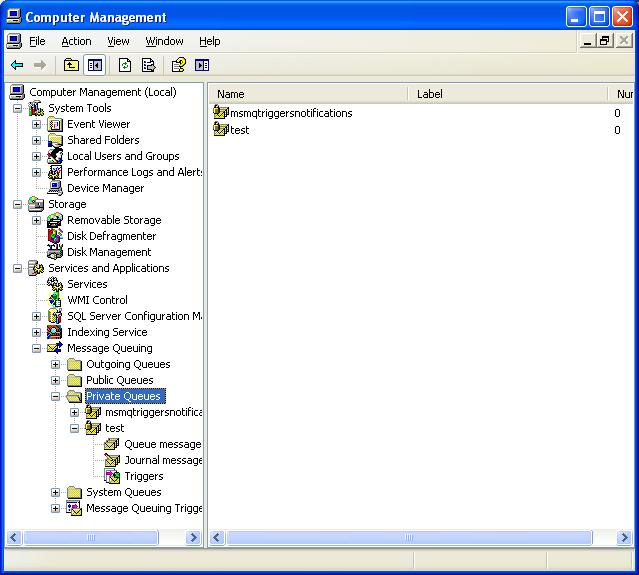
In Windows XP (yes some companies still run XP). From the control panel select Administrative Tools then run the Computer Management applet. Assuming you have MSMQ installed you should see something like the screen shot below

msmq-applet

Right mouse clicking on the folders Private Queues etc. will offer an option to create a new queue and bringing the context menu up on the queue name allows us to delete a queue.