Author Archives: purpleblob

JavaScript – Encapsulation

In JavaScript everything is an object from the obvious, such as arrays, strings etc. through to functions.

So how do we handle encapsulation such that we will have private and public data and methods ?

Well, because functions are themselves objects we can declare private data internally (within the function) and then using the prototype property we can add methods to the function that are public.

Below is a very simple example of encapsulation. The variable balance is private as it’s declared within the scope of the BankAccount function.

function BankAccount() {
   var balance = 0;

   BankAccount.prototype.add = function(amount) {
      balance += amount;
   }

   BankAccount.prototype.subtract = function(amount) {
      balance -= amount;
   }

   BankAccount.prototype.getBalance = function() {
      return balance;
   }
};

The functions add, subtract and getBalance are public and thus we can interact with this object using the following

var bankAccount = new BankAccount();
bankAccount.add(100);
bankAccount.subtract(10);

var current = bankAccount.getBalance();

If we wanted to make the balance variable public, we could simply alter the var balance = 0 to this.balance = 0 but of course this allows us to change the balance variable without going through the add/subtract methods.

To implement a more property like variable (as per C# for example) whereby we have methods to get/set the property we might look to implement something like

function BankAccount() {
   var balance = 0;

   this.__defineSetter__("balance", function(x) {});
   this.__defineGetter__("balance", function() { return balance; });
   
   // rest of the methods as before
};

Here we define a getter such that we can access in this way bankAccount.balance but we’ve defined a setter that does nothing so whilst a setter exists it doesn’t alter the balance.

JavaScript Refresher – Properties, Methods and Types

Properties and Methods

JavaScript is a dynamic language. We do not need to declare properties or methods on an object prior to using them, for example the following will automatically add a new property and method to an object

var o = new Object();
o.Message = "Clicked";
o.Clicked = function() {
   alert(this.Message);
}

So in the above code we create an instance of an Object and then by calling o.Message we basically add a new property to the object o. Next we create a method on the object. Note: We need to use “this” to access the property from within the method otherwise the code tries to access an undefined variable.

We can actually add properties and methods as well as access them using indexer notation, for example

var o = new Object();
o["Message"] = "Hello";

and this allows us to even call methods dynamically such as

var clicked = "Clicked";

var o = new Object();
   o["Message"] = "Clicked";
   o["Clicked"] = function() {
      alert(this["Message"]);
   }


   o[clicked]();

So in the above we can dynamically change the method called (assuming we had more than one method).

We can also iterate over the members of an object using the following

var o = new Object();
   o["Message"] = "Clicked";
   o["Clicked"] = function() {
      var s = "";
      // iterate over the object
      for(var p in o)
      {
         s = s + p + ";"
      }
      alert(s);
   }

Using the for..in loop we simply iterate over and object, the string “s” will be “Message;Clicked”.

Finally, we can add properties and methods, but we can also delete them using

delete o.Message;

This deletes the Message property from the object o.

Types

JavaScript is loosely types. We declare variables using the var keyword and a variable can change type at any time, for example

var tmp = 3.1415926;
tmp = "Hello";

The runtime will not complain about the type conversion from a floating point number to a string.

JavaScript has a small number of types which include, string, number, boolean, array and object.

  • A string may be declared using either double quotes or single quotes, obviously this helps when the string is declare inline.
  • A number can be declared with or without decimal places (in other words it can be floating point or an integer).
  • A boolean may be true or false (as one would expect)
  • An array can be declared in various ways (described later) and can store heterogeneous data types
  • An object can be declared and properties and methods assigned to it (see above)

If a var is not assigned a value it is “undefined” (which is itself a type), basically this is a variable that has no value, but we can also use null to denote an “empty” value.

Declaring Arrays

Arrays can be declared in various ways, for the first example we declare an array and then we dynamically add items by creating an index to them

var vowels = new Array();
vowels[0] = "a";
vowels[1] = "e";
vowels[2] = "i";
vowels[3] = "o";
vowels[4] = "u";

A couple of alternatives are

var vowels1 = new Array("a", "e", "i", "o", "u");
var vowels2 = ["a", "e", "i", "o", "u"];

JavaScript Refresher – Using JavaScript in HTML

How to use JavaScript in an HTML file

JavaScript is a dynamic loosely typed language which is now the lingua franca of the browser now.

We can add JavaScript to a web page as inline, embedded or in an external .js file. For example

Inline

<input type="button" value="Click Me!" onClick="alert('Clicked');" />

In the above the inline JavaScript will display an alter in response to the button being clicked.

Embedded

The same code as above but with the JavaScript embedded would look more like

<script>
function clicked() {
   alert('Clicked');
}
</script>

<input type="button" value="Click Me!" onClick="clicked();" />

I’ve removed superfluous code but the usual place to put the script is in the section.

External File

If we have a file name (for example) scripts.js then we’d place the scripting code in that file as below

function clicked() {
   alert('Clicked');
}

and in the of the HTML file we’d have the reference to the script

<script type="text/javascript" language="javascript" src="scripts.js"></script>

MSMQ

Funnily enough I’ve never used MSMQ in a project having spent most of my time using TIB RV and ActiveMQ, but time to change that. This is a quick start to getting up and running with the key parts of MSMQ.

First off, to use MSMQ from a .NET project add a reference to System.Messaging.

Create a queue

To create a queue programatically use the following (this sample creates a private queue named test)

const string QUEUE_NAME = @".\private$\Test";

if(!MessageQueue.Exists(QUEUE_NAME))
{
   MessageQueue.Create(QUEUE_NAME);
}

Note: If you try to create the queue when it already exists you will get a MessageQueueException – A queue with the same path name already exists. Hence the use of the MessageQueue.Exists method.

Deleting a queue

To delete the queue we’ve just created we can use the following

const string QUEUE_NAME = @".\private$\Test";

if(MessageQueue.Exists(QUEUE_NAME))
{
   MessageQueue.Delete(QUEUE_NAME);
}

Note: If you try to delete a queue that does not exist, you’ll get a MessageQueueException – The queue does not exist or you do not have sufficient permissions to perform the operation. Hence the use of the MessageQueue.Exists method.

Sending a message

// we'll assume the queue exists, so won't repeat creation of it
MessageQueue messageQueue = new MessageQueue(QUEUE_NAME);
messageQueue.Formatter = new XmlMessageFormatter(new[] { typeof(string) });

messageQueue.Send(new Message("Hello MSMQ World");

Note: Without the formatter any attempt to recive this message will fail with a “Cannot find a formatter capable of reading this message” exception.

Receiving a message

Note: MSMQ does not have an event or callback receive method. A call to Receive will block the current thread.

// we'll assume the queue exists, so won't repeat creation of it
MessageQueue messageQueue = new MessageQueue(QUEUE_NAME);
messageQueue.Formatter = new XmlMessageFormatter(new[] { typeof(string) });

Message msg = messageQueue.Receive();
Console.WriteLine(msg.Body);

As per the sending message sample, we need to set the formatter so we can deserialize the message body. As stated, Receive will block the current thread. We can place a timeout on the Receive call if we want to return control to the thread after an amount of time or simply block (in which case we’d be best running the Receive code from a separate task/thread.

Queue paths/names

The queue path is made up of the machine name (or . for local machine) then a backslash followed by a path to the queue (see MessageQueue Constructor for a full explanation).

I’ve shown the basic format below (as well)

[table “” not found /]

Creating and Deleting Queues via the UI

Finally for this post, I’ll conclude with the steps to admin. your MSMQ queues from the MMC snap-in UI.

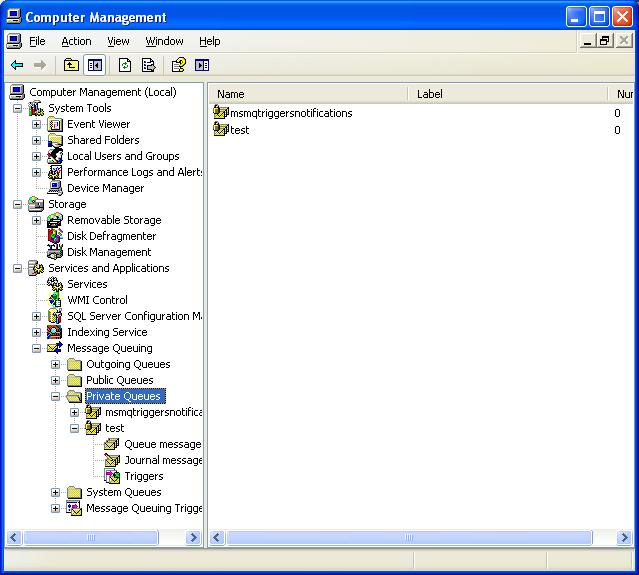
In Windows XP (yes some companies still run XP). From the control panel select Administrative Tools then run the Computer Management applet. Assuming you have MSMQ installed you should see something like the screen shot below

msmq-applet

Right mouse clicking on the folders Private Queues etc. will offer an option to create a new queue and bringing the context menu up on the queue name allows us to delete a queue.

The C in CSS

CSS (Cascading style sheets) can appear in various ways. Inline, embedded, part of a style section and so on. The order in which they “cascade” – in other words the order in which the browser uses the styles is very specific.

The order is shown below.

Inline

The inline style takes precedence over all other style mechanisms. An inline style is simply a style applied to an elements style attribute, for example

<p style="color:red">A red paragraph</p>

Embedded

If no inline style is found for an element then the browser looks for an embedded style. We embed a style within style element, as below

<head>
   <style>
      p { color:red }
   </style>
</head>

External

After the embedded style the browser looks for any external styles found via the link element.

<head>
   <link rel="stylesheet" type="text/css" href="theme.css">
</head>

Theme.css

p { color:red }

User

If none of the previous mechanisms yields a matching style the browser checks the user styles. These are styles defined for a specific user on their machine. Each browser has it’s own way of allowing a user to define their “user” styles. In Google Chrome there’s a file in the user profile, for example C:\Documents and Settings\\Local Settings\Application Data\Google\Chrome\User Data\Default\User StyleSheets\Custom.css

Browser

Finally if no match is found for any of the above, the browser uses it’s default settings for the style.

!Important

Along with the above the user can mark a style as important

<style>
   p { color:red !important}
</style>

In such situations where a property is marked with !important the browser will now give preference to these important properties. In essence the order of precedence of the !important properties are reversed, therefore user style sheet has higher !important precedence than an author supplied !important value.

Note: The Inline, embedded and separate stylesheet are collectively known as the author style sheets.

ActiveMQ and NMS

Getting Started

ActiveMQ can be connected to in various ways. In this post I’m going to concentrate on NMS for .NET integration.

For the sample code I’ve created a console application and using nu-get have added the packages named Apache.NMS and Apache.NMS.ActiveMQ.

To begin with we need to run up ActiveMQ either locally or remotely (ensure you’ve noted down the connection string if you’re running remotely, for now I’ll assume the ActiveMQ server was started locally).

The first thing our client application must do is create both the connection and session object to allow us to interact with ActiveMQ, this is done using the following code (it’s pretty self explanatory)

IConnectionFactory factory = new ConnectionFactory();
using (IConnection connection = factory.CreateConnection())
{
   connection.Start();
   using(ISession session = connection.CreateSession())
   {
      // do something with the session
   }
}

Note: both the connection and session are disposable so don;t forget to dispose of them either directly by calling Close() or indirectly using the using statement.

The above code does not specify the endpoint for the connection, to handle a remote server (or one not on the default port on the local machine) we can use the following code as a replacement for the ConnectionFactory() code

Uri connecturi = new Uri("activemq:tcp://myserver:61616");
IConnectionFactory factory = new NMSConnectionFactory(connecturi);

Topics and Queues

Best to read the ActiveMQ documentation for a full explanation.

But basically a topic works on a publish and subscribe pattern. One or more subscriptions may exist to a topic and all will receive published messages. Whereas a queue is implemented as per load balancer semantics, in that each consumer will get a message until it’s been acknowledged.

Enumerating Topics and Queues

The following is pretty much taken from the source code accompanying the NMS source, I’ve removed the code for setting up the connection/session

public const string QUEUE_ADVISORY_DESTINATION = "ActiveMQ.Advisory.Queue";
public const string TOPIC_ADVISORY_DESTINATION = "ActiveMQ.Advisory.Topic";
public const string TEMPQUEUE_ADVISORY_DESTINATION = "ActiveMQ.Advisory.TempQueue";
public const string TEMPTOPIC_ADVISORY_DESTINATION = "ActiveMQ.Advisory.TempTopic";

public const string ALLDEST_ADVISORY_DESTINATION = QUEUE_ADVISORY_DESTINATION + "," +
                       TOPIC_ADVISORY_DESTINATION + "," +
                       TEMPQUEUE_ADVISORY_DESTINATION + "," +
                       TEMPTOPIC_ADVISORY_DESTINATION;

private void Enumerate(string destination, Action<DestinationInfo> action)
{
   IDestination dest = session.GetTopic(destination);
   using (IMessageConsumer consumer = session.CreateConsumer(dest))
   {
      IMessage advisory;

      while ((advisory = consumer.Receive(TimeSpan.FromMilliseconds(2000))) != null)
      {
         ActiveMQMessage am = advisory as ActiveMQMessage;
	 if (am != null & am.DataStructure != null)
 	 {
	    DestinationInfo info = am.DataStructure as DestinationInfo;
 	    if (info != null)
	    {
	       action(info);
	    }
	 }
      }
   }			
}

public void EnumerateQueues()
{
   Console.WriteLine("Listing all Queues on Broker:");
   Enumerate(QUEUE_ADVISORY_DESTINATION, info => 
                Console.WriteLine("   Queue: " + info.Destination));
   Console.WriteLine("Listing Complete.");
}

public void EnumerateTopics()
{
   Console.WriteLine("Listing all Topics on Broker:");
   Enumerate(TOPIC_ADVISORY_DESTINATION, info => 
                Console.WriteLine("   Topic: " + info.Destination));
   Console.WriteLine("Listing Complete.");
}

public void EnumerateDestinations()
{
   Console.WriteLine("Listing all Destinations on Broker:");
   Enumerate(ALLDEST_ADVISORY_DESTINATION, info =>
   {
      string destType = info.Destination.IsTopic ? "Topic" : "Qeue";
      destType = info.Destination.IsTemporary ? "Temporary" + destType : destType;
      Console.WriteLine("   " + destType + ": " + info.Destination);
   });
   Console.WriteLine("Listing Complete.");
}

I’ve also added the code for EnumerateDestinations which allows us to enumerate all both Queues and Topics.

Note the use of advisory messages, see Advisory Messages

Connection strings

Sample of alternate connection strings

activemq:tcp://activemqhost:61616
stomp:tcp://activemqhost:61613

Creating a producer

IDestination destination = SessionUtil.GetDestination(session, "queue://FOO.BAR");
using (IMessageConsumer consumer = session.CreateConsumer(destination))
{
   connection.Start();
   producer.DeliveryMode = MsgDeliveryMode.Persistent;
   poducer.RequestTimeout = TimeSpan.FromSeconds(10);

   // create message
   ITextMessage request = session.CreateTextMessage("Hello World!");
   request.NMSCorrelationID = "abc";
   request.Properties["myKey"] = "Cheddar";

   producer.Send(request);
}

Creating a consumer

IDestination destination = SessionUtil.GetDestination(session, "queue://FOO.BAR");
using (IMessageConsumer consumer = session.CreateConsumer(destination))
{
   connection.Start();  
   consumer.Listener += msg => 
   {
      ITextMessage message = msg as ITextMessage;
      if(message != null)
      {
         Console.WriteLine("Message Id: " + message.NMSMessageId);
         Console.WriteLine("Message text " + message.Text);
      }
   }
}

The above consumer code works in an event driven way and thus can be used as an async consumer an alternative would be to request data from the consumer in the following manner

ITextMessage message = consumer.Receive() as ITextMessage;
if(message != null)
{
   Console.WriteLine("Message Id: " + message.NMSMessageId);
   Console.WriteLine("Message text " + message.Text);
}

Note that ActiveMQ queues and topics can be created by simply creating a destination to use them, in the above case we’re creating a queue named FOO.BAR as in the following

queue://FOO.BAR

Instead of using SessionUtil.GetDestination(session, “queue://FOO.BAR”) we can also use session.GetQueue(“FOO.BAR”) and/or session.GetTopic(“FOO.BAR”) or session.GetDestination(“queue://FOO.BAR”) and/or session.GetDestination(“topic://FOO.BAR”).

Note: if using SessionUtil.GetDestination(session, “FOO.BAR”) i.e. without the queue/topic prefix the call defaults to a queue.

Don’t forget to cleanup

As mentioned earlier, one thing to remember is that the session and connection instances need to be disposed of preferably by calling the Close() method directly when no longer required.
Handling data in WCF headers (service-side)

So my previous post looked at adding data into the headers of the WCF service calls from the client-side perspective.

Ofcourse for this to be of any use we need the service to handle the extraction of this header data. So this post is mean’t to cover the basics of this. First we need to create the extension, so we inherit from BehaviorExtensionElement (just as we did on the client)

public class SecurityTokenEndpointBehaviourExtensionElement : BehaviorExtensionElement
{
   public override Type BehaviorType
   {
      get { return typeof(SecurityTokenServiceBehaviour); }
   }
   protected override object CreateBehavior()
   {
      return new SecurityTokenServiceBehaviour();
   }
}

Now we need to create an implementation of the IServiceBehavior (on the client this is the IEndpointBehavior)

public class SecurityTokenServiceBehaviour : IServiceBehavior
{
   public void Validate(ServiceDescription serviceDescription, 
                        ServiceHostBase serviceHostBase)
   {
   }

   public void AddBindingParameters(ServiceDescription serviceDescription, 
                         ServiceHostBase serviceHostBase, 
                         Collection<ServiceEndpoint> endpoints, 
                         BindingParameterCollection bindingParameters)
   {
   }

   public void ApplyDispatchBehavior(ServiceDescription serviceDescription, 
                         ServiceHostBase serviceHostBase)
   {
      foreach(ChannelDispatcher cd in serviceHostBase.ChannelDispatchers)
      {
         foreach(EndpointDispatcher epd in cd.Endpoints)
         {
            epd.DispatchRuntime.MessageInspectors.Add(new SecurityTokenMessageInspector());
         }
      }
   }
}

and finally we implement an IDispatchMessageInspector (on the client this would be the IClientMessageInspector)

public class SecurityTokenMessageInspector : IDispatchMessageInspector
{
   public object AfterReceiveRequest(ref Message request, 
                     IClientChannel channel, 
                     InstanceContext instanceContext)
   {
      return null;
   }

   public void BeforeSendReply(ref Message reply, object correlationState)
   {
   }
}

Okay so we’ve got all the code in place but now we need to tie this into WCF using the configuration (ofcourse if you prefer you can do this in code).

Just as we need to do in the client, we need to register the extension in an extensions element and again as per the client we then need to link the behaviour to the extension, see the App.config for this service below

<system.serviceModel>
   <behaviors>
      <serviceBehaviors>
         <behavior name="MyBehavior">
            <serviceMetadata httpGetEnabled="true" />
            <serviceDebug includeExceptionDetailInFaults="true" />
            <!--our extension -->
            <securityTokenExtension /> 
         </behavior>
      </serviceBehaviors>
   </behaviors>
   <services>
      <service behaviorConfiguration="MyBehavior" name="SimpleService.MyService">
        <endpoint address="MyService" binding="basicHttpBinding"
          bindingConfiguration="" contract="SimpleService.IMyService" />
        <host>
          <baseAddresses>
            <add baseAddress="http://localhost:9095/" />
          </baseAddresses>
        </host>
      </service>
   </services>
   <extensions>
      <behaviorExtensions>
        <add name="securityTokenExtension" 
           type="SimpleService.SecurityTokenEndpointBehaviourExtensionElement, SimpleService" />
      </behaviorExtensions>
   </extensions>
</system.serviceModel>

Finally, how do we get the value stored in the header on the service ?

The following code shows how we extract the value from the header named “myToken”, the generic argument shown in the method call GetHeader represents the type we expect the data to be.

public object AfterReceiveRequest(ref Message request, 
                  IClientChannel channel, 
                  InstanceContext instanceContext)
{
   int idx = request.Headers.FindHeader("myToken", String.Empty);
   if(idx >= 0)
   {
      Console.WriteLine(String.Format("Header value: {0}", 
                       request.Headers.GetHeader<string>(idx));
   }
   return null;
}

Adding data to WCF message headers (client-side)

When working with WCF you may find a need to add data to the message headers, for example maybe you wish to add some form of authentication token or the likes.

The first thing we need to do is create a BehaviorExtensionElement and add the relevant configuration to the App.Config.

public class SecurityTokenEndpointBehaviourExtensionElement : BehaviorExtensionElement
{
   public override Type BehaviorType
   {
      get { return typeof(SecurityTokenEndpointBehaviour); }
   }
   protected override object CreateBehavior()
   {
      return new SecurityTokenEndpointBehaviour();
   }
}

Now we need the corresponding entry in the config file for the extension and also the behaviour that our endpoint will map to

<behaviors>
   <endpointBehaviors>
      <behavior name="serviceEndpointBehaviour">
         <securityTokenExtension />
      </behavior>
   </endpointBehaviors>
</behaviors>
<extensions>
   <behaviorExtensions>
      <add name="securityTokenExtension"
	type="PutridParrot.SecurityTokenEndpointBehaviourExtensionElement, PutridParrot" />
   </behaviorExtensions>
</extensions>

As you can see the configuration basically tells WCF to use our BehaviorExtensionElement which then creates the behaviour. This behaviour then adds inspectors to the client as in the sample below

public class SecurityTokenEndpointBehaviour : IEndpointBehavior
{
   public void AddBindingParameters(ServiceEndpoint endpoint, 
                   BindingParameterCollection bindingParameters)
   {
   }

   public void ApplyClientBehavior(ServiceEndpoint endpoint, 
                   ClientRuntime clientRuntime)
   {
      clientRuntime.MessageInspectors.Add(new SecurityTokenMessageInspector());
   }

   public void ApplyDispatchBehavior(ServiceEndpoint endpoint, 
                    EndpointDispatcher endpointDispatcher)
   {
   }

   public void Validate(ServiceEndpoint endpoint)
   {
   }
}

So this code is very simple. In this case we’re simply adding a new message inspector and it’s this IClientMessageInspector implementation that adds the token to the WCF headers. As shown below

public class SecurityTokenMessageInspector : IClientMessageInspector
{
   public object BeforeSendRequest(ref Message request, IClientChannel channel)
   {
      request.Headers.Add(MessageHeader.CreateHeader("myToken", 
                          String.Empty, SecurityToken.Token));
      return null;
   }

   public void AfterReceiveReply(ref Message reply, object correlationState)
   {
   }
}

The code above adds a new message header with the name “myToken” and a value of SecurityToken.Token (just assume this is a singleton which creates and stores a security token).

Before this will work on the client we need to configure the end point to use the behaviorConfiguration defined previously, so now in the endpoint add

behaviorConfiguration="serviceEndpointBehaviour"

So the client configuration will look something like

<client>
   <endpoint address="http://localhost:9095/MyService" 
            binding="basicHttpBinding" contract="MyService.IMyService"                    
            behaviorConfiguration="serviceEndpointBehaviour"/>
</client>

.gitignore – Ignoring files and folders in GIT

I was using a GIT GUI today to add my ignores to the .gitignore file and couldn’t see an option on adding folders, so here’s a 10 second reminder on how to create a .gitignore by hand…

So, if you need to ignore files and/or folders in GIT simply create a .gitignore text file in the root of your repository and enter the files/folders in the following fashion

/StockControl.suo
/StockControl/bin

where the .suo is a file and bin is a folder.

Hence the format is

/<folder_path>/<filename>
/<folder_path>

Random Port Assignment in Azure

One thing to remember when developing a service on Azure is that the port defined in ServiceDefinition.csdef by the following

<InputEndpoint name="MyService" protocol="tcp" port="200" />

is not the same as the port your service should map to.

In other words when creating a socket within your service, Azure assigns a “random” port to your service, so it may have assigned your service the port 1234. So had you created your socket listening to port 200 (as defined in the config file) you will find your service doesn’t receive any traffic.

This is because the port defined in the configuration file is really aimed at the load balancer. It will open the defined port for traffic then route it to the “random” port assigned by Azure to your service. So to create a socket to listen for traffic we need to use the Service Runtime API in Azure to find the port assigned to the service.

RoleEnvironment re = RoleEnvironment.CurrentRoleInstance.InstanceEndPoints["MyService"];
IPEndPoint ep = re.IPEndpoint;

Socket socket = new Socket(ep.AddressFamily, SocketType.Stream, ProtocolType.Tcp);
socket.Bind(ep);
socket.Listen(1000);