Author Archives: purpleblob

Custom Binding MarkupExtension

In my previous post MarkupExtension revisited I looked at creating a replacement “Binding” MarkupExtension.

As usual, after posting that I decided to make some changes.

Basically I wanted to create a base class which will allow me to easily create a Binding style MarkupExtension and then the subclass need only worry about the specifics for what it’s going to do. So I present the BindingBaseExtension class.

[MarkupExtensionReturnType(typeof(object))]
public abstract class BindingBaseExtension : MarkupExtension
{
   protected BindingBaseExtension()
   {			
   }

   protected BindingBaseExtension(PropertyPath path)
   {
      Path = path;
   }

   [ConstructorArgument("path")]
   public PropertyPath Path { get; set; }

   public IValueConverter Converter { get; set; }
   public object ConverterParameter { get; set; }
   public string ElementName { get; set; }
   public RelativeSource RelativeSource { get; set; }
   public object Source { get; set; }
   public bool ValidatesOnDataErrors { get; set; }  
   public bool ValidatesOnExceptions { get; set; }
   [TypeConverter(typeof(CultureInfoIetfLanguageTagConverter))]
   public CultureInfo ConverterCulture { get; set; }

   public override object ProvideValue(IServiceProvider serviceProvider)
   {
      var pvt = serviceProvider.GetService(typeof(IProvideValueTarget)) as IProvideValueTarget;
      if (pvt == null)
         return null;

      var targetObject = pvt.TargetObject as DependencyObject;
      if (targetObject == null)
         return null;

      var targetProperty = pvt.TargetProperty as DependencyProperty;
      if (targetProperty == null)
         return null;

      var binding = new Binding
      {
         Path = Path,
         Converter = Converter,
         ConverterCulture = ConverterCulture,
         ConverterParameter = ConverterParameter,
         ValidatesOnDataErrors = ValidatesOnDataErrors,
         ValidatesOnExceptions = ValidatesOnExceptions,
         Mode = BindingMode.TwoWay,
         UpdateSourceTrigger = UpdateSourceTrigger.Explicit
      };

      if (ElementName != null)
         binding.ElementName = ElementName;
      if (RelativeSource != null)
         binding.RelativeSource = RelativeSource;
      if (Source != null)
         binding.Source = Source;

      var expression = BindingOperations.SetBinding(targetObject, targetProperty, binding);

      PostBinding(targetObject, targetProperty, binding, expression);

      return targetObject.GetValue(targetProperty);
   }

   protected abstract void PostBinding(DependencyObject targetObject, 
      DependencyProperty targetProperty, Binding binding,
      BindingExpressionBase expression);
}

Now I’m not going to go over the code as you can read all about it in the MarkupExtension revisited post, but suffice to say we now inherit from this class and add our extension’s code to an implementation of the PostBinding method (I’m not mad on the method name but for now it’s the best I could think of).

So our DelayBindingExtension will now look like this

public class DelayBindingExtension : BindingBaseExtension
{
   private IDisposable disposable;

   public DelayBindingExtension()
   {			
   }

   public DelayBindingExtension(PropertyPath path) 
      : base(path)
   {
   }

   public int Delay { get; set; }

   protected override void PostBinding(DependencyObject targetObject, 
      DependencyProperty targetProperty, Binding binding,
      BindingExpressionBase expression)
   {
      var subject = new Subject<EventArgs>();

      var descriptor = DependencyPropertyDescriptor.FromProperty(
                          targetProperty, 
                          targetObject.GetType());
      descriptor.AddValueChanged(targetObject, (sender, args) => subject.OnNext(args));

      subject.Throttle(TimeSpan.FromMilliseconds(Delay)).
         ObserveOn(SynchronizationContext.Current).
         Subscribe(_ => expression.UpdateSource());
   }
}

Note: Please be aware that this implementation of the delay binding extension has a possible memory leak. Basically we’re rooting the object with the call to AddValueChanged and not calling RemoveValueChanged the remove this link.
MarkupExtension revisited

In a previous post I looked at using the MarkupExtension to remove the need for adding Converters as resources, see MarkupExtension. For this post I’m going to look at implement a MarkupExtension to in place of a Binding, i.e.

Disclaimer: All the code listed works, but I’ve not tested in all scenarios

<TextBox Text="{Binding SomeProperty}"/>

What are we going to implement ?

WPF in .NET 4.5 has the concept of Delay property on a Binding which is used as follows

<TextBox Text="{Binding SomeProperty, Delay=500}"/>

This is used on a Binding to only update the source (after a change on the target) after a user-specified delay. The most obvious use of such a mechanism is when the user types into a search or filter text box and you don’t want to be searching and filtering for every change. Preferably code will wait for the user to pause for a short time then carry out the search or filter functionality.

Now .NET 4.0 doesn’t have such a property on the Binding class, so we’re going to implement a very basic approximation of the Binding class in .NET 4.0 (mainly because the current project I’m working on targets .NET 4.0).

Why can’t be simply inherit from the Binding class ?

Unfortunately we cannot simply inherit from the Binding class to add our new code. The ProvideValue method of the MarkupExtension is marked as sealed and not override-able. But hey, where would the fun be if it was all that easy…

Let’s write some code

By convention, as with .NET Attributes, we suffix our extension class name with “Extension” but when it’s used, in XAML, the “Extension” part can be ignored. So first up let’s create the barest of bare bones for our DelayBindingExtension.

[MarkupExtensionReturnType(typeof(object))]
public class DelayBindingExtension : MarkupExtension
{
   public override object ProvideValue(IServiceProvider serviceProvider)
   {
      // To be implemented
      return null;
   }
}

Note: The MarkupExtensionReturnType simply gives WPF information on what to expect as the return type from the ProvideValue method.

Let’s take a quick look at how we expect to use this extension in XAML (which should look pretty similar to the .NET 4.5 implementation show earlier)

<TextBox Text="{markupExtensionTest:DelayBinding Path=MyProperty, Delay=500}"/>

Before we implement the ProvideValue method, let’s add the other binding properties which most people will expect to see

[MarkupExtensionReturnType(typeof(object))]
public class DelayBindingExtension : MarkupExtension
{
   public DelayBindingExtension()
   {			
   }

   public DelayBindingExtension(PropertyPath path) 
   {
      Path = path;
   }

   [ConstructorArgument("path")]
   public PropertyPath Path { get; set; }
   public IValueConverter Converter { get; set; }
   public object ConverterParameter { get; set; }
   public string ElementName { get; set; }
   public RelativeSource RelativeSource { get; set; }
   public object Source { get; set; }
   public bool ValidatesOnDataErrors { get; set; }
   public bool ValidatesOnExceptions { get; set; }
   [TypeConverter(typeof(CultureInfoIetfLanguageTagConverter))]
   public CultureInfo ConverterCulture { get; set; }

   public int Delay { get; set; }

   public override object ProvideValue(IServiceProvider serviceProvider)
   {
      // To be implemented
      return null;
   }
}	

Right, those properties will make our extension appear like a Binding object, obviously with our addition of the Delay property.

Now it’s time to implement the ProvideValue method. I’m going to use Reactive Extensions to handle the actual delay (throttling) of the property change events. I’ll list the code and then discuss it afterwards

public override object ProvideValue(IServiceProvider serviceProvider)
{
   var pvt = serviceProvider.GetService(typeof(IProvideValueTarget)) as IProvideValueTarget;
   if (pvt == null)
      return null;

   var targetObject = pvt.TargetObject as DependencyObject;
   if (targetObject == null)
      return null;

   var targetProperty = pvt.TargetProperty as DependencyProperty;
   if (targetProperty == null)
      return null;

   var binding = new Binding
   {
      Path = Path, 
      Converter = Converter,
      ConverterCulture = ConverterCulture,
      ConverterParameter = ConverterParameter,
      ValidatesOnDataErrors = ValidatesOnDataErrors,
      ValidatesOnExceptions = ValidatesOnExceptions,
      Mode = BindingMode.TwoWay,
      UpdateSourceTrigger = UpdateSourceTrigger.Explicit
   };

   if (ElementName != null)
      binding.ElementName = ElementName;
   if (RelativeSource != null)
      binding.RelativeSource = RelativeSource;
   if (Source != null)
      binding.Source = Source;
  
   var expression = BindingOperations.SetBinding(targetObject, targetProperty, binding);

   var subject = new Subject<EventArgs>();

   var descriptor = DependencyPropertyDescriptor.FromProperty(
                       targetProperty, targetObject.GetType());
   descriptor.AddValueChanged(targetObject, (sender, args) => subject.OnNext(args));

   subject.Throttle(TimeSpan.FromMilliseconds(Delay)).
      ObserveOn(SynchronizationContext.Current).
      Subscribe(_ => expression.UpdateSource());

   return targetObject.GetValue(targetProperty);
}

Note: The first line where we see if the IServiceProvider supports the IProvideValueTarget interface uses the GetService method. If you use the serviceProvider as IProvideValueTarget way of obtaining the interface you’ll find the MarkupExtension will not be able to cast from an InstanceBuilderServiceProvider to the IProvideValueTarget meaning the code will return null and not the actual bound property at design time. At runtine all will work.

So the first few lines of code are all about getting the interfaces and objects we want before proceeding to the interesting part of the method. This is the point where we create a binding object and supply all the information it expects.

Notice also that for ElementName, RelativeSource and Source we check whether the user actually supplied these values before overwriting the default values. This is important. If we set one of these properties to null we might appear to be supplying the properties with the same value they already have (and ordinarily we’d expect nothing to change) but in fact we’ll be causing the Binding to change from an unset state to set and with the value null. This will stop the property using it’s default behaviour.

So for example setting Source to null (even though it will say it’s null), will stop it using any parent DataContext and ofcourse not bind to anything.

Note: we can return a property to it’s default state using DependencyProperty.UnsetValue

After creating the Binding and applying the properties we call BindingOperations.SetBinding to associate the binding with the target object and target property.

Next we’re going to basically connect to the target property value change events on it’s dependency property. This allows us to handle a dependency property’s value changed event in a generic way, so for a TextBox Text property we’ll respond to the TextChanged event whilst if we use this code on a CheckBox we’ll handle the IsChecked change event and so on.

I’m using the Reactive Extensions in this example as it makes things so much simpler. We’re going to create a Subject and then from this we’ll be using Throttle so we can implement the delay, i.e. Throttle will not call the Action associated with the Subscribe method until a period of inactivity on the property change event – the inactivity timeout obviously being the Delay we set, in milliseconds.

When the Subscribe method’s Action method is called we simply tell the binding expression to Update the source and the data is written to the view model.

You’ll notice we return the property value for the target object at the end of the method. Obviously if the property has data when the binding is first created, this will now be displayed when the control is instantiated.

References

Starting out with R

This will be a simple “getting started” post on the R environment and language. R is a statistical language which is also heavily used in data mining and machine learning.

For this post I’m using R version 3.1.2 and the free version of R Studio 0.98.1087. Assuming we have R installed and then R Studio, let’s get started…

Demos

Let’s start by looking at the demo command. Typing demo() within the console of R Studio will list the available demos within the packages installed. So if we install further packages which contain demos, these will be available when you invoke the demo command.

So demo will list the demos within the packages, we can invoke

demo(package='graphics')

to get the graphics package demos and to run a demo simply type

demo(image)

for example to run the image demo.

To find a list of all demos within all packages we can invoke

demo(package = .packages(all.available=TRUE))

R scripts

By default we can execute commands in the R console, but ofcourse we might wish to put a whole bunch of commands together into a script file, so within R Studio we can use Ctrl+Shift+N to create a new script file and then obviously enter the script. We can then run the script using Ctrl+Shift+S (or Code | Source).

Help

The help function can be invoked from the console or R Studio to view help on a function/command, (this will load an HTML page, in the case of R Studio this is displayed within the IDE)

# display the help documentation
help() 

# display the help documentation for the vector type
help(vector)

We can also use the shortcut ? to invoke the help

?vector

Vignette

Vignettes are documents (in PDF format) which are available as help for packages.

vignette()

the above will, like demo() list all vignettes in the packages.

Again we can list all vignettes across all packages using

vignette(package = .packages(all.available = TRUE))

and you guessed it we can equally run the following to list the vignettes within a specific package

vignette(package = 'grid')

Finally to invoke a vignette we simple execute

vignette('grid')

to execute a specific vignette on a specific package we can equally write

vignette('moveline', package='grid')

Double or single quote symbols?

We can use either double or single quotes, interchangeably within R but obviously if we want to embed a single or double quote within a string, we can use the other type of quote, for example

s <- 'This is a "double quote" string'

As per C# we can equally use the backslash to escape the quote

s <- "This is a \"double quote\" string"

Comments

Before we start writing code, let’s look at how to write comments within R. The # is used to prefix a comment, for example

# this is a comment

Variables

Like most programming languages, we want ways to store data, like F# we use the <- operator to assign values to a variable, i.e. [code language="R"] x <- 123 [/code] so obviously in the above x is the variable name and is now assigned the value 123. We can also use the assign variables using the assign function, for example [code language="R"] assign("x", 123) [/code] notice the variable name is written as a string. We can also use -> and = to assign variables

123 -> x

x = 123

however the equals operator is rarely used from what I can tell, partly because it can have different meanings in different situations.

Variable names in R can be made up of letters, numbers, dot and underline characters. Variables must start with a letter or dot (note: a dot cannot be followed by a number as a variable name). Ofcourse like other languages, R keywords cannot be used for variable names.

If you’re interested in R style guidelines which include guidelines for variable naming styles, checkout Google’s R Style Guide.

Once we create a variable it’s added to the global environment, but we might also wish to remove a variable from the global environment, to do this execute

rm("x")

# or use

remove("x")

where x is the variable name we want to remove.

Finally we can view the values within a variable using

print(x)

# or simply typing the variable name and pressing enter

x

either of the above will output the value stored within the variable x.

Scope/Environments

If we simply assign variable (as previously discussed) the variable will be added to the environment/global scope, however we can also create alternate scope known as a custom environment.

We create a new environment using the followings

e <- new.env()

where e is a variable of type Environment. We can then assign variables to this environment using

assign("x", 123, e)

# or 

e[["x"]] <- 123

#or

e$x <- 123

in all of the above our new environment variable e is used and the variable x is created within the environment scope and assigned the value 123.

Note: in the last example with the $ quotes are optional around the variable name

To output the variable from the new Environment we can simply type

e$x

# or

get("x", e)

# or

e[["x"]]

More on Environments

We can also get a variable from the global environment using get, such as

get("x", globalenv()) 

and if we want to find the parent environment to a custom environment we can use

parent.env(e)

Operators

We’ve already covered the assignment operator <-, let's look at some of the other available operators. Arithmetic Operators

a <- 10  # assign a the value 10
b <- 5   # assign b the value 5

a + b    # addition operator
a - b    # subtraction operator
a * b    # multiplication operator
a / b    # division operator
a ^ b    # exponent operator
a ** b   # alternate exponent operator
a %% b   # modulus operator
a %/% b  # integer division

Logical operators

a < b    # less than operator
a > b    # greater than operator
a <= b   # less than or equal operator
a >= b   # less than or equal operator
a == b   # equality operator
a != b   # not equal operator
!a       # logical NOT operator
a | y    # logical OR operator
a & y    # logical AND operator

We can also use the function isTRUE(a) to test if a variable is TRUE.

This covers the real basics of getting up and running with R. I hope to create further posts covering more aspects of R real soon.

WPF behaviors

Behaviors came into WPF via Expression Blend. They’re basically a standardized way of adding extra functionality to WPF classes using XAML. So why not use attached properties you might ask. I’ll discuss the differences as we go.

Let’s look at a real world example…

I’m using Infragistics XamDataGrid to display rows of data, but I would like a simple filtering mechanism so that when the user enters text into a text box, all columns are filtered to show data with the filter text in it. I also want it so that when the text box is cleared the filters are cleared. Then I want a Button to enable me to clear the filter text for me with the click of the button.

How might we implement this ? Well the title of the post is a giveaway, but let’s look at some other possibilities first

  • We could write this in the code-behind but generally we try to stay clear of writing such code and instead would generally prefer use XAML to help make our code reusable across projects
  • We could derive a new class from the XamDataGrid and add dependency properties, but this means the code will only be usable via our new type, so it’s not as useful across other projects as it requires anyone wanting to use a XamDataGrid to use our version
  • We could use attached properties, which allow us to create “external” code, i.e. code not in code behind or in a derived class, which can work in conjunction with a XamDataGrid, but the problem here is that attached properties are written in static classes and we will want to store instance variables with the data (see my reasons for this requirement below). With a static class implementation we would have to handle the management of such data ourselves, not difficult, but not ideal.

The attached properties route looked promising – I’m going to need a property for the associated TextBox (acting as our filter text) and the Button (used to clear the filter) and ofcourse these may be different per instance of a XamDataGrid – I also need to handle the attachment and detachment of event handlers and any other possible state. As mentioned, we could implement such state management ourselves, but behaviors already give us this capability out of the box as they are created on a per instance basis.

So the best way for to think of a behavior is that it’s like attached properties but allows us to create multiple instances of the code and thus saves us a lot of the headaches that might occur managing multiple instance data.

Note: The code I’m about to show/discuss includes Reactive Extension code. I will not go into any depth on what it does or how it works but the main use here is to handle attachment and detachment of events and also to allow throttling of the input, this means as the user types in the filter text box, we do not update the filter until the user stops typing for half a second. This ensures we’re not continually updating the filters on the XamDataGrid as the user types

Creating a behavior

To create a behavior we simply create a class and derive it from the Behavior class which is part of the System.Windows.Interactivity namespace. The Behavior takes a generic argument which defines the type it can be used on. So to start off our code would look like this

public class XamDataGridFilterBehavior : Behavior<XamDataGrid>
{
   protected override void OnAttached()
   {
      base.OnAttached();
   }

   protected override void OnDetaching()
   {
      base.OnDetaching();
   }
}

So the key parts here (apart from the base class which has already been mentioned) are the OnAttached and OnDetaching overrides. So here we can attach and detach from events on the associated class (i.e. the XamDataGrid) and/or handle initialization/disposal of data/objects as required.

Before we look at a possible implementation of these methods, I wrote a simple list of requirements at the top of this post. One was the requirement for a TextBox to be associated with the XamDataGrid to act as the filter text and the other a Button to be associated to clear the filter. So let’s add the dependency properties to our class to implement these requirements.

public static readonly DependencyProperty FilterTextBoxProperty =
   DependencyProperty.Register(
   "FilterTextBox",
   typeof(TextBox),
   typeof(XamDataGridFilterBehavior));

public TextBox FilterTextBox
{
   get { return (TextBox)GetValue(FilterTextBoxProperty); }
   set { SetValue(FilterTextBoxProperty, value); }
}

public static readonly DependencyProperty ResetButtonProperty =
   DependencyProperty.Register(
   "ResetButton",
   typeof(Button),
   typeof(XamDataGridFilterBehavior));

public Button ResetButton
{
   get { return (Button)GetValue(ResetButtonProperty); }
   set { SetValue(ResetButtonProperty, value); }
}

So nothing exciting there, just standard stuff.

Now to the more interesting stuff, let’s implement the OnAttached and OnDetaching code. As I’m using Reactive Extensions we’ll need to have two instance variables, both of type IDisposable to allow us to clean up/detach any event handling. Let’s see all the code

private IDisposable disposableFilter;
private IDisposable disposableReset;

protected override void OnAttached()
{
   base.OnAttached();

   var filter = FilterTextBox;
   if (filter != null)
   {
      disposableFilter = Observable.FromEventPattern<TextChangedEventHandler, TextChangedEventArgs>(
         x => filter.TextChanged += x,
         x => filter.TextChanged -= x).
         Throttle(TimeSpan.FromMilliseconds(500)).
         ObserveOn(SynchronizationContext.Current).
         Subscribe(_ =>
         {
            var dp = AssociatedObject as DataPresenterBase;

            if (dp != null && dp.DefaultFieldLayout != null)
            {
               dp.DefaultFieldLayout.RecordFilters.Clear();
               dp.DefaultFieldLayout.Settings.RecordFiltersLogicalOperator = LogicalOperator.Or;

               foreach (var field in dp.DefaultFieldLayout.Fields)
               {
                  var recordFilter = new RecordFilter(field);
                  recordFilter.Conditions.Add(
                     new ComparisonCondition(ComparisonOperator.Contains, filter.Text));
								                  
                  dp.DefaultFieldLayout.RecordFilters.Add(recordFilter);
               }
           }
      });
   }

   var reset = ResetButton;
   if (reset != null)
   {
      disposableReset = Observable.FromEventPattern<RoutedEventHandler, RoutedEventArgs>(
         x => reset.Click += x,
         x => reset.Click -= x).
         ObserveOn(SynchronizationContext.Current).
         Subscribe(_ =>
         {
             FilterTextBox.Text = String.Empty;
             // whilst the above will clear the filter it's throttled so can
             // look delayed - better we clear the filter immediately
             var dp = AssociatedObject as DataPresenterBase;

             if (dp != null && dp.DefaultFieldLayout != null)
             {
                dp.DefaultFieldLayout.RecordFilters.Clear();
             }
        });
    }
}

protected override void OnDetaching()
{
   base.OnDetaching();

   if (disposableFilter != null)
   {
      disposableFilter.Dispose();
      disposableFilter = null;
   }
   if (disposableReset != null)
   {
      disposableReset.Dispose();
      disposableReset = null;
   }
}

This post isn’t mean’t to be about using the RX library or Infragistics, but the basics are that when OnAttached is called we use the RX FromEventPattern method to create our event handler attachment/detachment points. In the case of the TextBox we attach to the KeyDown event on the TextBox, we throttle the Observable for half a second so (as previously mentioned) we don’t update the filters on every change of the TextBox, we delay for half a second to allow the user to pause and then we filter. We also ensure the Subscribe code is run on the UI thread (well as the code that call OnAttached will be on the UI thread we’re simply observing on the current thread, which should be the UI thread). In the Subscribe method we get the AssociatedObject, this is where our Behavior generic argument comes in. The AssociatedObject is the object this behavior is applied to (we’ll see a sample of the XAML code next). Now we clear any current filters and create new ones based upon the supplied TextBox Text property. Finally we connect to the Click event on the supplied ResetButton. When the button is pressed we clear the FilterText and clear the filters.

In the code above I felt that the UX of a delay between clearing the FilterText and the filters clearing (the half a second delay) didn’t feel right when the user presses a button, so in this instance we also clear the filters immediately.

The OnDetaching allows us cleanup, so we dispose of our Observables and that will detach our event handlers and nicely clean up after usage.

How do we use this code in XAML

Finally, we need to see how we use this code in our XAML, so here it is

<TextBox x:Name="filter"/>
<Button Content="Reset" x:Name="reset" />

<XamDataGrid>
   <i:Interaction.Behaviors>
     <controls:XamDataGridFilterBehavior 
        FilterTextBox="{Binding ElementName=filter}" 
        ResetButton="{Binding ElementName=reset}" />
   </i:Interaction.Behaviors>
</XamDataGrid>

And that’s it, now we have a reusable class which a designer could use to add “behavior” to our XamDataGrid.

More custom configuration in the App.config (using IConfigurationSectionHandler)

In the previous post I outlined how to easily create custom configuration code for accessing section of the App.config file. In some situation you may want to take things a little further, so let’s now look at using the IConfigurationSectionHandler to create the same configuration section.

To review, let’s look at the configuration section we’re going to create

<configSections>
   <section name="FiltersSection" type="RvMonitor.FiltersSection, RvMonitor"/>
</configSections>

<FiltersSection>
   <Filters>
      <add type="Filters.ClassNameFilter, Filters" />
      <add type="Filters.ClassNameFilter, Filters" />
   </Filters>
</FiltersSection> 

So for this example, we’re not going to change this configuration and in fact we’ll keep the code which uses this configuration the same, so this will look like

var filtersSection = (FiltersSection)ConfigurationManager.GetSection("FiltersSection");

The first thing we need to do is create the FiltersSection class which will implement IConfigurationSectionHandler. This requires that we implement the Create method. Now you could return the filter collection from this code instead of the FiltersSection, but I wanted to show how the two techniques would look, code-wise, for the same functionality. So in our Create method we’ll return the FiltersSection, as follows (the code below is the full implementation of the FilterSection, we’ll look at each bit of interest in a minute)

Note: I will not deal with error handling within this code so I can keep it to a minimum

public class FiltersSection : IConfigurationSectionHandler
{
   public FiltersSection()
   {
      Filters = new List<FilterType>();
   }

   public object Create(object parent, object configContext, XmlNode section)
   {
      var serializer = new XmlSerializer(typeof(FilterType));

      foreach (XmlNode node in section.ChildNodes)
      {
         if (node.Name == "Filters")
         {
            foreach (XmlNode filterNode in node.ChildNodes)
            {
               var reader = new XmlNodeReader(filterNode);
               Filters.Add((FilterType)serializer.Deserialize(reader));
            }
         }
      }
      return this;
   }

   public IList<FilterType> Filters { get; private set; }
}

So the obvious (boring bits) are we added a Filters property to the FiltersSection and instantiated it within the constructor, but the interesting stuff is within the Create method.

First off, as noted earlier, I wanted to mimic the behaviour of a previous post. So we return this

Easy custom configuration section in the App.config

There’s a couple of ways to handle configuration sections within the App.config file. The simplest (in my opinion at least) is by inheriting from the ConfigurationSection, ConfigurationElement and so on. The alternative would be to implement the IConfigurationSectionHandler, but that’s for another post.

So here’s a simple scenario…

I have a simple Tibco RV monitor application. My own implementation, of sorts of TIB’s tibrvlisten.exe, but with the ability to log and filter messages etc. So I want to create a simply configuration section for supplying a list of the filters to plugin to the application (similar to the way some IoC libraries work).

Here’s a sample of the App.config that I want

<configSections>
   <section name="FiltersSection" type="RvMonitor.FiltersSection, RvMonitor"/>
</configSections>

<FiltersSection>
   <Filters>
      <add type="Filters.ClassNameFilter, Filters" />
      <add type="Filters.ClassNameFilter, Filters" />
   </Filters>
</FiltersSection> 

Let’s start at outside and work inwards.

So quite obviously (from the configSections) we’re going to require a FiltersSection object. We need to derive our FiltersSection from the system.Configuration.ConfigurationSection class. This class will then have a ConfigurationProperty named Filters, which translates to our Filters element. This will be a collection or more specifically a type derived from the ConfigurationElementCollection. Let’s take a look at the code for the FiltersSection first

public class FiltersSection : ConfigurationSection
{
   [ConfigurationProperty("Filters")]
   [ConfigurationCollection(typeof(FiltersCollection),
      AddItemName = "add", 
      ClearItemsName = "clear", 
      RemoveItemName = "remove")]
   public FiltersCollection Filters
   {
      get { return (FiltersCollection)this["Filters"]; }
   }
}

Before we look at the very simple implementation of FiltersCollection let’s review this code.

The ConfigurationProperty simply defines the name of the element which our collection resides within. The ConfigurationCollection attribute then tells the ConfigurationManager the type of the collection and defines the elements to add, clear and remove items. We’re actually only interested in adding filters, after all you can just remove them from the App.config if you want to clear or remove items. The “add” name can be changed and relates to the add elements within the Filters element of the configuration, i.e.

<add type="Filters.ClassNameFilter, Filters" />

So let’s create a simply ConfigurationCollection

public class FiltersCollection : ConfigurationElementCollection
{
   protected override ConfigurationElement CreateNewElement()
   {
      return new FilterType();
   }

   protected override object GetElementKey(ConfigurationElement element)
   {
      return element;
   }
}

I’ve shown the bare minimum required to implement a ConfigurationElementCollection. Obviously we need some way to create instances of our element type (i.e. that type that our “add” element creates). Here we create a FilterType via the CreateNewElement method. I’ve not bothered creating an element key, so I’m just returning element from GetElementKey, but you might prefer to use something like

protected override object GetElementKey(ConfigurationElement element)
{
   return ((FilterType)element).TypeName;
}

Finally let’s look at the extremely simple FilterType which derives from the ConfigurationElement type.

public class FilterType : ConfigurationElement
{
   [ConfigurationProperty("type", IsRequired = true)]
   public string TypeName
   {
      get { return (string) this["type"]; }
      set { this["type"] = value; }
   }
}

Notice how in this class and the FiltersSection class we use the built in Hashtable to store our actual property data.

And that’s about it, oh, except how to use the code within our app. Here’s the code

var filtersSection = (FiltersSection)ConfigurationManager.GetSection("FiltersSection");

and there we have it, pretty simple.

Dynamic columns within the XamDataGrid

Before I start this post, let me just say I’m using an old version of the Infragistics XamDataGrid for this post, version 10.3. Hence this may have been changed in subsequent releases, but as I have a legacy application to support, that’s the version they’re using.

In the past few posts I’ve been looking at implementing a hierarchical data model and displaying it using the XamDataGrid is a similar way to a tree view might work. For the project I’m currently working on we also have the requirement to display an unknown number of columns.

If we take the previous examples where we had the following view model

public class EmployeeViewModel
{
   public EmployeeViewModel()
   {
      Manages = new ObservableCollection<EmployeeViewModel>();
   }

   public string Name { get; set; }
   public ObservableCollection<EmployeeViewModel> Manages { get; private set; }
}

Let’s assume each employee will need to take an unspecified number of courses each year. Some employees might need to take one group of courses whilst others may take another group of courses but we want to see them all listed against each employee.

Ofcourse we could simply add an ObservableCollection with every available course stored for each employee within this list, but this may be neither feasible or desirable.

Another alternative might be to use a DataTable and obviously populate this as necessary.

But I’m going to implement this functionality all inside a our XamDataGrid derived class. As we’re already handling similar changes in code for the hierarchical data, I don’t feel too dirty writing more code.

Let’s see the code

The view model will looks as follows

public class CourseViewModel
{
   public string Name { get; set; }
   public double Score { get; set; }
}

public class EmployeeViewModel
{
   public EmployeeViewModel()
   {
      Manages = new ObservableCollection<EmployeeViewModel>();
      Courses = new ObservableCollection<CourseViewModel>();
   }

   public string Name { get; set; }
   public ObservableCollection<EmployeeViewModel> Manages { get; private set; }
   public ObservableCollection<CourseViewModel> Courses { get; private set; }

   public double? this[string course]
   {
      get
      {
         var result = Courses.FirstOrDefault(c => c.Name == course);
         return result == null ? (double?)null : result.Score;
      }
   }
}

The key additions to the previous implementation of the EmployeeViewModel (from previous posts) is the addition of the Courses collection, but more interesting is the addition of the indexer. This will be used when the XamDataGrid is after the Score for the Course for the specific column of data.

In the code behind, we’ll declare the following (at the class level)

private readonly IList<Field> dynamicParentFields = new List<Field>();
private readonly IList<Field> dynamicChildFields = new List<Field>();

private readonly List<string> courses = new List<string>();

private readonly IValueConverter courseValueConverter;

and within the constructor of the code behind class we’ll have the following (after the DataContext has been assigned)

courseValueConverter = new CourseValueConverter();

TraverseCourses((IList<EmployeeViewModel>) DataContext);
courses.Sort();

and here’s the rest of the methods in the code behind

private void TraverseCourses(IEnumerable<EmployeeViewModel> employees)
{
   if (employees == null)
      return;

   foreach (var employee in employees)
   {
      TraverseCourses(employee.Manages);
      foreach (var course in employee.Courses)
      {
         if (courses.FirstOrDefault(c => c == course.Name) == null)
         {
            courses.Add(course.Name);
         }
      }
   }			
}

private void AddDynamicFields(FieldLayout layout, IList<Field> fields)
{
   foreach (var field in fields)
   {
      layout.Fields.Remove(field);
   }
   fields.Clear();

   var rootPropertyPath = new PropertyPath("");

   foreach (var course in courses)
   {
      var field = CreateDynamicField(rootPropertyPath, course);
      layout.Fields.Add(field);
      fields.Add(field);
   }
}

private UnboundField CreateDynamicField(PropertyPath rootPropertyPath, string course)
{
   return new UnboundField
   {
      Name = course,
      Label = course,
      DataType = typeof(object),
      Binding = new Binding
      {
         Path = rootPropertyPath,
         Mode = BindingMode.OneWay,
         Converter = courseValueConverter,
         ConverterParameter = course
      },
      Settings =
      {
         AllowEdit = false,
         LabelTextAlignment = TextAlignment.Center,
         EditorType = typeof(XamTextEditor)
      },
   };
}

and one more thing in the code behind, we need to alter the AssigningFieldLayoutToItem method that we created a event handler off of in the previous posts, it will now look like this

private void grid_AssigningFieldLayoutToItem(object sender, 
            AssigningFieldLayoutToItemEventArgs e)
{
   if (e.Item != null)
   {
      AddDynamicFields(grid.FieldLayouts["parent"], dynamicParentFields);
      AddDynamicFields(grid.FieldLayouts["child"], dynamicChildFields);

      e.FieldLayout = 
          e.ParentExpandableFieldRecord == null ? 
          grid.FieldLayouts["parent"] : 
          grid.FieldLayouts["child"];
   }
}

The final piece of the jigsaw is the CourseValueConverter which looks like this

public class CourseValueConverter : IValueConverter
{
   public object Convert(object value, Type targetType, object parameter, CultureInfo culture)
   {
      if (value is EmployeeViewModel && parameter is string)
      {
         var result = value as EmployeeViewModel;
         var course = (string)parameter;
         return result[course];
      }
      return null;
   }

   public object ConvertBack(object value, Type targetType, object parameter, CultureInfo culture)
   {
      throw new NotImplementedException();
   }
}

How does this work

So basically at some point after the model has been created, we traverse the EmployeeViewModel tree and get all distinct course names. Obviously in a production environment we’ll also need to handle data changes on the DataContext to ensure we refresh this list as needed.

During the AssigningFieldLayoutToItem event we populate the field layouts (in this sample we’ve restricted the code to the two known field layouts, ofcourse you may need to handle this more generically).

The AddDynamicField method clears any dynamic fields that we’ve created (we keep track of those fields in the dynamicParentFields and dynamicChildFields lists), then we create new Unbound fields for each dynamic field, we assign a converter and pass in the field name (in this case the course name).

The converter does the real work. It’s passed the current EmployeeViewModel by the XamDataGrid, from this it calls the EmployeeViewModel indexer with the parameter (the course name) assigned to the field. Ofcourse we could replace the indexer with a method if we preferred.

Finally the instance of the EmployeeViewModel then checks it’s courses collection for the supplied course and if it’s got it, returns a value, in this case the score.

If our data looked as follows

public static class EmployeeViewModelFactory
{
   public static ObservableCollection<EmployeeViewModel> Create()
   {
      var employees = new ObservableCollection<EmployeeViewModel>();

      var bob = new EmployeeViewModel { Name = "Bob" };
      var bill = new EmployeeViewModel { Name = "Bill" };
      var fred = new EmployeeViewModel { Name = "Fred" };
      var alfred = new EmployeeViewModel { Name = "Alfred" };
      var jim = new EmployeeViewModel { Name = "Jim" };
      var jeff = new EmployeeViewModel { Name = "Jeff" };
      var craig = new EmployeeViewModel { Name = "Craig" };

      bob.Courses.Add(new CourseViewModel { Name = "C2", Score = 100 });
      bob.Courses.Add(new CourseViewModel { Name = "C4", Score = 85 });

      craig.Courses.Add(new CourseViewModel { Name = "C1", Score = 98 });
      craig.Courses.Add(new CourseViewModel { Name = "C4", Score = 65 });

      jeff.Courses.Add(new CourseViewModel { Name = "C3", Score = 70 });

      bob.Manages.Add(bill);
      bob.Manages.Add(fred);

      alfred.Manages.Add(jim);

      jim.Manages.Add(jeff);

      employees.Add(bob);
      employees.Add(alfred);
      employees.Add(craig);

     return employees;
   }
}

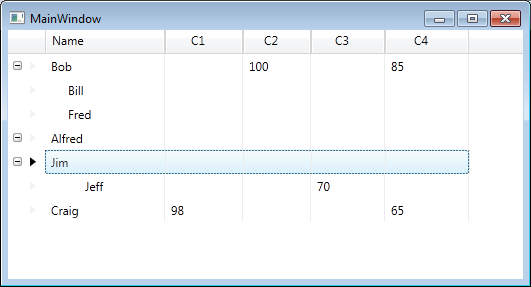
our view will now look like this

Dynamically added columns

Addendum

Whilst the above code works, at this point I would tend towards creating my own XamDataGrid derived class and implementing most/all the functionality in that class instead of the code behind. There may be alternate ways to achieve this, I’ve heard of people creating behaviors for the XamDataGrid to handle the creation of the dynamic columns.

Indenting column data in hierarchical data in the XamDataGrid

Before I start this post, let me just say I’m using an old version of the Infragistics XamDataGrid for this post, version 10.3. Hence this may have been changed in subsequent releases, but as I have a legacy application to support, that’s the version they’re using.

So in my previous blog posts on displaying hierarchical data within the XamDataGrid I demonstrated how to get the grid to look a little like a tree view, i.e. show the data in aligned columns etc. but I also mentioned that it wasn’t yet good enough as the child nodes are not indented.

So let’s look at how we might indent the child nodes so that they look more like a tree view and differentiate between child nodes and parent nodes.

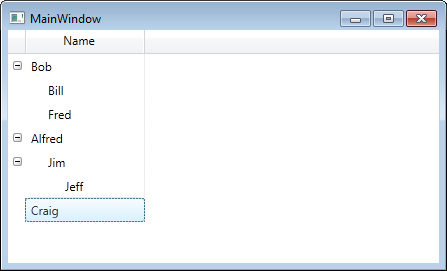
What we want to do is change this

Before indentation

to this

After indentation

Here’s a reminder of how our XAML looked at the end of the previous post

<igDP:XamDataGrid DataSource="{Binding}" GroupByAreaLocation="None" x:Name="grid"
   FieldPositionChanged="Grid_OnFieldPositionChanged">
   <igDP:XamDataGrid.Resources>
      <Style TargetType="{x:Type igDP:LabelPresenter}">
         <EventSetter Event="SizeChanged" Handler="EventSetter_OnHandler"/>
      </Style>
   </igDP:XamDataGrid.Resources>

   <igDP:XamDataGrid.FieldLayoutSettings>
      <igDP:FieldLayoutSettings ExpansionIndicatorDisplayMode="CheckOnDisplay"
         AutoGenerateFields="False"/>
   </igDP:XamDataGrid.FieldLayoutSettings>
   <igDP:XamDataGrid.FieldLayouts>

      <igDP:FieldLayout Key="parent">
         <igDP:FieldLayout.Fields>
            <igDP:Field Name="Name" />
            <igDP:Field Name="Manages" Visibility="Hidden" />
         </igDP:FieldLayout.Fields>
      </igDP:FieldLayout>

      <igDP:FieldLayout Key="child">
         <igDP:FieldLayout.Settings>
            <igDP:FieldLayoutSettings LabelLocation="Hidden" 
                 DataRecordPresenterStyle="{StaticResource childDataRecordStyle}"/>
         </igDP:FieldLayout.Settings>
         <igDP:FieldLayout.Fields>
            <igDP:Field Name="Name"/>
             <igDP:Field Name="Manages" Visibility="Hidden" />
         </igDP:FieldLayout.Fields>
      </igDP:FieldLayout>

   </igDP:XamDataGrid.FieldLayouts>
</igDP:XamDataGrid>

We’ve already used a value converter once, to align the columns, we’re going to use the same technique now to indent our cell data. Here’s the convert code

public class ChildCellValueConverter : IValueConverter
{
   public object Convert(object value, Type targetType, object parameter, CultureInfo culture)
   {
      return value == null ? Binding.DoNothing : new Thickness((((int)value / 2) * 17), 0, 0, 0);
   }

   public object ConvertBack(object value, Type targetType, object parameter, CultureInfo culture)
   {
      throw new NotImplementedException();
   }
}

Now let’s implement the resource code in XAML

<controls:ChildCellValueConverter x:Key="childCellValueConverter" />

<Style x:Key="childCellValueStyle" TargetType="{x:Type igDP:CellValuePresenter}">
   <Setter Property="Margin" Value="{Binding NestingDepth, Converter={StaticResource childCellValueConverter}}"/>
</Style>

and finally we need to update the field layout (for the “child”) to add the following (within the Field “Name” element

<igDP:Field.Settings>
   <igDP:FieldSettings CellValuePresenterStyle="{StaticResource childCellValueStyle}" />
</igDP:Field.Settings>

and there we have it. Now the child records indent.

Note: Unfortunately the solution to displaying the child nodes offset from the parent nodes is not perfect. You may notice white space where text should be for some rows. If I come up with a solution I’ll update this post accordingly.

Solving the display of alternate layouts for hierarchical view model in the XamDataGrid

Before I start this post, let me just say I’m using an old version of the Infragistics XamDataGrid for this post, version 10.3. Hence this may have been changed in subsequent releases, but as I have a legacy application to support, that’s the version they’re using.

From previous posts you’ll notice we had to create an altered view of our preferred view model, i.e. we should just have an EmployeeViewModel which has a property, named Manages, which is itself a collection of EmployeeViewModel objects, instead we ended up creating a ManagerViewModel and EmployeeViewModel (please refer to the previous posts for more info). So I want to use the following view model now (and fix this problem with field layouts)

public class EmployeeViewModel
{
   public EmployeeViewModel()
   {
      Manages = new ObservableCollection<EmployeeViewModel>();
   }

   public string Name { get; set; }
   public ObservableCollection<EmployeeViewModel> Manages { get; private set; }
}	

and just for completeness, here’s a factory to show our sample data

public static class EmployeeViewModelFactory
{
   public static ObservableCollection<EmployeeViewModel> Create()
   {
      var employees = new ObservableCollection<EmployeeViewModel>();

      var bob = new EmployeeViewModel { Name = "Bob" };
      var bill = new EmployeeViewModel { Name = "Bill" };
      var fred = new EmployeeViewModel { Name = "Fred" };
      var alfred = new EmployeeViewModel { Name = "Alfred" };
      var jim = new EmployeeViewModel { Name = "Jim" };
      var jeff = new EmployeeViewModel { Name = "Jeff" };
      var craig = new EmployeeViewModel { Name = "Craig" };

      bob.Manages.Add(bill);
      bob.Manages.Add(fred);

      alfred.Manages.Add(jim);

      jim.Manages.Add(jeff);

      employees.Add(bob);
      employees.Add(alfred);
      employees.Add(craig);

      return employees;
   }
}

So here’s the XAML we’d like to use

<igDP:XamDataGrid DataSource="{Binding}" GroupByAreaLocation="None" x:Name="grid"
      FieldPositionChanged="Grid_OnFieldPositionChanged">
   <igDP:XamDataGrid.Resources>
      <Style TargetType="{x:Type igDP:LabelPresenter}">
         <EventSetter Event="SizeChanged" Handler="EventSetter_OnHandler"/>
      </Style>
  </igDP:XamDataGrid.Resources>

  <igDP:XamDataGrid.FieldLayoutSettings>
     <igDP:FieldLayoutSettings ExpansionIndicatorDisplayMode="CheckOnDisplay"
           AutoGenerateFields="False"/>
     </igDP:XamDataGrid.FieldLayoutSettings>
     <igDP:XamDataGrid.FieldLayouts>
                
        <igDP:FieldLayout>
           <igDP:FieldLayout.Fields>
              <igDP:Field Name="Name" />
              <igDP:Field Name="Manages" Visibility="Hidden" />
           </igDP:FieldLayout.Fields>
        </igDP:FieldLayout>

        <igDP:FieldLayout>
           <igDP:FieldLayout.Settings>
              <igDP:FieldLayoutSettings LabelLocation="Hidden" />
           </igDP:FieldLayout.Settings>
           <igDP:FieldLayout.Fields>
              <igDP:Field Name="Name" />
              <igDP:Field Name="Manages" Visibility="Hidden" />
           </igDP:FieldLayout.Fields>
       </igDP:FieldLayout>
                
    </igDP:XamDataGrid.FieldLayouts>
</igDP:XamDataGrid>

and finally here’s the code behind

private void EventSetter_OnHandler(object sender, SizeChangedEventArgs e)
{
   var lp = sender as LabelPresenter;
   if (lp != null)
   {
      if (grid.FieldLayouts[0].Fields.Contains(lp.Field))
      {
         var f = grid.FieldLayouts[1].Fields[lp.Field.Index];
         f.Width = new FieldLength(lp.Field.CellWidthResolved);
      }

      if (grid.FieldLayouts[1].Fields.Contains(lp.Field))
      {
         var f = grid.FieldLayouts[0].Fields[lp.Field.Index];
         f.Width = new FieldLength(lp.Field.CellWidthResolved);
      }
   }
}

private void Grid_OnFieldPositionChanged(object sender, FieldPositionChangedEventArgs e)
{
   if (grid.FieldLayouts[0].Fields.Contains(e.Field))
   {
      foreach (var field in grid.FieldLayouts[0].Fields)
      {
         if (field.Index < grid.FieldLayouts[1].Fields.Count)
         {
            var field2 = grid.FieldLayouts[1].Fields[field.Index];
            field2.ActualPosition = new FieldPosition(field.ActualPosition.Column,
                        field.ActualPosition.Row,
                        field.ActualPosition.ColumnSpan,
                        field.ActualPosition.RowSpan);
         }
      }
   }
}

Note: I’m using the two methods I originally defined which expect two field layout objects only, feel free to substitute them for the more generic ones I showed in a previous post

Now the problem we had previously with this self-referencing view model is that XamDataGrid matches to the first field layout everytime, we’re going to programmatically change this. As you can see from the XAML, the second field layout hides the LabelLocation, so what we want is that when rendering the child nodes, we use the second field layout and obviously when rendering the parent, we want the first field layout. So let’s assign keys to both field layouts.

I’ve given the key “parent” to the first field layout and “child” to the second, i.e.

<igDP:FieldLayout Key="parent">
   <!--- removed for brevity -->
</igDP:FieldLayout>

<igDP:FieldLayout Key="child">
   <!--- removed for brevity -->
</igDP:FieldLayout> 

Now in the code behind (assuming the XamDataGrid has the x:Name “grid”) we can simply add one line to the constructor of the Window hosting the XamDataGrid

grid.AssigningFieldLayoutToItem += grid_AssigningFieldLayoutToItem;

and then create the following method

private void grid_AssigningFieldLayoutToItem(object sender, AssigningFieldLayoutToItemEventArgs e)
{
   if (e.Item != null)
   {
      e.FieldLayout = 
           e.ParentExpandableFieldRecord == null ? 
           grid.FieldLayouts["parent"] : 
           grid.FieldLayouts["child"];			
   }
}

So now you’ll notice that child nodes no longer display the header but the parent nodes still do.

If you’ve recreated this code you’ll notice we’re back to the problem we fixed in a previous post, regarding the child columns not in alignment with the parents.

We can fix this quite easily (although all the kudos for this goes to a colleague of mine who solved this a while ago). What we need to do is created a new DataRecordPresenterStyle for the child layout’s field layout settings, thus

<igDP:FieldLayoutSettings 
     LabelLocation="Hidden" 
     DataRecordPresenterStyle="{StaticResource childDataRecordStyle}"/>

and the corresponding childDataRecordStyle will be declared in the resources section as

<controls:ChildDataRecordConverter x:Key="childDataRecordConverter" />

<Style x:Key="childDataRecordStyle" TargetType="{x:Type igDP:DataRecordPresenter}">
   <Setter Property="RenderTransform">
      <Setter.Value>
         <TranslateTransform Y="0" 
               X="{Binding NestingDepth, Converter={StaticResource childDataRecordConverter}}" />
      </Setter.Value>
   </Setter>
</Style>

Finally we need the converter code

public class ChildDataRecordConverter : IValueConverter
{
   public object Convert(object value, Type targetType, object parameter, CultureInfo culture)
   {
      return value == null ? Binding.DoNothing : -(((int) value/2)*17);
   }

   public object ConvertBack(object value, Type targetType, object parameter, CultureInfo culture)
   {
      throw new NotImplementedException();
   }
}

The trick here is we’re going to transform the rendering of the data record using the nesting depth.

At this point we should now have a view model that looks more natural and columns all lining up, but we still have one problem to solve. The child records need to indent slightly to better show they’re child nodes of a parent node – currently it’s difficult to see (when expanded) whan are child and what are parent nodes. So we’ll look at solving this in the next post.

Synchronizing the columns in hierarchical in a XamDataGrid

Before I start this post, let me just say I’m using an old version of the Infragistics XamDataGrid for this post, version 10.3. Hence this may have been changed in subsequent releases, but as I have a legacy application to support, that’s the version they’re using.

If you followed my previous post on using hierarchical data in a XamDataGrid, you’ll have noticed that the final image was hardly impressive, in that columns were not all in sync and if you resize a column, not all columns resize.

For now, let’s remove the second FieldLayout’s hidden field, so our XAML looks like the following (I’ve commented out the offending line)

<igDP:XamDataGrid GroupByAreaLocation="None" DataSource="{Binding}" Name="Grid">
   <igDP:XamDataGrid.FieldLayoutSettings>
      <igDP:FieldLayoutSettings ExpansionIndicatorDisplayMode="CheckOnDisplay"
                                          AutoGenerateFields="False"/>
   </igDP:XamDataGrid.FieldLayoutSettings>
   <igDP:XamDataGrid.FieldLayouts>
      <igDP:FieldLayout>
         <igDP:FieldLayout.Fields>
            <igDP:Field Name="Name" />
            <igDP:Field Name="Manages" Visibility="Hidden" />
         </igDP:FieldLayout.Fields>
      </igDP:FieldLayout>

      <igDP:FieldLayout>
         <igDP:FieldLayout.Settings>
            <igDP:FieldLayoutSettings LabelLocation="Hidden" />
         </igDP:FieldLayout.Settings>
         <igDP:FieldLayout.Fields>
            <igDP:Field Name="Name" />
            <!-- remove this line for now
            <igDP:Field Name="DepartmentManages" Visibility="Hidden" />
            -->
         </igDP:FieldLayout.Fields>
      </igDP:FieldLayout>

   </igDP:XamDataGrid.FieldLayouts>
</igDP:XamDataGrid>

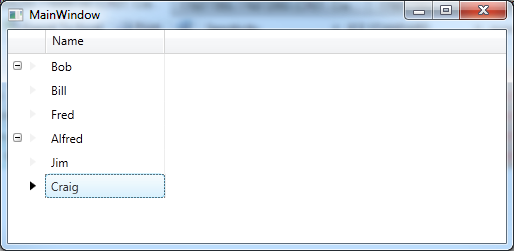
This will produce the following

Columns aligned in parent child relationship

However, this is an illusion that. All is still not quite as we want – if we resize the parent then you’ll see that child columns do not remain in sync with the parent. To handle this, let’s go back to the XAML and add the following to the XamDataGrid

Note: I gave the XamDataGrid the name “Grid” as we’re going to need to write some code for the following changes in functionality.

<igDP:XamDataGrid.Resources>
   <Style TargetType="{x:Type igDP:LabelPresenter}">
      <EventSetter Event="SizeChanged" Handler="EventSetter_OnHandler"/>
   </Style>
</igDP:XamDataGrid.Resources>

The EventSetter_OnHandler code looks like this

private void EventSetter_OnHandler(object sender, SizeChangedEventArgs e)
{
   var lp = sender as LabelPresenter;
   if (lp != null)
   {
      if (Grid.FieldLayouts[0].Fields.Contains(lp.Field))
      {
         var f = Grid.FieldLayouts[1].Fields[lp.Field.Index];
         f.Width = new FieldLength(lp.Field.CellWidthResolved);
      }

      if (Grid.FieldLayouts[1].Fields.Contains(lp.Field))
      {
         var f = Grid.FieldLayouts[0].Fields[lp.Field.Index];
         f.Width = new FieldLength(lp.Field.CellWidthResolved);
      }
   }
}

Now when you resize the columns all will remain in sync, however as you can see from the code this is all a little nasty in that it’s very much dependent upon the number of FieldLayouts you have etc.

Let’s not worry too much about that at the moment. As there’s something a little more pressing, if you happend to expose multiple columns, for example, suppose I added an age column to the parent and child view models and added the fields to the XAML. When moving a column around you’ll notice the child will not reorganise it’s columns, so you’d end up with, for example – the parent columns Age followed by Name whereas the child would be Name followed by Age.

To fix this add the following FieldPositionChanged event intot he XamDataGrid

<igDP:XamDataGrid GroupByAreaLocation="None" 
    DataSource="{Binding}" 
    Name="Grid" 
    FieldPositionChanged="Grid_OnFieldPositionChanged"> <!-- our new addition -->

In the source code we’d now need to add the following

private void Grid_OnFieldPositionChanged(object sender, FieldPositionChangedEventArgs e)
{
   if (Grid.FieldLayouts[0].Fields.Contains(e.Field))
   {
      foreach (var field in Grid.FieldLayouts[0].Fields)
      {
         if (field.Index < Grid.FieldLayouts[1].Fields.Count)
         {
            var field2 = Grid.FieldLayouts[1].Fields[field.Index];
            field2.ActualPosition = new FieldPosition(field.ActualPosition.Column, 
                        field.ActualPosition.Row, 
                        field.ActualPosition.ColumnSpan, 
                        field.ActualPosition.RowSpan);
         }
      }
   }

   if (Grid.FieldLayouts[1].Fields.Contains(e.Field))
   {
      foreach (var field in Grid.FieldLayouts[1].Fields)
      {
         var field2 = Grid.FieldLayouts[0].Fields[field.Index];
         field2.ActualPosition = new FieldPosition(field.ActualPosition.Column, 
                     field.ActualPosition.Row, 
                     field.ActualPosition.ColumnSpan, 
                     field.ActualPosition.RowSpan);
      }
   }
}

Notice again we need to have knowledge about the number of field layouts to handle this correctly, but this will now work. Reordering the columns occurs across all rows.

This is not perfect – and obviously we need to look at rewriting our code to handle any number of FieldLayouts, but it’s a start. I’ve more things I need to do with this hierarchical data, so if it’s interesting enough I’ll continue with further posts, but for now, between this and the previous post on the subject, we can now display hierarchical data and keep the columns in sync.

Addendum

After writing this post I found a mad desire to rewrite the code to handle multiple FieldLayouts, this has not been tested fully (so use at your own risk) but here goes

private void EventSetter_OnHandler(object sender, SizeChangedEventArgs e)
{
   var lp = sender as LabelPresenter;
   if (lp != null)
   {
      var found = Grid.FieldLayouts.FirstOrDefault(fl => fl.Fields.Contains(lp.Field));
      if (found != null)
      {
         foreach (var fl in Grid.FieldLayouts)
         {
            if (!fl.Equals(found))
            {
               var f = fl.Fields[lp.Field.Index];
               f.Width = new FieldLength(lp.Field.CellWidthResolved);							
            }
         }
     }
   }
}

private void Grid_OnFieldPositionChanged(object sender, FieldPositionChangedEventArgs e)
{
   var found = Grid.FieldLayouts.FirstOrDefault(fl => fl.Fields.Contains(e.Field));
   if (found != null)
   {
      foreach (var field in found.Fields)
      {
         foreach (var fl in Grid.FieldLayouts)
         {
            if (!fl.Equals(found))
            {
               if (field.Index < fl.Fields.Count)
               {
                  var f = fl.Fields[field.Index];
                  f.ActualPosition = new FieldPosition(
                       field.ActualPosition.Column, 
                       field.ActualPosition.Row, 
                       field.ActualPosition.ColumnSpan, 
                       field.ActualPosition.RowSpan);
               }
            }
         }
      }
   }
}

Update

Revisiting this code to use it on a project I’m working on, I found I’d missed a piece off. When resizing the columns from the parent/header this works fine but XamDataGrid allows you to resize the child rows and we don’t have code to resize the parents and keep in sync.

An easy way to “fix” this is to disable resizing on columns except for on the header which we can achieve easily by adding to our grid XAML

PreviewMouseMove="Grid_OnPreviewMouseMove"

and in our code behind we have

// you'll need this using Infragistics.Windows;
private void Grid_OnPreviewMouseMove(object sender, MouseEventArgs e)
{
   var lp = Utilities.GetAncestorFromType(e.OriginalSource as DependencyObject, 
                typeof(LabelPresenter), true) as LabelPresenter;

   if (lp == null)
   {
      var cvp = Utilities.GetAncestorFromType(e.OriginalSource as DependencyObject, 
                    typeof(CellValuePresenter), true) as CellValuePresenter;
      if (cvp != null)
      {
         cvp.Field.Settings.AllowResize = false;
      }
   }
   else
   {
      lp.Field.Settings.AllowResize = true;
   }
}