Author Archives: purpleblob

Dynamic columns within the XamDataGrid

Before I start this post, let me just say I’m using an old version of the Infragistics XamDataGrid for this post, version 10.3. Hence this may have been changed in subsequent releases, but as I have a legacy application to support, that’s the version they’re using.

In the past few posts I’ve been looking at implementing a hierarchical data model and displaying it using the XamDataGrid is a similar way to a tree view might work. For the project I’m currently working on we also have the requirement to display an unknown number of columns.

If we take the previous examples where we had the following view model

public class EmployeeViewModel
{
   public EmployeeViewModel()
   {
      Manages = new ObservableCollection<EmployeeViewModel>();
   }

   public string Name { get; set; }
   public ObservableCollection<EmployeeViewModel> Manages { get; private set; }
}

Let’s assume each employee will need to take an unspecified number of courses each year. Some employees might need to take one group of courses whilst others may take another group of courses but we want to see them all listed against each employee.

Ofcourse we could simply add an ObservableCollection with every available course stored for each employee within this list, but this may be neither feasible or desirable.

Another alternative might be to use a DataTable and obviously populate this as necessary.

But I’m going to implement this functionality all inside a our XamDataGrid derived class. As we’re already handling similar changes in code for the hierarchical data, I don’t feel too dirty writing more code.

Let’s see the code

The view model will looks as follows

public class CourseViewModel
{
   public string Name { get; set; }
   public double Score { get; set; }
}

public class EmployeeViewModel
{
   public EmployeeViewModel()
   {
      Manages = new ObservableCollection<EmployeeViewModel>();
      Courses = new ObservableCollection<CourseViewModel>();
   }

   public string Name { get; set; }
   public ObservableCollection<EmployeeViewModel> Manages { get; private set; }
   public ObservableCollection<CourseViewModel> Courses { get; private set; }

   public double? this[string course]
   {
      get
      {
         var result = Courses.FirstOrDefault(c => c.Name == course);
         return result == null ? (double?)null : result.Score;
      }
   }
}

The key additions to the previous implementation of the EmployeeViewModel (from previous posts) is the addition of the Courses collection, but more interesting is the addition of the indexer. This will be used when the XamDataGrid is after the Score for the Course for the specific column of data.

In the code behind, we’ll declare the following (at the class level)

private readonly IList<Field> dynamicParentFields = new List<Field>();
private readonly IList<Field> dynamicChildFields = new List<Field>();

private readonly List<string> courses = new List<string>();

private readonly IValueConverter courseValueConverter;

and within the constructor of the code behind class we’ll have the following (after the DataContext has been assigned)

courseValueConverter = new CourseValueConverter();

TraverseCourses((IList<EmployeeViewModel>) DataContext);
courses.Sort();

and here’s the rest of the methods in the code behind

private void TraverseCourses(IEnumerable<EmployeeViewModel> employees)
{
   if (employees == null)
      return;

   foreach (var employee in employees)
   {
      TraverseCourses(employee.Manages);
      foreach (var course in employee.Courses)
      {
         if (courses.FirstOrDefault(c => c == course.Name) == null)
         {
            courses.Add(course.Name);
         }
      }
   }			
}

private void AddDynamicFields(FieldLayout layout, IList<Field> fields)
{
   foreach (var field in fields)
   {
      layout.Fields.Remove(field);
   }
   fields.Clear();

   var rootPropertyPath = new PropertyPath("");

   foreach (var course in courses)
   {
      var field = CreateDynamicField(rootPropertyPath, course);
      layout.Fields.Add(field);
      fields.Add(field);
   }
}

private UnboundField CreateDynamicField(PropertyPath rootPropertyPath, string course)
{
   return new UnboundField
   {
      Name = course,
      Label = course,
      DataType = typeof(object),
      Binding = new Binding
      {
         Path = rootPropertyPath,
         Mode = BindingMode.OneWay,
         Converter = courseValueConverter,
         ConverterParameter = course
      },
      Settings =
      {
         AllowEdit = false,
         LabelTextAlignment = TextAlignment.Center,
         EditorType = typeof(XamTextEditor)
      },
   };
}

and one more thing in the code behind, we need to alter the AssigningFieldLayoutToItem method that we created a event handler off of in the previous posts, it will now look like this

private void grid_AssigningFieldLayoutToItem(object sender, 
            AssigningFieldLayoutToItemEventArgs e)
{
   if (e.Item != null)
   {
      AddDynamicFields(grid.FieldLayouts["parent"], dynamicParentFields);
      AddDynamicFields(grid.FieldLayouts["child"], dynamicChildFields);

      e.FieldLayout = 
          e.ParentExpandableFieldRecord == null ? 
          grid.FieldLayouts["parent"] : 
          grid.FieldLayouts["child"];
   }
}

The final piece of the jigsaw is the CourseValueConverter which looks like this

public class CourseValueConverter : IValueConverter
{
   public object Convert(object value, Type targetType, object parameter, CultureInfo culture)
   {
      if (value is EmployeeViewModel && parameter is string)
      {
         var result = value as EmployeeViewModel;
         var course = (string)parameter;
         return result[course];
      }
      return null;
   }

   public object ConvertBack(object value, Type targetType, object parameter, CultureInfo culture)
   {
      throw new NotImplementedException();
   }
}

How does this work

So basically at some point after the model has been created, we traverse the EmployeeViewModel tree and get all distinct course names. Obviously in a production environment we’ll also need to handle data changes on the DataContext to ensure we refresh this list as needed.

During the AssigningFieldLayoutToItem event we populate the field layouts (in this sample we’ve restricted the code to the two known field layouts, ofcourse you may need to handle this more generically).

The AddDynamicField method clears any dynamic fields that we’ve created (we keep track of those fields in the dynamicParentFields and dynamicChildFields lists), then we create new Unbound fields for each dynamic field, we assign a converter and pass in the field name (in this case the course name).

The converter does the real work. It’s passed the current EmployeeViewModel by the XamDataGrid, from this it calls the EmployeeViewModel indexer with the parameter (the course name) assigned to the field. Ofcourse we could replace the indexer with a method if we preferred.

Finally the instance of the EmployeeViewModel then checks it’s courses collection for the supplied course and if it’s got it, returns a value, in this case the score.

If our data looked as follows

public static class EmployeeViewModelFactory
{
   public static ObservableCollection<EmployeeViewModel> Create()
   {
      var employees = new ObservableCollection<EmployeeViewModel>();

      var bob = new EmployeeViewModel { Name = "Bob" };
      var bill = new EmployeeViewModel { Name = "Bill" };
      var fred = new EmployeeViewModel { Name = "Fred" };
      var alfred = new EmployeeViewModel { Name = "Alfred" };
      var jim = new EmployeeViewModel { Name = "Jim" };
      var jeff = new EmployeeViewModel { Name = "Jeff" };
      var craig = new EmployeeViewModel { Name = "Craig" };

      bob.Courses.Add(new CourseViewModel { Name = "C2", Score = 100 });
      bob.Courses.Add(new CourseViewModel { Name = "C4", Score = 85 });

      craig.Courses.Add(new CourseViewModel { Name = "C1", Score = 98 });
      craig.Courses.Add(new CourseViewModel { Name = "C4", Score = 65 });

      jeff.Courses.Add(new CourseViewModel { Name = "C3", Score = 70 });

      bob.Manages.Add(bill);
      bob.Manages.Add(fred);

      alfred.Manages.Add(jim);

      jim.Manages.Add(jeff);

      employees.Add(bob);
      employees.Add(alfred);
      employees.Add(craig);

     return employees;
   }
}

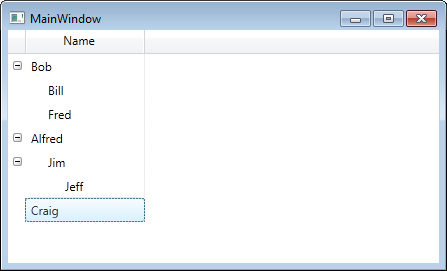
our view will now look like this
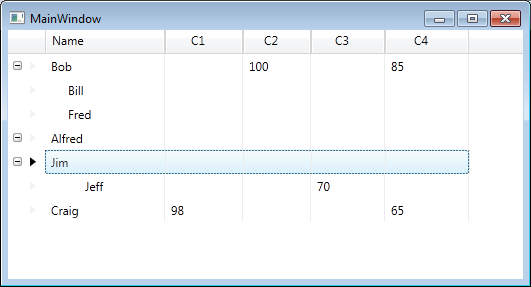
Dynamically added columns

Addendum

Whilst the above code works, at this point I would tend towards creating my own XamDataGrid derived class and implementing most/all the functionality in that class instead of the code behind. There may be alternate ways to achieve this, I’ve heard of people creating behaviors for the XamDataGrid to handle the creation of the dynamic columns.
Indenting column data in hierarchical data in the XamDataGrid

Before I start this post, let me just say I’m using an old version of the Infragistics XamDataGrid for this post, version 10.3. Hence this may have been changed in subsequent releases, but as I have a legacy application to support, that’s the version they’re using.

So in my previous blog posts on displaying hierarchical data within the XamDataGrid I demonstrated how to get the grid to look a little like a tree view, i.e. show the data in aligned columns etc. but I also mentioned that it wasn’t yet good enough as the child nodes are not indented.

So let’s look at how we might indent the child nodes so that they look more like a tree view and differentiate between child nodes and parent nodes.

What we want to do is change this

Before indentation

to this

After indentation

Here’s a reminder of how our XAML looked at the end of the previous post

<igDP:XamDataGrid DataSource="{Binding}" GroupByAreaLocation="None" x:Name="grid"
   FieldPositionChanged="Grid_OnFieldPositionChanged">
   <igDP:XamDataGrid.Resources>
      <Style TargetType="{x:Type igDP:LabelPresenter}">
         <EventSetter Event="SizeChanged" Handler="EventSetter_OnHandler"/>
      </Style>
   </igDP:XamDataGrid.Resources>

   <igDP:XamDataGrid.FieldLayoutSettings>
      <igDP:FieldLayoutSettings ExpansionIndicatorDisplayMode="CheckOnDisplay"
         AutoGenerateFields="False"/>
   </igDP:XamDataGrid.FieldLayoutSettings>
   <igDP:XamDataGrid.FieldLayouts>

      <igDP:FieldLayout Key="parent">
         <igDP:FieldLayout.Fields>
            <igDP:Field Name="Name" />
            <igDP:Field Name="Manages" Visibility="Hidden" />
         </igDP:FieldLayout.Fields>
      </igDP:FieldLayout>

      <igDP:FieldLayout Key="child">
         <igDP:FieldLayout.Settings>
            <igDP:FieldLayoutSettings LabelLocation="Hidden" 
                 DataRecordPresenterStyle="{StaticResource childDataRecordStyle}"/>
         </igDP:FieldLayout.Settings>
         <igDP:FieldLayout.Fields>
            <igDP:Field Name="Name"/>
             <igDP:Field Name="Manages" Visibility="Hidden" />
         </igDP:FieldLayout.Fields>
      </igDP:FieldLayout>

   </igDP:XamDataGrid.FieldLayouts>
</igDP:XamDataGrid>

We’ve already used a value converter once, to align the columns, we’re going to use the same technique now to indent our cell data. Here’s the convert code

public class ChildCellValueConverter : IValueConverter
{
   public object Convert(object value, Type targetType, object parameter, CultureInfo culture)
   {
      return value == null ? Binding.DoNothing : new Thickness((((int)value / 2) * 17), 0, 0, 0);
   }

   public object ConvertBack(object value, Type targetType, object parameter, CultureInfo culture)
   {
      throw new NotImplementedException();
   }
}

Now let’s implement the resource code in XAML

<controls:ChildCellValueConverter x:Key="childCellValueConverter" />

<Style x:Key="childCellValueStyle" TargetType="{x:Type igDP:CellValuePresenter}">
   <Setter Property="Margin" Value="{Binding NestingDepth, Converter={StaticResource childCellValueConverter}}"/>
</Style>

and finally we need to update the field layout (for the “child”) to add the following (within the Field “Name” element

<igDP:Field.Settings>
   <igDP:FieldSettings CellValuePresenterStyle="{StaticResource childCellValueStyle}" />
</igDP:Field.Settings>

and there we have it. Now the child records indent.

Note: Unfortunately the solution to displaying the child nodes offset from the parent nodes is not perfect. You may notice white space where text should be for some rows. If I come up with a solution I’ll update this post accordingly.

Solving the display of alternate layouts for hierarchical view model in the XamDataGrid

Before I start this post, let me just say I’m using an old version of the Infragistics XamDataGrid for this post, version 10.3. Hence this may have been changed in subsequent releases, but as I have a legacy application to support, that’s the version they’re using.

From previous posts you’ll notice we had to create an altered view of our preferred view model, i.e. we should just have an EmployeeViewModel which has a property, named Manages, which is itself a collection of EmployeeViewModel objects, instead we ended up creating a ManagerViewModel and EmployeeViewModel (please refer to the previous posts for more info). So I want to use the following view model now (and fix this problem with field layouts)

public class EmployeeViewModel
{
   public EmployeeViewModel()
   {
      Manages = new ObservableCollection<EmployeeViewModel>();
   }

   public string Name { get; set; }
   public ObservableCollection<EmployeeViewModel> Manages { get; private set; }
}	

and just for completeness, here’s a factory to show our sample data

public static class EmployeeViewModelFactory
{
   public static ObservableCollection<EmployeeViewModel> Create()
   {
      var employees = new ObservableCollection<EmployeeViewModel>();

      var bob = new EmployeeViewModel { Name = "Bob" };
      var bill = new EmployeeViewModel { Name = "Bill" };
      var fred = new EmployeeViewModel { Name = "Fred" };
      var alfred = new EmployeeViewModel { Name = "Alfred" };
      var jim = new EmployeeViewModel { Name = "Jim" };
      var jeff = new EmployeeViewModel { Name = "Jeff" };
      var craig = new EmployeeViewModel { Name = "Craig" };

      bob.Manages.Add(bill);
      bob.Manages.Add(fred);

      alfred.Manages.Add(jim);

      jim.Manages.Add(jeff);

      employees.Add(bob);
      employees.Add(alfred);
      employees.Add(craig);

      return employees;
   }
}

So here’s the XAML we’d like to use

<igDP:XamDataGrid DataSource="{Binding}" GroupByAreaLocation="None" x:Name="grid"
      FieldPositionChanged="Grid_OnFieldPositionChanged">
   <igDP:XamDataGrid.Resources>
      <Style TargetType="{x:Type igDP:LabelPresenter}">
         <EventSetter Event="SizeChanged" Handler="EventSetter_OnHandler"/>
      </Style>
  </igDP:XamDataGrid.Resources>

  <igDP:XamDataGrid.FieldLayoutSettings>
     <igDP:FieldLayoutSettings ExpansionIndicatorDisplayMode="CheckOnDisplay"
           AutoGenerateFields="False"/>
     </igDP:XamDataGrid.FieldLayoutSettings>
     <igDP:XamDataGrid.FieldLayouts>
                
        <igDP:FieldLayout>
           <igDP:FieldLayout.Fields>
              <igDP:Field Name="Name" />
              <igDP:Field Name="Manages" Visibility="Hidden" />
           </igDP:FieldLayout.Fields>
        </igDP:FieldLayout>

        <igDP:FieldLayout>
           <igDP:FieldLayout.Settings>
              <igDP:FieldLayoutSettings LabelLocation="Hidden" />
           </igDP:FieldLayout.Settings>
           <igDP:FieldLayout.Fields>
              <igDP:Field Name="Name" />
              <igDP:Field Name="Manages" Visibility="Hidden" />
           </igDP:FieldLayout.Fields>
       </igDP:FieldLayout>
                
    </igDP:XamDataGrid.FieldLayouts>
</igDP:XamDataGrid>

and finally here’s the code behind

private void EventSetter_OnHandler(object sender, SizeChangedEventArgs e)
{
   var lp = sender as LabelPresenter;
   if (lp != null)
   {
      if (grid.FieldLayouts[0].Fields.Contains(lp.Field))
      {
         var f = grid.FieldLayouts[1].Fields[lp.Field.Index];
         f.Width = new FieldLength(lp.Field.CellWidthResolved);
      }

      if (grid.FieldLayouts[1].Fields.Contains(lp.Field))
      {
         var f = grid.FieldLayouts[0].Fields[lp.Field.Index];
         f.Width = new FieldLength(lp.Field.CellWidthResolved);
      }
   }
}

private void Grid_OnFieldPositionChanged(object sender, FieldPositionChangedEventArgs e)
{
   if (grid.FieldLayouts[0].Fields.Contains(e.Field))
   {
      foreach (var field in grid.FieldLayouts[0].Fields)
      {
         if (field.Index < grid.FieldLayouts[1].Fields.Count)
         {
            var field2 = grid.FieldLayouts[1].Fields[field.Index];
            field2.ActualPosition = new FieldPosition(field.ActualPosition.Column,
                        field.ActualPosition.Row,
                        field.ActualPosition.ColumnSpan,
                        field.ActualPosition.RowSpan);
         }
      }
   }
}

Note: I’m using the two methods I originally defined which expect two field layout objects only, feel free to substitute them for the more generic ones I showed in a previous post

Now the problem we had previously with this self-referencing view model is that XamDataGrid matches to the first field layout everytime, we’re going to programmatically change this. As you can see from the XAML, the second field layout hides the LabelLocation, so what we want is that when rendering the child nodes, we use the second field layout and obviously when rendering the parent, we want the first field layout. So let’s assign keys to both field layouts.

I’ve given the key “parent” to the first field layout and “child” to the second, i.e.

<igDP:FieldLayout Key="parent">
   <!--- removed for brevity -->
</igDP:FieldLayout>

<igDP:FieldLayout Key="child">
   <!--- removed for brevity -->
</igDP:FieldLayout> 

Now in the code behind (assuming the XamDataGrid has the x:Name “grid”) we can simply add one line to the constructor of the Window hosting the XamDataGrid

grid.AssigningFieldLayoutToItem += grid_AssigningFieldLayoutToItem;

and then create the following method

private void grid_AssigningFieldLayoutToItem(object sender, AssigningFieldLayoutToItemEventArgs e)
{
   if (e.Item != null)
   {
      e.FieldLayout = 
           e.ParentExpandableFieldRecord == null ? 
           grid.FieldLayouts["parent"] : 
           grid.FieldLayouts["child"];			
   }
}

So now you’ll notice that child nodes no longer display the header but the parent nodes still do.

If you’ve recreated this code you’ll notice we’re back to the problem we fixed in a previous post, regarding the child columns not in alignment with the parents.

We can fix this quite easily (although all the kudos for this goes to a colleague of mine who solved this a while ago). What we need to do is created a new DataRecordPresenterStyle for the child layout’s field layout settings, thus

<igDP:FieldLayoutSettings 
     LabelLocation="Hidden" 
     DataRecordPresenterStyle="{StaticResource childDataRecordStyle}"/>

and the corresponding childDataRecordStyle will be declared in the resources section as

<controls:ChildDataRecordConverter x:Key="childDataRecordConverter" />

<Style x:Key="childDataRecordStyle" TargetType="{x:Type igDP:DataRecordPresenter}">
   <Setter Property="RenderTransform">
      <Setter.Value>
         <TranslateTransform Y="0" 
               X="{Binding NestingDepth, Converter={StaticResource childDataRecordConverter}}" />
      </Setter.Value>
   </Setter>
</Style>

Finally we need the converter code

public class ChildDataRecordConverter : IValueConverter
{
   public object Convert(object value, Type targetType, object parameter, CultureInfo culture)
   {
      return value == null ? Binding.DoNothing : -(((int) value/2)*17);
   }

   public object ConvertBack(object value, Type targetType, object parameter, CultureInfo culture)
   {
      throw new NotImplementedException();
   }
}

The trick here is we’re going to transform the rendering of the data record using the nesting depth.

At this point we should now have a view model that looks more natural and columns all lining up, but we still have one problem to solve. The child records need to indent slightly to better show they’re child nodes of a parent node – currently it’s difficult to see (when expanded) whan are child and what are parent nodes. So we’ll look at solving this in the next post.

Synchronizing the columns in hierarchical in a XamDataGrid

Before I start this post, let me just say I’m using an old version of the Infragistics XamDataGrid for this post, version 10.3. Hence this may have been changed in subsequent releases, but as I have a legacy application to support, that’s the version they’re using.

If you followed my previous post on using hierarchical data in a XamDataGrid, you’ll have noticed that the final image was hardly impressive, in that columns were not all in sync and if you resize a column, not all columns resize.

For now, let’s remove the second FieldLayout’s hidden field, so our XAML looks like the following (I’ve commented out the offending line)

<igDP:XamDataGrid GroupByAreaLocation="None" DataSource="{Binding}" Name="Grid">
   <igDP:XamDataGrid.FieldLayoutSettings>
      <igDP:FieldLayoutSettings ExpansionIndicatorDisplayMode="CheckOnDisplay"
                                          AutoGenerateFields="False"/>
   </igDP:XamDataGrid.FieldLayoutSettings>
   <igDP:XamDataGrid.FieldLayouts>
      <igDP:FieldLayout>
         <igDP:FieldLayout.Fields>
            <igDP:Field Name="Name" />
            <igDP:Field Name="Manages" Visibility="Hidden" />
         </igDP:FieldLayout.Fields>
      </igDP:FieldLayout>

      <igDP:FieldLayout>
         <igDP:FieldLayout.Settings>
            <igDP:FieldLayoutSettings LabelLocation="Hidden" />
         </igDP:FieldLayout.Settings>
         <igDP:FieldLayout.Fields>
            <igDP:Field Name="Name" />
            <!-- remove this line for now
            <igDP:Field Name="DepartmentManages" Visibility="Hidden" />
            -->
         </igDP:FieldLayout.Fields>
      </igDP:FieldLayout>

   </igDP:XamDataGrid.FieldLayouts>
</igDP:XamDataGrid>

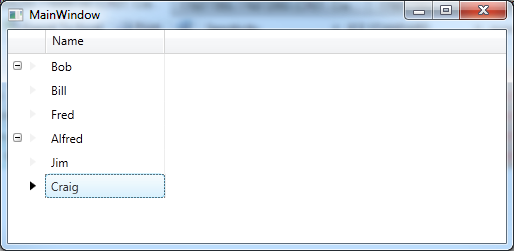
This will produce the following

Columns aligned in parent child relationship

However, this is an illusion that. All is still not quite as we want – if we resize the parent then you’ll see that child columns do not remain in sync with the parent. To handle this, let’s go back to the XAML and add the following to the XamDataGrid

Note: I gave the XamDataGrid the name “Grid” as we’re going to need to write some code for the following changes in functionality.

<igDP:XamDataGrid.Resources>
   <Style TargetType="{x:Type igDP:LabelPresenter}">
      <EventSetter Event="SizeChanged" Handler="EventSetter_OnHandler"/>
   </Style>
</igDP:XamDataGrid.Resources>

The EventSetter_OnHandler code looks like this

private void EventSetter_OnHandler(object sender, SizeChangedEventArgs e)
{
   var lp = sender as LabelPresenter;
   if (lp != null)
   {
      if (Grid.FieldLayouts[0].Fields.Contains(lp.Field))
      {
         var f = Grid.FieldLayouts[1].Fields[lp.Field.Index];
         f.Width = new FieldLength(lp.Field.CellWidthResolved);
      }

      if (Grid.FieldLayouts[1].Fields.Contains(lp.Field))
      {
         var f = Grid.FieldLayouts[0].Fields[lp.Field.Index];
         f.Width = new FieldLength(lp.Field.CellWidthResolved);
      }
   }
}

Now when you resize the columns all will remain in sync, however as you can see from the code this is all a little nasty in that it’s very much dependent upon the number of FieldLayouts you have etc.

Let’s not worry too much about that at the moment. As there’s something a little more pressing, if you happend to expose multiple columns, for example, suppose I added an age column to the parent and child view models and added the fields to the XAML. When moving a column around you’ll notice the child will not reorganise it’s columns, so you’d end up with, for example – the parent columns Age followed by Name whereas the child would be Name followed by Age.

To fix this add the following FieldPositionChanged event intot he XamDataGrid

<igDP:XamDataGrid GroupByAreaLocation="None" 
    DataSource="{Binding}" 
    Name="Grid" 
    FieldPositionChanged="Grid_OnFieldPositionChanged"> <!-- our new addition -->

In the source code we’d now need to add the following

private void Grid_OnFieldPositionChanged(object sender, FieldPositionChangedEventArgs e)
{
   if (Grid.FieldLayouts[0].Fields.Contains(e.Field))
   {
      foreach (var field in Grid.FieldLayouts[0].Fields)
      {
         if (field.Index < Grid.FieldLayouts[1].Fields.Count)
         {
            var field2 = Grid.FieldLayouts[1].Fields[field.Index];
            field2.ActualPosition = new FieldPosition(field.ActualPosition.Column, 
                        field.ActualPosition.Row, 
                        field.ActualPosition.ColumnSpan, 
                        field.ActualPosition.RowSpan);
         }
      }
   }

   if (Grid.FieldLayouts[1].Fields.Contains(e.Field))
   {
      foreach (var field in Grid.FieldLayouts[1].Fields)
      {
         var field2 = Grid.FieldLayouts[0].Fields[field.Index];
         field2.ActualPosition = new FieldPosition(field.ActualPosition.Column, 
                     field.ActualPosition.Row, 
                     field.ActualPosition.ColumnSpan, 
                     field.ActualPosition.RowSpan);
      }
   }
}

Notice again we need to have knowledge about the number of field layouts to handle this correctly, but this will now work. Reordering the columns occurs across all rows.

This is not perfect – and obviously we need to look at rewriting our code to handle any number of FieldLayouts, but it’s a start. I’ve more things I need to do with this hierarchical data, so if it’s interesting enough I’ll continue with further posts, but for now, between this and the previous post on the subject, we can now display hierarchical data and keep the columns in sync.

Addendum

After writing this post I found a mad desire to rewrite the code to handle multiple FieldLayouts, this has not been tested fully (so use at your own risk) but here goes

private void EventSetter_OnHandler(object sender, SizeChangedEventArgs e)
{
   var lp = sender as LabelPresenter;
   if (lp != null)
   {
      var found = Grid.FieldLayouts.FirstOrDefault(fl => fl.Fields.Contains(lp.Field));
      if (found != null)
      {
         foreach (var fl in Grid.FieldLayouts)
         {
            if (!fl.Equals(found))
            {
               var f = fl.Fields[lp.Field.Index];
               f.Width = new FieldLength(lp.Field.CellWidthResolved);							
            }
         }
     }
   }
}

private void Grid_OnFieldPositionChanged(object sender, FieldPositionChangedEventArgs e)
{
   var found = Grid.FieldLayouts.FirstOrDefault(fl => fl.Fields.Contains(e.Field));
   if (found != null)
   {
      foreach (var field in found.Fields)
      {
         foreach (var fl in Grid.FieldLayouts)
         {
            if (!fl.Equals(found))
            {
               if (field.Index < fl.Fields.Count)
               {
                  var f = fl.Fields[field.Index];
                  f.ActualPosition = new FieldPosition(
                       field.ActualPosition.Column, 
                       field.ActualPosition.Row, 
                       field.ActualPosition.ColumnSpan, 
                       field.ActualPosition.RowSpan);
               }
            }
         }
      }
   }
}

Update

Revisiting this code to use it on a project I’m working on, I found I’d missed a piece off. When resizing the columns from the parent/header this works fine but XamDataGrid allows you to resize the child rows and we don’t have code to resize the parents and keep in sync.

An easy way to “fix” this is to disable resizing on columns except for on the header which we can achieve easily by adding to our grid XAML

PreviewMouseMove="Grid_OnPreviewMouseMove"

and in our code behind we have

// you'll need this using Infragistics.Windows;
private void Grid_OnPreviewMouseMove(object sender, MouseEventArgs e)
{
   var lp = Utilities.GetAncestorFromType(e.OriginalSource as DependencyObject, 
                typeof(LabelPresenter), true) as LabelPresenter;

   if (lp == null)
   {
      var cvp = Utilities.GetAncestorFromType(e.OriginalSource as DependencyObject, 
                    typeof(CellValuePresenter), true) as CellValuePresenter;
      if (cvp != null)
      {
         cvp.Field.Settings.AllowResize = false;
      }
   }
   else
   {
      lp.Field.Settings.AllowResize = true;
   }
}

Displaying Hierarchical data in Infragistics XamDataGrid

Before I start this post, let me just say I’m using an old version of the Infragistics XamDataGrid for this post, version 10.3. Hence this may have been changed in subsequent releases, but as I have a legacy application to support, that’s the version we’re using.

I want to display hierarchical data within the grid, so let’s start with a sample view model.

public class EmployeeViewModel
{
   public EmployeeViewModel()
   {
      Manages = new ObservableCollection<EmployeeViewModel>();
   }

   public string Name { get; set; }
   public ObservableCollection<EmployeeViewModel> Manages { get; set; }
}

Note: I’ve not bothered with supporting the INotifyPropertyChanged interface etc. this is bare bones just to demonstrate the concepts

So the EmployeeViewModel represents a basic employee hierarchy. Here’s a factory that creates the same data, which should make the hierarchy quite obvious.

public static class EmployeeViewModelFactory
{
   public static ObservableCollection<EmployeeViewModel> Create()
   {
      var employees = new ObservableCollection<EmployeeViewModel>();

      var bob = new EmployeeViewModel {Name = "Bob"};
      var bill = new EmployeeViewModel { Name = "Bill" };
      var fred = new EmployeeViewModel { Name = "Fred" };
      var alfred = new EmployeeViewModel { Name = "Alfred" };
      var jim = new EmployeeViewModel { Name = "Jim" };
      var jeff = new EmployeeViewModel { Name = "Jeff" };
      var craig = new EmployeeViewModel { Name = "Craig" };

      bob.Manages.Add(bill);
      bob.Manages.Add(fred);

      alfred.Manages.Add(jim);

      jim.Manages.Add(jeff);

      employees.Add(bob);
      employees.Add(alfred);
      employees.Add(craig);

      return employees;
   }
}

Now it’s pretty easy to configure the XamDataGrid to handle this data, I’ll manually create the fields, so here’s the XAML

<igDP:XamDataGrid GroupByAreaLocation="None" DataSource="{Binding}">

   <igDP:XamDataGrid.FieldLayoutSettings>
      <igDP:FieldLayoutSettings ExpansionIndicatorDisplayMode="CheckOnDisplay"
                                          AutoGenerateFields="False"/>
   </igDP:XamDataGrid.FieldLayoutSettings>

   <igDP:XamDataGrid.FieldLayouts>
      <igDP:FieldLayout>
         <igDP:FieldLayout.Fields>
            <igDP:Field Name="Name" />
            <igDP:Field Name="Manages" Visibility="Hidden" />
         </igDP:FieldLayout.Fields>
      </igDP:FieldLayout>
   </igDP:XamDataGrid.FieldLayouts>

</igDP:XamDataGrid>

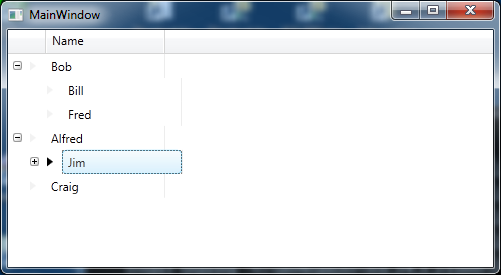
This will produce the following UI

XamDataGrid displaying hierarchial data

This is great, but I don’t really want the subheadings for this data and I’d prefer if the child columns lined up with the parents, more like a treeview and this is where things get a little tricky.

Removing the child item headers

To remove the headers we use

<igDP:FieldLayout.Settings>
   <igDP:FieldLayoutSettings LabelLocation="Hidden" />
</igDP:FieldLayout.Settings>

This code is placed within the FieldLayout section, but ofcourse if you do this in the one and only FieldLayout you’ll also lose the heading of the parent row.

So what you might try is to implement a second FieldLayout section as per

<igDP:XamDataGrid.FieldLayouts>
   <igDP:FieldLayout>
      <igDP:FieldLayout.Fields>
         <igDP:Field Name="Name" />
         <igDP:Field Name="Manages" Visibility="Hidden" />
      </igDP:FieldLayout.Fields>
  </igDP:FieldLayout>

  <igDP:FieldLayout>
     <igDP:FieldLayout.Settings>
        <igDP:FieldLayoutSettings LabelLocation="Hidden" />
     </igDP:FieldLayout.Settings>
     <igDP:FieldLayout.Fields>
        <igDP:Field Name="Name" />
        <igDP:Field Name="Manages" Visibility="Hidden" />
     </igDP:FieldLayout.Fields>
   </igDP:FieldLayout>
</igDP:XamDataGrid.FieldLayouts>

But this will not solve the problem and here’s the gotcha…

From my understanding the FieldLayout is based upon the the field names on your objects and hence as the EmployeeViewModel is used throughout only the first FieldLayout is ever applied to the view of the data. For example even if you changed all top level employees in the example to be of type ManagerViewModel (with this being an exact copy of EmployeeViewModel, and obviously fixing the code to handle this in the factory etc., you would still find only the first FieldLayout used. On the other hand if we had something like

public class ManagerViewModel
{
   public ManagerViewModel()
   {
      Manages = new ObservableCollection<EmployeeViewModel>();
   }

   public string Name { get; set; }
   public ObservableCollection<EmployeeViewModel> Manages { get; set; }
}

public class EmployeeViewModel
{
   public EmployeeViewModel()
   {
      DepartmentManages = new ObservableCollection<EmployeeViewModel>();
   }

   public string Name { get; set; }
   public ObservableCollection<EmployeeViewModel> DepartmentManages { get; set; }
}

public static class EmployeeViewModelFactory
{
   public static ObservableCollection<ManagerViewModel> Create()
   {
      var employees = new ObservableCollection<ManagerViewModel>();

      var bob = new ManagerViewModel { Name = "Bob" };
      var bill = new EmployeeViewModel { Name = "Bill" };
      var fred = new EmployeeViewModel { Name = "Fred" };
      var alfred = new ManagerViewModel { Name = "Alfred" };
      var jim = new EmployeeViewModel { Name = "Jim" };
      var jeff = new EmployeeViewModel { Name = "Jeff" };
      var craig = new ManagerViewModel { Name = "Craig" };

      bob.Manages.Add(bill);
      bob.Manages.Add(fred);

      alfred.Manages.Add(jim);

      jim.DepartmentManages.Add(jeff);

      employees.Add(bob);
      employees.Add(alfred);
      employees.Add(craig);

      return employees;
   }
}

and the XAML might look like

<igDP:XamDataGrid GroupByAreaLocation="None" DataSource="{Binding}">
   <igDP:XamDataGrid.FieldLayoutSettings>
      <igDP:FieldLayoutSettings ExpansionIndicatorDisplayMode="CheckOnDisplay"
                 AutoGenerateFields="False"/>
   </igDP:XamDataGrid.FieldLayoutSettings>
   <igDP:XamDataGrid.FieldLayouts>
   <igDP:FieldLayout>
      <igDP:FieldLayout.Fields>
         <igDP:Field Name="Name" />
         <igDP:Field Name="Manages" Visibility="Hidden" />
      </igDP:FieldLayout.Fields>
   </igDP:FieldLayout>

   <igDP:FieldLayout>
      <igDP:FieldLayout.Settings>
         <igDP:FieldLayoutSettings LabelLocation="Hidden" />
      </igDP:FieldLayout.Settings>
      <igDP:FieldLayout.Fields>
         <igDP:Field Name="Name" />
         <igDP:Field Name="DepartmentManages" Visibility="Hidden" />
      </igDP:FieldLayout.Fields>
   </igDP:FieldLayout>
   </igDP:XamDataGrid.FieldLayouts>
</igDP:XamDataGrid>

We would now see the following

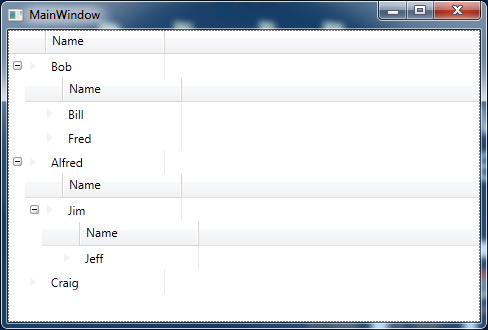
XamDatdGrid without subheadings

Not ideal, but we now know why EmployeeViewModel referencing itself in the Manages property fails to work. However we now have some more oddities, including the fact that the column lines are out of alignment. I’ll be writing another post on my attempts to resolve this.

References

Can I choose a field layout based on data Type?
FieldLayout Class

Comparing a generic to its default value

This is a very short post on something which, for some reason, I keep forgetting and having to find code I’ve written in the past to refresh my memory – so I thought I’d write a quick post to remind myself about this.

So you have a generic type T. Maybe it’s passed as an argument to a method and you want to check whether it’s set to its default value (in the case of classes this is equivalent to null).

To do this we use the following code (where o is the variable name of some generic type)

if(EqualityComparer<T>.Default.Equals(o, default(T))) 
{
   // do something
}

As previously stated – for class types, this is equivalent to null, for other types it depends upon their default value.

This code will handle structs and classes as well as Nullable types and also avoids boxing (see C# 5.0 in a Nutshell).

Starting out with RavenDB

I’m just starting to try out RavenDB, so thought I’d write a quick post highlighting basic CRUD operations using it.

RavenDB can be run as both a server or locally as an embedded datastore. For these examples we’ll use the server run via the command prompt. At the end of the post I will demonstrate what’s needed to get the Embeddable version up and running.

Let’s get the server and get an instance of RavenDB up and running

  • Download the current release of RavenDB from here
  • I downloaded the zip – so either unzip then go to the RavenDB\Server folder or find this folder where the installation place the RavenDB app.
  • Run Raven.Server.exe from the Server folder. If all went well you should have an instance of the RavenDB server running, to check this, from your preferred browser navigate to http://http://localhost:8080/ and you should see the RavenDB studio
  • From the studio create a new database, for simplicity I named mine Test1

Creating a client

Before we get into the actual CRUD operations, let’s get a project up with the pre-requisites for the code to follow

  • Run Visual Studio and create a new console application
  • Using NuGet install the RavenDB Client package
  • Let’s create a simple Person object to store, here’s mine
    public enum Gender
    {
       Male,
       Female
    }
    
    public class Person
    {
       public string FirstName { get; set; }
       public string LastName { get; set; }
       public DateTime DateOfBirth { get; set; }
       public Gender Gender { get; set; } 
    }
    

Let’s create some data in our new database

Now let’s access the store and save a new Person object, something like this

var documentStore = new DocumentStore 
{ 
   Url = "http://localhost:8080/", 
   DefaultDatabase = "Test1"
};
documentStore.Initialize();

using (var session = documentStore.OpenSession())
{
   Person person = new Person
   {
      FirstName = "Scooby",
      LastName = "Doo",
      DateOfBirth = new DateTime(1969, 9, 13),
      Gender = Gender.Male
   };

   session.Store(person);
   session.SaveChanges();
}

Now if we look at the RavenDB studio and the Test1 database we should see two documents, one system document and a “People” document.

Time to retrieve an object from the database

Now let’s see how we get the object. Raven stored an Id “people/1” with my data, so we’ll use that key to get that document.

var documentStore = new DocumentStore 
{ 
   Url = "http://localhost:8080/", 
   DefaultDatabase = "Test1"
};
documentStore.Initialize();

using (var session = documentStore.OpenSession())
{
   Person person = session.Load<Person>("people/1");
   // do something with the person instance
}

Updating a document

To update a document we simply load the document, make the changes then save if, for example

var documentStore = new DocumentStore 
{ 
   Url = "http://localhost:8080/", 
   DefaultDatabase = "Test1"
};
documentStore.Initialize();

using (var session = documentStore.OpenSession())
{
   Person person = session.Load<Person>("people/1");
   person.DateOfBirth = new DateTime(1996, 9, 13);
   session.SaveChanges();
}

You’ll have noticed that key’s are automatically generated, if our Person object included an Id property, such as

public class Person
{
   public string Id { get; set; }
   /// other properties
}

then Raven will automatically fill in this field when you first save an object, with the id it assigned. Alternatively you can give you own Id for an object and this will become the Id within RavenDB also, i.e. you’re assigning your own id’s at this point.

Deleting a document

So we’ve created a document, retrieved it and updated it, so now it’s time to delete a document.

using (var session = documentStore.OpenSession())
{
   Person person = session.Load<Person>("123");
   session.Delete(person);
   session.SaveChanges();
}

In the above we’re deleting using an instance of an object but it might be we’ve not loaded the object and want to simply delete using the id, in which case can can do the following

using (var session = documentStore.OpenSession())
{
   session.Advanced.DocumentStore.DatabaseCommands.Delete("123", null);
   session.SaveChanges();
}

RavenDB as an embeddable datastore

The only changes we need from the server based code (shown above) is that we no longer use the DocumentStore object but instead use the EmbeddableDocumentStore, so let’s look at this and how we get it up and running in a client.

  • RavenDB Embedded 2.5.2916 shows the package we need to install from NuGet to use the EmbeddableDocumentStore however I was getting the error “Install-Package : Updating ‘System.Spatial 5.2.0’ to ‘System.Spatial 5.0.2’ failed. Unable to find a version of ‘RavenDB.Database’ that is compatible with ‘System.Spatial 5.0.
    2’.”. Instead use Install-Package RavenDB.Embedded -DependencyVersion Highest from the Package Manager Console.

So as mentioned, to use the embeddable version of RavenDB we use the EmbeddableDocumentStore object, thus

var documentStore = new EmbeddableDocumentStore
{
   DataDirectory = "Data"
};
documentStore.Initialize();

// everything else as per the DocumentStore code from earlier

The DataDirectory is the location of your local datastore, this case the folder Data will be created off of the directory you application is run from.

Using protobuf-net in C#

protobuf-net is a .NET library around the Google Protocol Buffers.

For information on the actual Google Protocol Buffers you can checkout the Google documentation.

To get the library via NuGet you can use Install-Package protobuf-net from the Package Manager Console or locate the same from the NuGet UI.

To quote Implementing Google Protocol Buffers using C#, “Protocol Buffers are not designed to handle large messages. If you are dealing in messages larger than a megabyte each, it may be time to consider an alternate strategy. Protocol Buffers are great for handling individual messages within a large data set. Usually, large data sets are really just a collection of small pieces, where each small piece may be a structured piece of data.”

So Protocol Buffers are best used on small sets of of data, but let’s start coding and see how to use Protocol Buffers using protobuf-net.

Time to code

There are a couple of ways of making your classes compliant with the protobuf-net library, the first is to use attributes and the second without attributes, instead setting up the meta data yourself.

Let’s look at an example from the protobuf-net website, a Person class which contains an Address class and other properties.

[ProtoContract]
public class Person 
{
   [ProtoMember(1)]
   public int Id { get; set; }
   [ProtoMember(2)]
   public string Name { get; set; }
   [ProtoMember(3)]
   public Address Address { get; set;}
}

[ProtoContract]
public class Address 
{
   [ProtoMember(1)]
   public string Line1 {get;set;}
   [ProtoMember(2)]
   public string Line2 {get;set;}
}

As can be seen the classes to be serialized are marked with the ProtoContractAttribute. By default protobuf-net expects you to mark your objects with attributes but as already mentioned, you can also use classes without the attributes as we’ll see soon.

The ProtoMemberAttribute marks each property to be serialized and should contain a unique, positive integer. These identifiers are serialized as opposed to the property name itself (for example) and thus you can change the property name but not the ProtoMemberAttribute number. Obviously, as this value is serialized the smaller the number the better, i.e. a large number will take up unnecessary space.

Serialize/Deserialize

Once we’ve defined the objects we want to serialize with information to tell the serializer the id’s and data then we can actually start serializing and deserializing some data. So here goes. Assuming that we’ve created a Person object and assigned it to the variable person then we can do the following to serialize this instance of the Person object

using (var fs = File.Create("test.bin"))
{
   Serializer.Serialize(fs, person);
}

and to deserialize we can do the following

Person serlizedPerson;
using (var fs = File.OpenRead("test.bin"))
{
   Person person = Serializer.Deserialize<Person>(fs);
   // do something with person
}

Note: Protocol Buffers is a binary serialization protocol

Now without attributes

As mentioned previously, we might not be able to alter the class definition or simply prefer to not use attributes, in which case we need to setup the meta data programmatically. So let’s redefine Person and Address just to be perfectly clear

public class Person 
{
   public int Id { get; set; }
   public string Name { get; set; }
   public Address Address { get; set;}
}
    
public class Address 
{
   public string Line1 {get;set;}
   public string Line2 {get;set;}
}

Prior to serialization/deserialization we would write something like

var personMetaType = RuntimeTypeModel.Default.Add(typeof (Person), false);
personMetaType.Add(1, "Id");
personMetaType.Add(2, "Name");
personMetaType.Add(3, "Address");

var addressMetaType = RuntimeTypeModel.Default.Add(typeof(Address), false);
addressMetaType.Add(1, "Line1");
addressMetaType.Add(2, "Line2");

as you can see we supply the identifier integer and then the property name.

RuntimeTypeModel.Default is used to setup the configuration details for our types and their properties.

Inheritance

Like the SOAP serialization and the likes, when we derive a new class from a type we need to mark the base type with an attribute telling the serializer what types it might expect. So for example if we added the following derived types

[ProtoContract]
public class Male : Person
{		
}

[ProtoContract]
public class Female : Person
{	
}	

we’d need to update our Person class to look something like

[ProtoContract]
[ProtoInclude(10, typeof(Male))]
[ProtoInclude(11, typeof(Female))]
public class Person 
{
   // properties
}

Note: the identifiers 10 and 11 are again unique positive integers but must be unique to the class, so for example no other ProtoIncludeAttribute or ProtoMemberAttribute within the class should have the same identifier.

Without attributes we simply AddSubType to the personMetaType defined previous, so for example we would add the following code to our previous example of setting up the metadata

// previous metadata configuration
personMetaType.AddSubType(10, typeof (Male));
personMetaType.AddSubType(11, typeof(Female));

// and now add the new types
RuntimeTypeModel.Default.Add(typeof(Male), false);
RuntimeTypeModel.Default.Add(typeof(Female), false);

Alternative Implementations of Protocol Buffers for .NET

protobuf-csharp-port is written by Jon Skeet and appears to be closer related to the Google code using .proto files to describe the messages.

Exploring Akavache

Akavache is a key-value store/cache. It’s compatible with flavours of Windows including the desktop, WinRT and Windows Phone 8 as well as iOS, Mac and Android via Xamarin. It supports async await as well as RX observable.

Let’s code

We interact with Akavache via the BlobCache static class but before we do anything with Akavache we need to setup the application name. So at the first opportunity, such as when your applications starts you should supply Akavache with your application name.

BlobCache.ApplicationName = "MyApplicationName";

There are several different caches that we can use on the BlobCache object. Each implements the IBlobCache interface.

  • The InMemory property is used for caching anything which is to be stored (as the name suggests) in memory and thus lost when the application shuts down.
  • The LocalMachine is used to store data that is not related to the user’s account.
  • The Secure is encrypted and is used to anything you want to store in a more secure manner.
  • Finally the UserAccount is used to store data on a per user basis and can be part of a roaming profile.

As stated on the Akavache readme.md, “on the desktop, your application’s data will be stored in the %AppData%\[ApplicationName] and %LocalAppData%\[ApplicationName]”.

Inserting data into the cache

There are several insertion methods (instance and extension methods) and overloads for each. I’m not going to go through each method and their overloads, instead let’s look at the insertion method you’ll most likely start with – inserting a single object.

BlobCache.UserAccount.InsertObject("someObject", new SomeObject());

We supply a key, in this case the string someObject followed by an object. We can optionally supply a DateTimeOffset or TimeSpan to use as an expiration time, i.e. when the data is ejected from the cache.

Ofcourse, if we insert more than one item with the same key, we’re simply going to overwrite the existing item, therefore updating the cache with the last inserted value.

Getting data from the cache

Once we’ve inserted items in the cache we’ll need a way to retrieve them. As can be seen from the InsertObject method we supply a key for our cached item. So we obviously use the same key to get the value from the cache. Akavache uses an asynchronous model for getting items from a cache so uses either an IObservable (the RX way) or getting values using async await. Here’s an example using the RX method

SomeObject result = null;
BlobCache.UserAccount.GetObject<SomeObject>("someObject")
   .Subscribe(i => result = i);

and here’s the same thing using async await

SomeObject result = await BlobCache.UserAccount.GetObject<SomeObject>("someObject")

Getting data which is currently not cached

Obviously we don’t always start an application with the items already in the cache. So a common requirement is to query the cache for a value, if it doesn’t exist then get it from somewhere and then place it in the cache. Akavache offers a GetOrFetchObject method which allows the developer to to do just this. First we try to get an item from the cache and if it does not exist in the cache we can supply a Func<Task<T>> or Func<IObservable<T>> to get the item from somewhere else and it’s then automatically added to the cache for us.

SomeObject result = null;
BlobCache.UserAccount.GetOrFetchObject(
   "someObject", 
   () => Task.Factory.StartNew(() => new SomeObject()))
   .Subscribe(o => result = o);

// or using async await

SomeObject result = await BlobCache.UserAccount
   .GetOrFetchObject("someObject", 
   () => Task.Factory.StartNew(() => new SomeObject()));

We can also pass an expiration DateTimeOffset to the above method.

Note: GetOrFetchObject and GetOrCreateObject appear to do the same thing, both calling GetOrFetchObject which takes a Func<IObservable>. The former simply converts a Task<T> to an and IObservable<T> and the latter converts a Func<T> to an IObservable<T> also.

An interesting other “get” method to look at is GetAndFetchLatest. This will attempt to get a value from the cache and at the same time will use the supplied Func to get the value from some alternate place. So for example, let’s say you’re going to get a value from a webservice. This will return the current cached version (if one exists) and at the same time try to get the current value from the webservice. Hence two items may be returned.

In use…

BlobCache.UserAccount.GetAndFetchLatest(
   "someObject", () => Task.Factory.StartNew(() => new SomeObject()))
   .Subscribe(i => result = i);

In the above code the result = i will be called twice (assuming we’ve already inserted an object with the key “someObject” into the cache). As you’d expect from the previous description of this method, the first call would contain cached “someObject” value and the second would be the new object we’ve created in the task.

Removing items from the cache

Apart from setting an expiration for items as they’re added to the cache we can also use the method Invalidate to remove specific key values from the cache or InvalidateAll to remove/clear all items from the cache.

For example

BlobCache.UserAccount.Invalidate("someObject");

Query expressions in F#

Not quite the same as LINQ in syntax terms, F# includes query expressions which are in essence it’s own style of LINQ.

If we assume we have a simple example of some code in C# which uses LINQ to get strings from an array where their length is 3. In C# this might look like the following

string[] sample = {"One", "Two", "Three", "Four", "Five"};

IEnumerable<string> result = 
   from s in sample 
   where s.Length == 3 
   select s;

Note: I’ve purposefully put each part of the LINQ query on a new line for easier comparison with the equivalent F# query expression.

So here’s the same in F#

let sample = [| "One" ; "Two" ; "Three" ; "Four" ; "Five" |]

let result = query {
   for s in sample do
   where (s.Length = 3)
   select s
}

The main differences are the use of the query expression syntax query { … } and the use of the for s in sample do instead of from s in sample

References

See Query Expressions (F#) for a few examples of different query expressions and how they relate to SQL queries (and more).