Author Archives: purpleblob

WCF Rest

Creating a REST style interface with WCF is fairly simple. The steps are listed briefly below, and in more depth below the list of steps.

1. Create your interface/service contract
2. Annotate the methods with WebGet or WebInvoke attributes
3. Create the implementation of the interface
4. Declare the endpoint within the configuration file (or in code). The binding should be webHttpBinding and should have an endpoint behaviour specificied with WebHttp
5. If need be declare the http baseAddress

In more depth

1. Create your interface/service contract
and
2. Annotate the methods with WebGet or WebInvoke attributes

[ServiceContract]
public interface IRestService
{
   [OperationContract]
   [WebGet(UriTemplate = "projects")]
   IList GetProjects();

   [OperationContract]
   [WebGet(UriTemplate = "execute/{projectName}")]
   void Execute(string projectName);
}

Note: Note to self. Don’t forget to put the ServiceContract attribute on the interface !

I’ve implemented both methods a GET methods. Assuming a baseAddress of http://localhost:8733/MyService/ to call these methods through a web browser we can simply type http://localhost:8733/MyService/projects and http://localhost:8733/MyService/execute/MyProject respectively.

3. Create the implementation of the interface

No need to list source code for this, simple implement the interface you created.

4. Declare the endpoint within the configuration file (or in code). The binding should be webHttpBinding and should have an endpoint behaviour specificied with WebHttp
and
5. If need be declare the http baseAddress

The key bit to getting everything to work is the configuration file. I’m self hosting for this example so implementing the code in the App.config

<system.serviceModel>
    <behaviors>
      <serviceBehaviors>
        <behavior name="">
          <serviceMetadata httpGetEnabled="false" />
          <serviceDebug includeExceptionDetailInFaults="false" />
        </behavior>
      </serviceBehaviors>
      <endpointBehaviors>
        <behavior name="rest">
          <webHttp/>
        </behavior>
      </endpointBehaviors>
    </behaviors>
    <services>
      <service name="StandardPlugins.MonitorService">
        <endpoint address="" binding="webHttpBinding" bindingConfiguration=""
            contract="StandardPlugins.IRestService" behaviorConfiguration="rest">
        </endpoint>
        <host>
          <baseAddresses>
            <add baseAddress="http://localhost:8733/MyService/" />
          </baseAddresses>
        </host>
      </service>
    </services>
</system.serviceModel>

Note: The REST methods should be accessible via HTTP, hence the binding is webHttpBinding and the baseAddress is http. A behaviorConfiguration is required with the webHttp element.

Further reading

http://msdn.microsoft.com/en-us/magazine/dd315413.aspx#id0070050
http://msdn.microsoft.com/en-us/library/vstudio/bb412172(v=vs.90).aspx
WCF Duplex

In many cases a client calls a service and waits for the service call to complete forming a “one way” communication channel from the client to the service. But what if you wanted a two way communication channel, for example the client calls a service method and the service then calls methods on all connected clients. This two way pattern is known as duplex.

Create the service

Let’s create a very simple duplex service which will send messages to the connected clients when changes occur on the service.

1. Create a new console project
2. Add a new item, select WCF Service and name it whatever you want (mine’s called MyService)
3. In the Program.cs Main method type the following

ServiceHost serviceHost = new ServiceHost(typeof(MyService));
serviceHost.Open();
Console.WriteLine("Service started, press any key to quit");
Console.ReadKey();
serviceHost.Close();

4. Add a new interface named IMyCallback

public interface IMyCallback
{
   [OperationContract(IsOneWay = true)]
   void Tick(DateTime dateTime);
}

5. On the IMyService contract alter the ServiceContract to read

[ServiceContract(CallbackContract = typeof(IMyCallback))]

6. Rename the default method DoWork() to Register(), in both the interface and implementation.
7. Change the Register implementation to the following

private readonly List<IMyCallback> callbacks = new List<IMyCallback>();

public void Register()
{
   callbacks.Add(OperationContext.Current.GetCallbackChannel<IMyCallback>());
}

8. For this demo we’re going to simply call the connected client(s) periodically so add the following to MyService

private readonly Timer timer;

public MyService()
{
   timer = new Timer(TimerCallback);
   timer.Change(TimeSpan.FromSeconds(10), TimeSpan.FromSeconds(10));
}

private void TimerCallback(object o)
{
   foreach (IMyCallback callback in callbacks)
   {
      callback.Tick(DateTime.Now);
   }
}

9. Finally edit the app.config. We’re going to use the TCP binding so set the httpGetEnabled to false, change the service binding to netTcpBinding and the mex binding to mexTcpBinding and alter the baseAddress to use the net.tcp protocol (see below)

<system.serviceModel>
   <behaviors>
      <serviceBehaviors>
         <behavior name="">
            <serviceMetadata httpGetEnabled="false" />
            <serviceDebug includeExceptionDetailInFaults="false" />
         </behavior>
      </serviceBehaviors>
   </behaviors>
   <services>
      <service name="DuplexService.MyService">
         <endpoint address="" binding="netTcpBinding" bindingConfiguration=""
                    contract="DuplexService.IMyService">
            <identity>
               <dns value="localhost" />
            </identity>
         </endpoint>
         <endpoint address="mex" binding="mexTcpBinding" bindingConfiguration=""
                    contract="IMetadataExchange" />
            <host>
               <baseAddresses>
                  <add baseAddress="net.tcp://localhost:8732/MyService/" />
               </baseAddresses>
            </host>
        </service>
    </services>
</system.serviceModel>

Create the client

1. Create a new console application
2. Right mouse click on References and choose Add Service Reference
3. Enter t baseAddress from the server (i.e. net.tcp://localhost:8732/MyService) then press Go
4. Set the namespace to MyService and press OK
5. We now need to implement the callback interface

public class ClientCallback : IMyServiceCallback
{
   public void Tick(DateTime dateTime)
   {
      Console.WriteLine(dateTime);
   }
}

6. And finally add the code to connect to the service

InstanceContext callback = new InstanceContext(new ClientCallback());
MyServiceClient client = new MyServiceClient(callback);
client.Open();
client.Register();
Console.WriteLine("Press a key to exit");
Console.ReadKey();
client.Close();

Now if you run the server and then one or more clients, after 10 seconds you should see the clients updated every ten seconds. This is fine except that each time a client connected to the service a new service was created for each new client. If we wanted a single instance of the server to be connected to multiple clients we can simply change a few lines in the service code.

1. On the MyService implementation add the following attribute

[ServiceBehavior(InstanceContextMode = InstanceContextMode.Single)]

2. In the Program.cs Main method make the following two changes

MyService service = new MyService();
ServiceHost serviceHost = new ServiceHost(service);

With the above we create a single instance of the MyService then assign it the the ServiceHost.

Quickstart WCF service and client

I’ve already got a post on WCF basics, but I had to quickly knock together a WCF service and client to try something out today and I thought it’d be useful to list the steps to create a real bare bones service and client in a single post.

Let’s begin with the service itself. I want to create a self hosted service running from a console app. so I can easily debug and control everything, so

1. Open a new instance of Visual Studio
2. Create a new console application.
3. Copy the following into the Main method

ServiceHost serviceHost = new ServiceHost(typeof(MyService));
serviceHost.Open();
Console.WriteLine("Service Running");
Console.ReadLine();
serviceHost.Close();

4. Add the reference to System.ServiceModel as well as a valid app.config. For example

<system.serviceModel>
   <behaviors>
      <serviceBehaviors>
         <behavior name="">
            <serviceMetadata httpGetEnabled="false" />
            <serviceDebug includeExceptionDetailInFaults="false" />
         </behavior>
      </serviceBehaviors>
   </behaviors>
   <services>
      <service name="WcfTest.MyService">
         <endpoint address="" binding="netTcpBinding" bindingConfiguration=""
                   contract="WcfTest.IMyService">
            <identity>
               <dns value="localhost" />
             </identity>
         </endpoint>
         <endpoint address="mex" binding="mexTcpBinding" bindingConfiguration=""
                    contract="IMetadataExchange" />
         <host>
            <baseAddresses>
               <add baseAddress="net.tcp://localhost:8732/MyService/" />
            </baseAddresses>
         </host>
      </service>
   </services>
</system.serviceModel>  

5. Create an interface with at least one method, as we’re calling the service MyService, let’s call the interface IMyService. You’ll need at least one method and the interface shold have a ServiceContract attribute and the method have an OperationContract, for example

[ServiceContract]
public interface IMyService
{
   [OperationContract]
   void SayHello(string name);
}

6. Implement the interface for example

public class MyService : IMyService
{
   public void SayHello(string name)
   {
      Console.WriteLine("Hello " + name);
   }
}

6. Run the application

Now to the client…

1. Open a new instance of Visual Studio
2. Create a console application
3. Add a service reference (use the url from the server, i.e. net.tcp://localhost:8732/MyService/mex from the service’s app.config)
4. Click Go
5. Click OK
6. Finally add the following code into the Main method

var client = new MyServiceClient();
client.SayHello("Scooby Doo");
client.Close();

Now we have a working service and client.

Starting out with SpecFlow

SpecFlow is a BDD (Behaviour Driven Development) tool that supplies templates and integration for Visual Studio.

If you are new to BDD (or TDD or unit testing in general) go off to your favourite search engine and search. I’m sure there are far better definitions out there than I’ll probably come up with or try here. For those of you not wishing to waste a moment let’s start looking at SpecFlow.

The idea behind a feature is to define a test scenario in a more human readable way, in fact the perfect situation would be for the domain expert to write the scenarios to act as acceptance tests. SpecFlow is based upon Cucumber and uses the DSL Gherkin to allow the domain experts to write the scenarios.

Enough waffle let’s write a feature. We’ve got a Trade object which has a TradeDate and a StartDate. The StartDate should be calculated to be the TradeDate + 3 days.

Feature: Check the trade date is defaulted correctly
Scenario: Default the trade date
	Given Today's date is 23/10/2012
	When I create a trade
	Then the resultant start date should be 26/10/2012

The Feature text is just a name for the feature and can be followed by free form text to add documentation, in the above case I’ve not bothered. Instead I’ve gone straight to creating a Scenario.

A Scenario is basically the definition of what we want to test. Using the keywords Given, When, Then, And and But (note: I’ve not checked this is the full list). We can create the scenario for the test (don’t get too excited we still need to write the test) and then the Visual Studio integration will by default run the SpecFlowSingleFileGenerator custom tool against this feature file and create a feature.cs which contains the code for calling into your tests.

So we now have a feature file, potentially supplied by our domain expert. From this we get a .cs file generated which calls our code in the correct order and potentially passing arguments from the scenario to our test code. In the above case we want the dates to be passed to our tests. So now to write the code which will be run from the scenario generated code and here we add NUnit (or your preferred unit testing lib.) to check things are as expected.

[Binding]
public class Default_the_trade_date
{
   private Trade trade;
   private DateTime todaysDate;

   [Given("Today's date is (.*)")]
   public void Given_Todays_Date_Is(DateTime today)
   {
      todaysDate = today;
   }

   [When("I create a trade")]
   public void When_I_Create_A_CreateTrade()
   {
      trade = new Trade {TradeDate = todaysDate};
   }

   [Then("the resultant start date should be (.*)")]
   public void Then_Start_Date_Should_Be(DateTime dateTime)
   {
      Assert.AreEqual(trade.StartDate, dateTime);
   }
}

Note: I’ve named this class Default_the_trade_date this is the name I gave the scenario, this is not a requirement but makes it obvious what this code is for.

In the above you’ll notice the use of attributes which match the text in the scenario for each step, i.e. Given, When, Then. The text uses regular expressions, so matches the text to the scenario text but in this case the (.*) converts the dates into arguments to be passed into the test methods.

You can now right mouse click on your project or better still your .feature and select Run SpecFlow Scenarios. Unfortunately the above code will fail. As I’m using British date formats, i.e. dd/MM/yyyy and the default DateTime parser is en-US. So we need to edit the App.config for our scenarios to have

<language feature="en-GB" tool="{not-specified}" />

within the specFlow element.

If all went to plan, when you run the specflow scenarios the tests show green.

Note: If we have multiple features and/or scenarios which maybe use the same text, for example in the above code maybe we have several features and scenarios which use the Given “Today’s date is “. We can set the Scope attribute on the test classes and either mark the scenario with a tag

@tradeDate
Scenario: Default the trade date
   ...

or we can use the Feature and/or Scenario name such as

[Binding]
[Scope(Feature = "Check the trade date is defaulted correctly")]
public class Default_the_trade_date
{
   // code
}

See Scoped bindings for more on this and note the preference is towards not using such couplings.

Service Reference Failure – Cannot import wsdl:portType

Got an interesting exception whilst adding a service reference to a project, as seen below


Custom tool warning: Cannot import wsdl:portType
Detail: An exception was thrown while running a WSDL import extension: System.ServiceModel.Description.DataContractSerializerMessageContractImporter
Error: Could not load file or assembly ‘NLog, Version=2.0.0.0, Culture=neutral, PublicKeyToken=5120e14c03d0593c’ or one of its dependencies. The system cannot find the file specified.

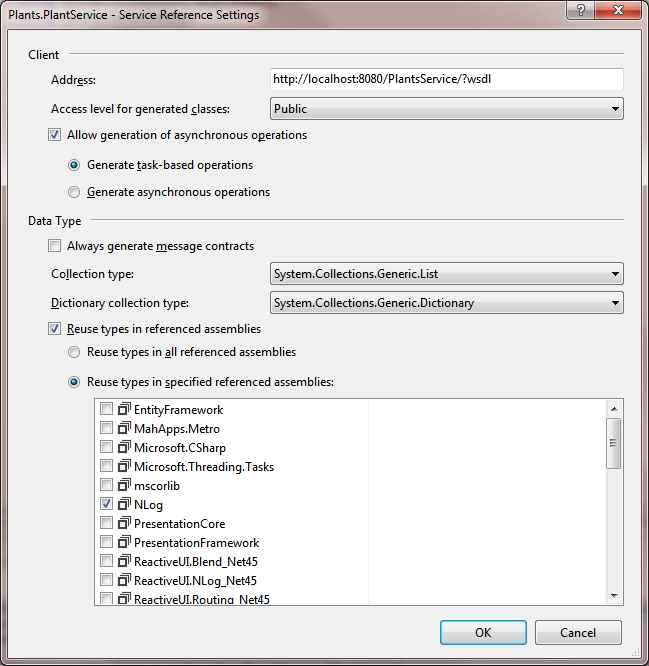
Luckily there’s an easy fix – right mouse click on the reference under the Service References section of the solution and select Configure Service References

ConfigureServiceReference

And as shown, select Reuse types in specified referenced assemblies and check the NLog assembly.

I need to update this post with the whys and wherefores of this change, but it works.

WCF – Basics

I’ve used WCF (and the previous incarnation of web services in .NET) on and off for a while. However once the inital work to set the application up is completed I tend to forget much of what I’ve done to concentrate on the actual application. This is one of the great things with WCF – it just works once set-up.

So this post is going to be written as a quick refresher.

ABC

One of the key things to remember with WCF is the the setting up is pretty much all about the ABC’s

  • A is of Address. In other words what’s the location (or endpoint) of the service.
  • B is of Binding. How do we connect to the endpoint, i.e. what’s the protocol etc.
  • C is of Contract. The application/programming interface to the web service, i.e. what does it do ?

Contracts

Simply put, creating an interface and decorating the interface with [ServiceContract] will mark out an interface as a service contract. Marking the methods that you want to publish with [OperationContract] i.e.

[ServiceContract]
public interface IPlantService
{
   [OperationContract]
   List<Plant> GetPlants();
   // and so on
}

where we’re passing our own complex types back (in the above we have the Plant class) here we mark the class with [DataContract] attribute and each property we wish to publish are marked with [DataMember] as per

[DataContract]
public class Plant
{
   [DataMember]
   public int Id { get; set; }
   [DataMember]
   public string CommonName { get; set; }
   // ... and so on
}

Don’t forget to include the System.ServiceModel assembly and System.Runtime.Serialization.

Hosting a service outside of IIS

Whilst IIS offers a scaleable, consistent and secure architecture for hosting WCF web services, one might prefer to host via a console app or Windows service for example. The following is a simple example of the code needed to get WCF self hosted in a console application.

class Program
{
   static void Main(string[] args)
   {
      ServiceHost serviceHost = new ServiceHost(typeof(PlantService));
      serviceHost.Open();
      Console.WriteLine("Service Running");
      Console.ReadLine();
      serviceHost.Close();
   }
}

Configuring the ABC’s

Configuration of the ABC’s can be accomplished through code or more usually through configuration. I’m not going to dig deep into configuration but instead point to something I’ve only recently been made aware of. Having always edited the app.config by hand.

It’s slightly strange in Visual Studio 2010 how you enable this option but go to Tools | WCF Service Configuration Editor then close it. Now if you right mouse click to get the context menu on the App.config file you’ll see the Edit WCF Configuration option. Now you can configure WCF via this UI.

HTTP could not register URL http://+:8080/ Your process does not have access rights to this namespace

If you’re getting an exception along the lines of “HTTP could not register URL http://+:8080/. Your process does not have access rights to this namespace” whilst writing a WCF web service on Vista or Windows 7 then take a visit to PaulWh’s Tech Blog and download his HttpNamespaceManager.

Just add the url along the lines of http://+8080/ (or whatever port you’re using). Then added group or users (for example BUILTIN\Users and NT AUTHORITY\LOCAL SERVICE) and assign GenericExecute access to them.

This works whilst running within Visual Studio as well as running a standalone EXE.

If you prefer a more hardcore approach then run netsh as admin, either typing

netsh http add urlacl url=http://+:8080/MyService/ user=DOMAIN\user

or you can run netsh (again as admin) and then enter the command

http add urlacl url=http://+:8080/MyService/ user=DOMAIN\user

netsh works like a folder structure, to equally you can type http followed by enter to enter the http section and enter everything after the http section of the command line.

To view the currently set up urlacl’s simple type

netsh http show urlacl

Entity Framework – Dynamic Proxies and WCF

A quick post regarding a simple problem you might find using Entity Framework with WCF. I have a simply little application which uses Entity Framework to access SQL Server and currently this all happens in a little client application.

I decided I wanted to move the DB access into a web service so I could look at writing an iPad or the likes front end to access it. All went well until I got the following exception


An error occurred while receiving the HTTP response to http://localhost:9095/MyService. This could be due to the service endpoint binding not using the HTTP protocol. This could also be due to an HTTP request context being aborted by the server (possibly due to the service shutting down). See server logs for more details.

My web service code looked like the following

public List<Plant> GetPlants()
{
   using (PlantsContext context = new PlantsContext())
   {
       return context.Plants.ToList();
   }
}

The problem is that the return is returning dynamic proxies, of the Plant type, not strictly real Plant types. What we need to do is change the code to add a line to turn off proxy creation

using (PlantsContext context = new PlantsContext())
{
   context.Configuration.ProxyCreationEnabled = false;
   return context.Plants.ToList();
}

And all works.

Quick Start – MahApps Metro

I discovered the excellent MahApps Metro libraries a while back but it wasn’t until I started using github:Windows that I was inspired to really start using this excellent library.

Basically MahApps Metro offers a bunch of styles and controls which duplicate aspects of Windows 8 UI but ofcouse they can be used on non-Windows 8 versions of Windows. For example, I have code on both WinXP and Windows 7 using these libraries and they look great.

This post is just a quick “how to quickly get up and running” with MahApps.

  • Let’s start by creating a WPF Application in Visual Studio.
  • Now using NuGet type MahApps.Metro into the search box of NuGet and install MahApps.Metro
  • In the MainWindow.xaml.cs change the base class from Window to MetroWindow and add using MahApps.Metro.Controls;
  • In the MainWindow.xaml change Window to MetroWindow add the namespace if need be (for example xmlns:Controls=”clr-namespace:MahApps.Metro.Controls;assembly=MahApps.Metro”)
  • Finally add A Window.Resources section to the MainWindow.xaml file as per the code below to enable the Metro styles
<Window.Resources>
   <ResourceDictionary>
      <ResourceDictionary.MergedDictionaries>
         <ResourceDictionary Source="pack://application:,,,/MahApps.Metro;component/Styles/Colours.xaml" />
         <ResourceDictionary Source="pack://application:,,,/MahApps.Metro;component/Styles/Fonts.xaml" />
         <ResourceDictionary Source="pack://application:,,,/MahApps.Metro;component/Styles/Controls.xaml" />
         <ResourceDictionary Source="pack://application:,,,/MahApps.Metro;component/Styles/Accents/Blue.xaml" />
         <ResourceDictionary Source="pack://application:,,,/MahApps.Metro;component/Styles/Accents/BaseLight.xaml" />
      </ResourceDictionary.MergedDictionaries>
   </ResourceDictionary>
</Window.Resources>

Note: After installing MahApps.Metro using NuGet the page http://mahapps.com/MahApps.Metro/ is displayed, it contains the steps above plus more so obviously read that for a fuller explanation. I’ve written these steps out just to show the bare minimum I need to do to get started.

The Singleton Pattern in C#

The singleton pattern has fallen out of favour in recent times, the preference being towards using IoC in it’s place, but it’s still useful. I’m not going to go in depth into coding samples for this pattern as there’s an excellent article “Implementing the Singleton Pattern in C#” which covers the subject well.

A simple thread safe implementation taken from the aforementioned article is

public sealed class Singleton
{
   private static readonly Singleton instance = new Singleton();

   static Singleton()
   {
   }

   private Singleton()
   {
   }

   public static Singleton Instance
   {
      get { return instance; }
   }
}

Note: The private constructor is included as the intention is for the user to use the Instance property to interact with the Singleton instance and not allow creating a new Singleton directly.

System.Lazy has been around since .NET 4.0 and it offers a threadsafe means to implement lazy loading/initialization. So now we can rewrite the above Singleton class with lazy loading

public sealed class Singleton
{
   private static readonly Lazy<Singleton> instance = new Lazy<Singleton>(() => new Singleton());   

   private Singleton()
   {
   }

   public static Singleton Instance
   {
      get { return instance.Value; }
   }   
}