AutoMapper Profiles

When creating mappings for AutoMapper we can easily end up with a mass of CreateMap methods in the format

Mapper.CreateMap<string, NameType>();
Mapper.CreateMap<NameType, string>();

An alternate way of partitioning the various map creation methods is using the AutoMapper Profile class.

Instead we can create profiles with as fine or coarse granularity as you like, here’s an example

public class NameTypeProfile : Profile
{
   protected override void Configure()
   {
      CreateMap<string, NameType>()
      CreateMap<NameType, string>();
   }
}

To register the profiles we need to then use

Mapper.AddProfile(new NameTypeProfile());

which can also become a little tedious, but there’s an alternative to this…

AutoAutoMapper Alternative

So instead of writing the code to add each profile we can use the AutoAutoMapper in the following way

AutoAutoMapper.AutoProfiler.RegisterProfiles();

this will find the profiles within the current assembly or those supplied as params arguments to the RegisterProfiles method for us. This way the profiles are registered for you.

Unit testing and “The current SynchronizationContext may not be used as a TaskScheduler” error

When running unit tests (for example with xUnit) and code that requires a synchronization context, one might get the test failing with the message

The current SynchronizationContext may not be used as a TaskScheduler.

The easiest way to resolve this is to supply your own SynchronizationContext to a unit test class, for example adding a static constructor (for xUnit) or in the SetUp method (in NUnit).

static MyTests()
{
   SynchronizationContext.SetSynchronizationContext(new SynchronizationContext());		
}

Note: xUnit supplies a Synchronization context when using async tests, but when running Reactive Extensions or TPL code it seems we need to supply our own.

WeakReferences in .NET

By default when we create an object in .NET we get, what’s known as, a strong reference to that object (in truth we usually simply refer to this as a reference, and omit the word strong). Only when the object is no longer required, i.e. it’s out of scope or no longer referenced can that object be garbage collected.

So for example

// object o can be garbage collected any time after leaving this method call
public void Run()
{
   var o = new MyObject();

   o.DoSomething();
}

// object o can be garbage collection only after the SomeObject is no longer used, 
//i.e. no longer any strong references to it exist
public class SomeObject
{
   private MyObject o = new MyObject();
}

This is fine in many cases, but the canonical example of WeakReference use is, what if MyObject is a large object and an instance of it is held for a long time. It might be that whilst it’s a large object it’s actually rarely used in which case it would be more efficient from a memory point of view if it’s memory was reclaimed if no strong references to it existed and then recreated when required.

If we’re happy for our object to be garbage collected and regenerated/recreated at a later time then we could instead create them as WeakReferences. Obviously from the examples above the method call is not a good fit for using a WeakReference as (assuming the method exists) this instance of MyObject will be garbage collected after the method exits and assuming no further strong references to the object exist. But let’s see how we might create a WeakReference stored as part of an object that might hang around in memory a while.

public class SomeObject
{
   private WeakReference o = new WeakReference();

   public void Run()
   {
      var myObject = GetMyObject();
      // now use myObject
   }

   private MyObject GetMyObject()
   {
      if(o.Target == null)
      {
         o.Target = new MyObject();
      }
      return o.Target;
   }
}

So in the above example we create a WeakReference, it’s best that we go through a helper method to get the instance of the object held within the weak reference, because we can then check whether the object still exists and if it doesn’t recreate it. Hence the GetMyObject method call.

So in GetMyObject, we check whether the weak reference’s Target property is null. In other words, either the data stored within the WeakReference has not been created or it has been garbage collected and we now need to recreate it. So assuming it’s Target is null we create the theoretically large object and assign it to the Target property. Otherwise we simply return the Target property.

At this point it appears we’re just creating something like the Lazy type. But the key difference is that unlike a Lazy type which creates an object when needed then holds a strong reference, the WeakReference not only creates the object when needed but also allows the garbage collection process to free the memory if it appears to be no longer needed. So obviously don’t store something in the WeakReference that tracks current state in your application unless you are also persisting such data to a more permanent store.

References

https://msdn.microsoft.com/en-us/library/system.weakreference(v=vs.110).aspx
https://msdn.microsoft.com/en-us/library/system.weakreference.target(v=vs.110).aspx
https://msdn.microsoft.com/en-us/library/ee787088%28v=vs.110%29.aspx

Testing Reactive Extension code using the TestScheduler

I often use the RX Throttle method, which is brilliant for scenario’s such as allowing a user to type text into a textbox and then only calling my code when the user pauses typing for an assigned amount of time. Or when scrolling up and down lists and when the user stops selecting items getting more data for the selected item from a webservice or the likes.

But what do we do about testing such interactions ?

Sidetrack

Instead of looking at the Throttle method, I needed to create a Throttle that actually buffers the data sent to it and when the timeout occurs gives the subscriber all the data not just the last piece of data (as Throttle would). So here’s some code I wrote (based heavily upon a StackOverflow post)

This post is meant to be about how we test such code, so let’s look at one of the unit test I have for this

[Fact]
public void ThrottleWithBuffer_EnsureValuesCorrectWhenOnNext()
{
   var scheduler = new TestScheduler();
   var expected = new[] { 'a', 'b', 'c' };
   var actual = new List<List<char>>();

   var subject = new Subject<char>();

   subject.AsObservable().
      ThrottleWithBuffer(TimeSpan.FromMilliseconds(500), scheduler).
      Subscribe(i => actual.Add(new List<char>(i)));

   scheduler.Schedule(TimeSpan.FromMilliseconds(100), () => subject.OnNext('a'));
   scheduler.Schedule(TimeSpan.FromMilliseconds(200), () => subject.OnNext('b'));
   scheduler.Schedule(TimeSpan.FromMilliseconds(300), () => subject.OnNext('c'));
   scheduler.Start();

   Assert.Equal(expected, actual[0]);
}

Now the key things here are the use of the TestScheduler which allows us the bend time (well not really, but it allows us to simulate the passing of time).

The TestScheduler is available in the Microsoft.Reactive.Testing.dll or from NuGet using Install-Package Rx-Testing

As you can see from the test, we now create the subscription to the observable and following that the scheduler is passed the “simulated” times. The first argument tells it the time an item is scheduled for, i.e. the first item is scheduled at 100ms, the next 200ms and finally 300ms. We then call Start on the scheduler to begin the time simulation.

Just think, if your code relied on something happening after a pause of a second then each test would have to wait one second before it could verify data, making a large test suit a lot slower to run. Using the TestScheduler we simply simulate a second passing.

An introduction to NDepend

What is NDepend?

NDepend is a static analysis tool which can be run from your build server or from Visual Studio or as a standalone application.

Disclaimer: The NDepend team kindly made available a copy of NDepend 5.4.1 Professional Edition for me to try out, any opinions within this or subsequent posts are wholly my own.

There’s so much information available within NDepend, from code quality analysis via line’s of code (LOC) through to method complexity analysis and more. Now all these metrics etc. would be useful as they are but NDepend also includes it’s own LINQ like language, where you can edit existing “queries” or create your own to suit your team’s needs.

To find out more about what NDepend is, check out the NDepend website or for a more complete explanation of what NDepend is check out the NDepend wikipedia page.

Let’s get started

I am going to use the NDepend standalone application for most of this post, so fire up VisualNDepend.exe.

For now let’s just use the “Analyze VS solutions” and “VS projects” options on the start page Select one of your projects and then you will see a list of assemblies that make up the project. This is a good point to remove anything you don’t want as part of the end report, i.e. I’ve got a bunch of web service auto-generated assemblies in one solution which I’m not too concerned to see metric on as they’re regenerated by tools (i.e. I’m not going to really be able to do much about the code).

Finally press the Analyze .NET Assemblies button.

Once NDepend has finished its analysis a report summary is created and will be displayed (by default) in a web browser window and VisualNDepend will prompt you asking what you want to do next. I’m going to select the View NDepend Dashboard.

The Dashboard

The dashboard is my preferred starting point. Here we can see lots of “high level” information about our solution. One of the projects I work on had over 469,000 lines of “my” code and for this project NDepend took only 45 seconds to generate it’s report – which means we can use NDepend as part of the build server processes without any real performance issues.

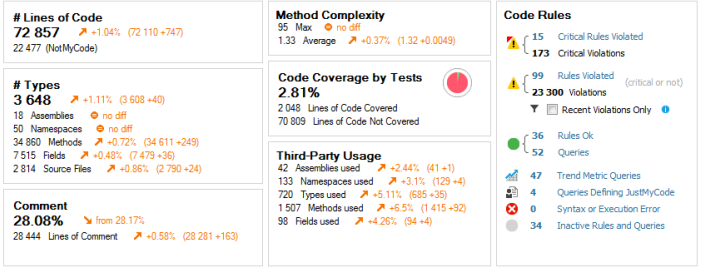
The following image shows part of the dashboard for one of my projects. It’s also demonstrating the changes to the project over time using the orange arrows, so my average method complexity has gone up from when I created a base line analysis, mind you everything except comments seems to be on the rise.

Dashboard snippet

Note: The method with the Max complexity is actually a simple switch statement, obviously I took a look at it when it was highlighted in this way to see if it was something to be concerned about. The next step for me, would be to remove this from the complexity analysis results so it doesn’t hide something which is an issue.

Let’s move on an start to break down some of the features of NDepend…

# Lines of Code

This one’s pretty obvious, it shows us the number of lines of code in the solution broken down in my code and “NotMyCode”. In the solution I’m running this against at the moment, I see I have 72,857 lines of code in this application. 22,477 of those are “NotMyCode”. If we click on the number of lines of code (i.e. the 72,857 in my case) we’ll see in the “Queries and Rules Explorer” the “Trend Metrics” are selected. Within this node the “Code Size” is selected and we’ll see that NDepend ran 20 queries as part of this category of queries/rules and this shows the actual break down of LoC as well as the number of sources files etc.

I probably wouldn’t class this as a majorly useful metrics in and of itself, but it’s fun seeing how much code I’ve typed and/or generated for this project and ofcourse I know if I didn’t have it I would have wanted it!

One of the things NDepend can do is keep track of changes of the various metrics, so this might be useful if you see any strange spikes or troughs in your LoC. On the dashboard you’ll be able to scroll down to charts showing changes over time, along with the orange arrow indicators next to the dashboard items. I find this a really useful feature.

# Types

Similar to the LoC, this isn’t maybe one of those metrics you’ll be monitoring very much I suspect, but it’s still nice to get an overview of my project from different perspectives. In this current solution I have 3,648 types, 18 assemblies and so on.

Comment

This one’s probably the least useful metric for the projects I’m working on where comments can end up stale very quickly and therefore we tend not to comment too often. However when writing controls or libraries this metric would be very useful as I tend to be more active in comment usage etc. of methods in such scenarios. I was actually surprised to see I have, however, produced 28% of comments (I suspect a fair few of those were also from some of the autogenerated code I have included in this analysis).

Method Complexity

Now we get to some of the more interesting parts (in my opinion at least) of the analysis.

The method complexity figures within the Dashboard give us an overview, click on the “Max” text and you’ll again see the “Queries and Rules Explorer” change to show us the Max Cyclomatic Complexity for Methods.

The Cyclomatic complexity is a metric of the “number of independent paths through a program’s source code”. According to the NDepend documentation Cyclomatic Complexity (CC) a recommendation is that a CC value higher than 15 means the methods are hard to understand and maintain.

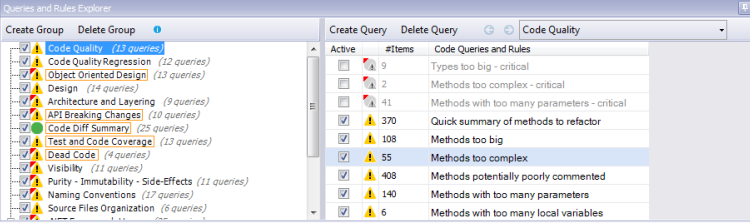
The following is a screen shot of the Queries and Rules Explorer, I’ve disabled some of the built in rules but you can see from the orange border around groups (on the left of the screenshot) that I still have plenty of critical issues outstanding in this project.

Queries and Rules Explorer

Code Coverage by Tests

If you’re using Visual Studio Premium, you get code coverage capabilities. If you save/export your code coverage results to a .coveragexml file this can be read in by NDepend and give me a run down of the LoC covered, the % of the total LoC covered and obviously the number of LoC no covered.

NDepend also supports dotCover and NCover code coverages results files.

Third-Party Usage

This shows us the number of third-party assemblies used etc. All self explanatory so I shall no expand upon here.

Code Rules

The Code Rules section shows us rules violated (critical and non-critical). For this post I’m not going to drill down every rule that I seem to have violated (maybe I’ll leave that for another post). Obviously a tool like NDepend has to have a starting point for what rules it classes as critical – I didn’t always agree with it but that’s not a problem becase you can either turn off the rule or better still edit them or write you own rules.

The rules get stored as part of your NDepend project, so it’s easy to tailor rules to each project you’re analysing.

Clicking on any of the hyperlink labels within the Code Rules section will show you the Rule in the “Queries and Rules Explorer” that has been run as part of the code rules. Clicking on the rule itself will then show you (in the left hand pane of VisualNDepend) the code that the rule is referring to.

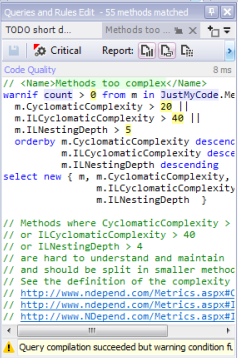
So for example the critical rule “Methods with too many parameters” will (when clicked on) show you all the methods/code that this violation was found in. At the top of the left hand pane will be the CQLinq code (the NDepend Linq like language) which IS the rule. This is very cool as you can not only view the rule code but from this window change the code and see results in real time or ofcourse save edited rules or create your own rules. As an example the “Methods with too many parameters” rule says methods with more than 8 parameters should fail this rule. If we change this to 10 we can immediately see those methods with more than 10 parameters and so on.

Here’s an example of the CQLinq code editor which helpfully also shows you the currently selected rule so it’s easy to copy and change the code or even make changes in the editor and see them immediately reflected in the list of methods/types etc. that are found using the rule.

Code Editor

Dashboard Graphs

Scrolling down the dashboard we’ll see a whole bunch of graphs for LoC, Rules Violated etc. where these come into their own is when you are saving the analysis results and can start to look at trends etc. over time. You can also add/remove charts to suit yours or your team’s needs.

Project Properties

I’m going to conclude this brief introduction (well maybe not so brief) with a quick look at the Project Properties tab (can be selected via Project | Edit Project Properties menu option).

From here you can add or remove assemblies from the analysis and change various project features.

An NDpend project is very useful, not just when using VisualNDepend but more so when running NDepend from a build tool such as FAKE. To be honest I’d actually say it’s a requirement really. From FAKE we can run NDepend against the project which will obviously include all own rules etc. and keep the team informed, not only of the current state of the project, but the trends within the project over time.

Note: at the time of writing FAKE’s NDepend capability expects a code coverage file to be supplied to it, otherwise it will fail due to the command line arguments FAKE passes to the NDepend console app. It works fine if you are supplying code coverage files. I’ve been using a modified version of FAKE, but hopefully we’ll see a fix in FAKE soon.

Where next…

This has just been an overview of NDepend, I will be posting more on using NDepend as I go along.

References

Getting Started with NDepend
NDepend Metrics placemat

Accessing XAML resources in code

I have a bunch of brushes, colours etc. within the Generic.xaml file inside a ResourceDictionary and I needed to get at the resources from code.

So let’s assume our XAML looks like this

<ResourceDictionary 
   xmlns="http://schemas.microsoft.com/winfx/2006/xaml/presentation"
   xmlns:x="http://schemas.microsoft.com/winfx/2006/xaml">
    <SolidColorBrush 
       x:Key="DisabledBackgroundBrush" 
       Color="#FFF0F0F0" />
    <SolidColorBrush 
       x:Key="DisabledForegroundTextBrush" 
       Color="DarkGray" />
</ResourceDictionary>

Now to access these resource from code I’m going to use the following class/code

public static class GenericResources
{
   private static readonly ResourceDictionary genericResourceDictionary;

   static GenericResources()
   {
      var uri = new Uri("/MyAssembly;component/Generic.xaml", UriKind.Relative);
      genericResourceDictionary = (ResourceDictionary)Application.LoadComponent(uri);			
   }

   public static Brush ReferenceBackColor
   {
      get { return (Brush) genericResourceDictionary["DisabledBackgroundBrush"]; }
   }

   public static Brush DisabledForeground
   {
      get { return (Brush)genericResourceDictionary["DisabledForegroundTextBrush"]; }
   }
}

As you can see we create a Uri to the XAML using the format “/<assembly_name>;component/<subfolders>/<xaml_filename>”. Next we get the ResourceDictionary via the LoadComponent method. Now to access the resource dictionary assets via the key’s we simply use the dictionary’s indexer and cast to our expected type.

And that’s all there is to it.

Excluding assemblies from Code Coverage

I regularly run Visual Studio’s code coverage analysis to get an idea of my test coverage, but there’s a lot of code in the project that’s auto generated code and I wanted to turn off the code coverage metrics for these assemblies.

I could look to add the ExcludeFromCodeCoverage attribute as outlined in a previous post “How to exclude code from code coverage” but this is a little laborious when you have many types to add this to and also, in some cases, I do not have control of the code gen tools to apply such attributes after every regeneration of the code – so not exactly ideal.

There is a solution as described in the post Customizing Code Coverage Analysis which allows us to create solution wide file to exclude assemblies from code coverage, I’m going to summarize the steps to create the file here…

Creating the .runsettings file

  • Select your solution in the solution explorer and then right mouse click and select Add | New Item…
  • Select XML File and change the name to your solution name with the .runsettings extension (the name needn’t be the solution name but it’s a good starting point).
  • Now I’ve taken the following from Customizing Code Coverage Analysis but reduced it to the bare minimum, I would suggest you refer to the aforementioned post for a more complete file if you need to use the extra features.
    <?xml version="1.0" encoding="utf-8"?>
    <!-- File name extension must be .runsettings -->
    <RunSettings>
      <DataCollectionRunSettings>
        <DataCollectors>
          <DataCollector friendlyName="Code Coverage" uri="datacollector://Microsoft/CodeCoverage/2.0" assemblyQualifiedName="Microsoft.VisualStudio.Coverage.DynamicCoverageDataCollector, Microsoft.VisualStudio.TraceCollector, Version=11.0.0.0, Culture=neutral, PublicKeyToken=b03f5f7f11d50a3a">
            <Configuration>
              <CodeCoverage>
                <!-- Match assembly file paths: -->
                <ModulePaths>
                  <Include>
                    <ModulePath>.*\.dll$</ModulePath>
                    <!--<ModulePath>.*\.exe$</ModulePath>-->
                  </Include>
                  <Exclude>
                    <ModulePath>.*AutoGenerated.dll</ModulePath>
                    <ModulePath>.*Tests.dll</ModulePath>
                  </Exclude>
                </ModulePaths>
    
                <!-- We recommend you do not change the following values: -->
                <UseVerifiableInstrumentation>True</UseVerifiableInstrumentation>
                <AllowLowIntegrityProcesses>True</AllowLowIntegrityProcesses>
                <CollectFromChildProcesses>True</CollectFromChildProcesses>
                <CollectAspDotNet>False</CollectAspDotNet>
    
              </CodeCoverage>
            </Configuration>
          </DataCollector>
        </DataCollectors>
      </DataCollectionRunSettings>
    </RunSettings>
    

    In the above code you’ll note I’ve included all dll’s using the Regular Expression .*\.dll$ but then gone on to exclude a couple of assemblies.

    Note: If I do NOT include the .* in the exclude module paths I found that the analysis still included those files. So just typing the correct name of the assembly on it’s own failed and I needed the .* for this to work.

  • The include happens first and then the exclude takes place. Hence we can use wildcards in the include then exclude certain assemblies explicitly.
  • Before we can actually use the runsettings we need to tell Visual Studio to use the runsettings. So before you test your changes you need to select the Test menu item then Test Settings followed by Select Test Settings File. Select your runsettings file.

    Note: you can tick/untick the selected file via the same menu option to turn on/off the runsettings file being used

Now I can run code coverage across my code and will see only the assemblies that matter to me.

The column background colour in my XamDataGrid keeps changing

The column background colour in my XamDataGrid keeps changing or to put it another way, beware the CellContainerGenerationMode when overriding the CellValuePresenterStyle.

What’s the problem ?

First off, please note I’m using v12.2 of Infragistics XamDataGrid, ofcourse this functionality may work differently in other versions of the control.

I’m still getting to grips with the Infragistics XamDataGrid. Whilst I know the old UltraGrid for WinForms pretty well, this is worthless experience when using the WPF XamDataGrid.

I was working on a way to highlight a “Reference” field/column in the XamDataGrid and got this working nicely using a Converter with a CellValuePresenterStyle but whilst playing with the UI I notice that horizontally scrolling the grid demonstrated a very strange behaviour. Initially my reference column was displayed with a gray background (my chosen colour) but when I scroll it out of view and back into view, it turned white (the default background). Worse still another column went gray. Not the sort of functionality a customer/user would want to see !

Let’s take a look at an example.

Note: this is a contrived example to demonstrate the issue, the code I was working on was more dynamic and the fields set-up in code behind, but I wanted to distill the example into it’s simplest components.

In this sample code I’m using a DataTable and a CellValuePresenterStyle (obviously this problem may not occur in different scenarios).

First up, let’s look at the sample data, we’re going to create enough columns to require us to horizontally scroll

var dataTable = new DataTable();
dataTable.Columns.Add("A1", typeof(int));
dataTable.Columns.Add("B1", typeof(int));
dataTable.Columns.Add("C1", typeof(int));
dataTable.Columns.Add("D1", typeof(int));
dataTable.Columns.Add("E1", typeof(int));
dataTable.Columns.Add("F1", typeof(int));
dataTable.Columns.Add("G1", typeof(int));
dataTable.Columns.Add("H1", typeof(int));
dataTable.Columns.Add("I1", typeof(int));
dataTable.Columns.Add("J1", typeof(int));
dataTable.Columns.Add("K1", typeof(int));
dataTable.Columns.Add("L1", typeof(int));
dataTable.Columns.Add("M1", typeof(int));
dataTable.Columns.Add("N1", typeof(int));

var row1 = dataTable.NewRow();
row1["A1"] = 1;
row1["B1"] = 1;
row1["C1"] = 1;
row1["D1"] = 1;
row1["E1"] = 1;
row1["F1"] = 1;
row1["G1"] = 1;
row1["H1"] = 1;
row1["I1"] = 1;
row1["J1"] = 1;
row1["K1"] = 1;
row1["L1"] = 1;
row1["M1"] = 1;
row1["N1"] = 1;
dataTable.Rows.Add(row1);

var row2 = dataTable.NewRow();
row2["A1"] = 2;
row2["B1"] = 2;
row2["C1"] = 2;
row2["D1"] = 2;
row2["E1"] = 2;
row2["F1"] = 2;
row2["G1"] = 2;
row2["H1"] = 2;
row2["I1"] = 2;
row2["J1"] = 2;
row2["K1"] = 2;
row2["L1"] = 2;
row2["M1"] = 2;
row2["N1"] = 2;
dataTable.Rows.Add(row2);

DataContext = dataTable;

Next up, let’s look at the XAML for the XamDataGrid

<igDP:XamDataGrid DataSource="{Binding}" >
   <igDP:XamDataGrid.FieldLayouts>
      <igDP:FieldLayout>
         <igDP:FieldLayout.Fields>
            <igDP:Field Name="A1" Label="A1">
               <igDP:Field.Settings>
                  <igDP:FieldSettings CellValuePresenterStyle="{StaticResource CellValuePresenterStyle}"/>
               </igDP:Field.Settings>
            </igDP:Field>
            <igDP:Field Name="B1" Label="B1">
               <igDP:Field.Settings>
                  <igDP:FieldSettings CellValuePresenterStyle="{StaticResource CellValuePresenterStyle}"/>
               </igDP:Field.Settings>
            </igDP:Field>
            <igDP:Field Name="B1" Label="B1">
               <igDP:Field.Settings>
                  <igDP:FieldSettings CellValuePresenterStyle="{StaticResource CellValuePresenterStyle}"/>
               </igDP:Field.Settings>
            </igDP:Field>
            <igDP:Field Name="C1" Label="C1">
               <igDP:Field.Settings>
                  <igDP:FieldSettings CellValuePresenterStyle="{StaticResource CellValuePresenterStyle}"/>
               </igDP:Field.Settings>
            </igDP:Field>
            <igDP:Field Name="D1" Label="D1">
               <igDP:Field.Settings>
                  <igDP:FieldSettings CellValuePresenterStyle="{StaticResource CellValuePresenterStyle}"/>
               </igDP:Field.Settings>
            </igDP:Field>
            <igDP:Field Name="E1" Label="E1">
               <igDP:Field.Settings>
                  <igDP:FieldSettings CellValuePresenterStyle="{StaticResource CellValuePresenterStyle}"/>
               </igDP:Field.Settings>
            </igDP:Field>
            <igDP:Field Name="F1" Label="F1">
               <igDP:Field.Settings>
                  <igDP:FieldSettings CellValuePresenterStyle="{StaticResource CellValuePresenterStyle}"/>
               </igDP:Field.Settings>
            </igDP:Field>
            <igDP:Field Name="G1" Label="G1">
               <igDP:Field.Settings>
                  <igDP:FieldSettings CellValuePresenterStyle="{StaticResource CellValuePresenterStyle}"/>
               </igDP:Field.Settings>
            </igDP:Field>
            <igDP:Field Name="G1" Label="G1">
               <igDP:Field.Settings>
                  <igDP:FieldSettings CellValuePresenterStyle="{StaticResource CellValuePresenterStyle}"/>
               </igDP:Field.Settings>
            </igDP:Field>
            <igDP:Field Name="H1" Label="H1">
               <igDP:Field.Settings>
                  <igDP:FieldSettings CellValuePresenterStyle="{StaticResource CellValuePresenterStyle}"/>
               </igDP:Field.Settings>
            </igDP:Field>
            <igDP:Field Name="I1" Label="I1">
               <igDP:Field.Settings>
                  <igDP:FieldSettings CellValuePresenterStyle="{StaticResource CellValuePresenterStyle}"/>
               </igDP:Field.Settings>
            </igDP:Field>
            <igDP:Field Name="J1" Label="J1">
               <igDP:Field.Settings>
                  <igDP:FieldSettings CellValuePresenterStyle="{StaticResource CellValuePresenterStyle}"/>
               </igDP:Field.Settings>
            </igDP:Field>
            <igDP:Field Name="K1" Label="K1">
               <igDP:Field.Settings>
                  <igDP:FieldSettings CellValuePresenterStyle="{StaticResource CellValuePresenterStyle}"/>
               </igDP:Field.Settings>
            </igDP:Field>
            <igDP:Field Name="L1" Label="L1">
               <igDP:Field.Settings>
                  <igDP:FieldSettings CellValuePresenterStyle="{StaticResource CellValuePresenterStyle}"/>
               </igDP:Field.Settings>
            </igDP:Field>
            <igDP:Field Name="M1" Label="M1">
               <igDP:Field.Settings>
                  <igDP:FieldSettings CellValuePresenterStyle="{StaticResource CellValuePresenterStyle}"/>
               </igDP:Field.Settings>
            </igDP:Field>
            <igDP:Field Name="N1" Label="N1">
               <igDP:Field.Settings>
                  <igDP:FieldSettings CellValuePresenterStyle="{StaticResource CellValuePresenterStyle}"/>
               </igDP:Field.Settings>
            </igDP:Field>
         </igDP:FieldLayout.Fields>
      </igDP:FieldLayout>
   </igDP:XamDataGrid.FieldLayouts>
</igDP:XamDataGrid>

Next let’s look at style

<Style TargetType="{x:Type igDP:CellValuePresenter}" x:Key="CellValuePresenterStyle">
   <Setter Property="Background" 
        Value="{Binding RelativeSource={RelativeSource Self},  
        Converter={StaticResource BackgroundConverter}}" />
</Style>

and finally the converter

public class BackgroundConverter : IValueConverter
{
   public object Convert(object value, Type targetType, object parameter, CultureInfo culture)
   {
      var cellValuePresenter = value as CellValuePresenter;
      if (cellValuePresenter != null)
      {
         // in my code this is "discovered" at runtime, but you get the idea
         if (cellValuePresenter.Field.Name == "E1")
            return Brushes.Gray;
      }

      return Binding.DoNothing;
   }

   public object ConvertBack(object value, Type targetType, object parameter, CultureInfo culture)
   {
      throw new NotImplementedException();
   }
}

Now if you run up an example WPF Window with these parts and horizontally scroll you should see the gray background column switch from the E1 column to other columns.

A solution

So I had a chat with a colleague who mentioned the grid’s virtualization options being a possible issue – lo and behold adding the CellContainerGenerationMode attribute and setting it to LazyLoad worked.

For example

<igDP:XamDataGrid DataSource="{Binding DefaultView}" CellContainerGenerationMode="LazyLoad">

It appears the XamDataGrid has a default value of Recycle for the CellContainerGenerationMode and an educated guess (based as much on the naming as anything) suggests this means the XamDataGrid is reusing the field/column when scrolling – this is all well and good when your column styling is static, but not so good when you have something a little more dynamic.

References

Although not talking about this specific issue, it’s worth noting this post of performance and optimization within the XamDataGrid – Optimizing Infragistics XamDataGrid Performance.

101 ways to not change XamDataGrid cell background colours

To paraphrase Edison, I feel like I’ve discovered a 101 ways not to change the XamDataGrid background colours on individual cells.

So this all started when I wanted to set the background colours of different cells, some based upon row data (i.e. when view model caused the row to not be editable or because the data was externally provided and needed to be highlighted) and some I wanted to change based upon the column (i.e. I had a column which displayed a “reference” value and thus all cells in that column should be coloured differently to the rest of the grid). I went down quite a few routes to solve this and, ofcourse, ultimately it was no where near as difficult as it seemed (at least whilst trying to find a solution). In the process I learned a few different things about how to change the styling/background colours which I think are valid for other styling also.

Hence, I’m going to share what I found as both a reminder to myself and anyone else trying to solve a similar problem.

Setting the scene

All of the styles discussed use the BackgroundConverter which initially looks like this

public class BackgroundConverter : IValueConverter
{
   public object Convert(object value, 
         Type targetType, 
         object parameter, 
         CultureInfo culture)
   {
      return Binding.DoNothing;
   }

   public object ConvertBack(object value, 
         Type targetType, 
         object parameter, 
         CultureInfo culture)
   {
      throw new NotImplementedException();
   }
}

We’re only going to be changing the Convert method going forward, so I will only show changes for that in subsequent code blocks.

Now let’s take a look at the sample view model I’m using

public class MyViewModel
{
   public double Factor { get; set; }
   public string Reference { get; set; }
   public int Count { get; set; }
   public bool ReadOnly { get; set; }
}

I’ve not bothered including an implementation of INotifyPropertyChanged as this is sufficient to demonstrate the code.

To give us a starting point to demonstrate things, our initial XamDataGrid XAML looks like this

<igDP:XamDataGrid DataSource="{Binding}">
   <igDP:XamDataGrid.FieldLayoutSettings>
      <igDP:FieldLayoutSettings RecordSelectorLocation="None" AutoGenerateFields="False" />
   </igDP:XamDataGrid.FieldLayoutSettings>
   <igDP:XamDataGrid.FieldLayouts>
      <igDP:FieldLayout>
         <igDP:FieldLayout.Fields>
             <igDP:Field Name="Factor" Label="Factor">
             </igDP:Field>
             <igDP:Field Name="Reference" Label="Reference">
             </igDP:Field>
             <igDP:Field Name="Count" Label="Count">
             </igDP:Field>
         </igDP:FieldLayout.Fields>
      </igDP:FieldLayout>
   </igDP:XamDataGrid.FieldLayouts>
</igDP:XamDataGrid>

Finally, here’s the code-behind for the Window class constructor which hosts the above XamDataGrid

DataContext = new List<MyViewModel>
{
   new MyViewModel
   {
      Factor = 1.1, Reference = "A", Count = 1
   },
   new MyViewModel
   {
      Factor = 2.1, Reference = "B", Count = 2
   },
   new MyViewModel
   {
      Factor = 3.1, Reference = "A", Count = 3, ReadOnly = true
   }
};

Ultimately what we want to end up with is, the Reference column to have a red background and the row with ReadOnly set to true to have a green background. Just so they stand out *those are definitely not the colours being used in my app).

Let’s see how my attempts to solve this went…

Attempt 1 – The DataRecordCellAreaStyle

So as the name alludes to, this style will ultimately be passed a DataRecordCellArea object.

Spoiler alert: this will not fulfill my requirements, but it’s all about learning so let’s see what we can do with it

If we assume we have the following style

<Style TargetType="{x:Type igDP:DataRecordCellArea}" x:Key="DataRecordCellAreaStyle">
    <Setter Property="Background" 
          Value="{Binding RelativeSource={RelativeSource Self}, 
          Converter={StaticResource BackgroundConverter}}" />
</Style>

We might prefer to use a data trigger instead of the BackgroundConverter to decide which data to apply the background to, but we’re going to go the route of letting the BackgroundConverter make the decisions here.

Our Convert method within the BackgroundConverter now looks like this

var dataRecordCellArea = value as DataRecordCellArea;
if (dataRecordCellArea != null)
{
   var vm = dataRecordCellArea.Record.DataItem as MyViewModel;
   if (vm != null)
   {
      if (vm.ReadOnly)
         return Brushes.Green;
    }
}

return Binding.DoNothing;

Finally for our XamDataGrid XAML we’ve added the style

<igDP:FieldLayoutSettings 
      RecordSelectorLocation="None" 
      AutoGenerateFields="False" 
      DataRecordCellAreaStyle="{StaticResource DataRecordCellAreaStyle}"/>

So we run this code we’ll find that the ReadOnly row is correctly shown with a lovely green background, but unfortunately it’s not (that I can see) possibly to also handle the column background colouring here.

Oh well, onto our next candidate…

Attempt 2 – The DataRecordPresenterStyle

Spoiler alert: As the name suggests, this is similar to the DataRecordCellAreaStyle in that it’s record based, so again is not going to solve my specific requirement

Let’s see what the style looks like

<Style TargetType="{x:Type igDP:DataRecordPresenter}" x:Key="DataRecordPresenterStyle">
   <Setter Property="Background" Value="{Binding RelativeSource={RelativeSource Self}, 
        Converter={StaticResource BackgroundConverter}}" />
</Style>

and now the BackgroundConverter Convert method

var dataRecordPresenter = value as DataRecordPresenter;
if (dataRecordPresenter != null)
{
   var dataRecord = dataRecordPresenter.Record as DataRecord;
   if (dataRecord != null)
   {
      var vm = dataRecord.DataItem as MyViewModel;
      if (vm != null)
      {
         if (vm.ReadOnly)
            return Brushes.Green;
      }
   }
}

return Binding.DoNothing;

The main difference here is that the Record returned from the DataRecordPresenter is a Record object not a DataRecord (I’m sure there are further differences but I didn’t bother checking them out). Other than that we have the same code as the DataRecordCellAreaStyle implementation.

Now let’s see how we use this in the XamDataGrid XAML

<igDP:FieldLayoutSettings 
      RecordSelectorLocation="None" 
      AutoGenerateFields="False" 
      DataRecordPresenterStyle="{StaticResource DataRecordPresenterStyle}"/>

The solution, CellValuePresenterStyle

The name of this gives us cause for optimism.

Return the FieldLayoutSettings to the following

<igDP:FieldLayoutSettings RecordSelectorLocation="None" AutoGenerateFields="False" />

We now create the style as follows

<Style TargetType="{x:Type igDP:CellValuePresenter}" x:Key="CellValuePresenterStyle">
   <Setter Property="Background" 
         Value="{Binding RelativeSource={RelativeSource Self},  
                 Converter={StaticResource BackgroundConverter}}" />
</Style>

Now to use the CellValuePresenterStyle we need to apply the style to each of our fields, so within the igDP:Field element add the following child elements

<igDP:Field.Settings>
   <igDP:FieldSettings 
        CellValuePresenterStyle="{StaticResource CellValuePresenterStyle}"/>
</igDP:Field.Settings>

So last of all we need to change the BackgroundConverter’s Convert method to the following

var cellValuePresenter = value as CellValuePresenter;
if (cellValuePresenter != null)
{
   var dataRecord = cellValuePresenter.Record;
   if (dataRecord != null)
   {
      var vm = dataRecord.DataItem as MyViewModel;
      if (vm != null)
      {
         if (vm.ReadOnly)
            return Brushes.Green;
      }
   }

   if (cellValuePresenter.Field.Name == "Reference")
      return Brushes.Orange;
}

return Binding.DoNothing;

As can be seen, with the CellValuePresenter we can get at the cell itself and from this it’s easy to get the row/DataRecord and the field/Column.

Summing things up

Woo hoo, it now works. Having now written this post, ofcourse it seems obvious that the first two attempts were doomed to failure, but getting to the solution took a fair bit of time trying out different scenarios. But along the way I learned a fair bit about the XamDataGrid – so I suspect a few more posts will appear on this subject very soon !
Learning kanban

Kanban is basically a process or workflow with an emphasis on visualization. It’s used within manufacturing and software development (or anything else for that matter).

See Kanban (development) and Kanban on wikipedia for much fully explanations as to what Kanban is.

I’m (currently) only interested in learning and using Kanban with software development, so this post (and probably any subsequent posts, unless stated otherwise, will also assume the use of Kanban within the development of software).

Disclaimer: I am not a seasoned Kanban expert, the title of this post is not so much about me trying to teach somebody else how best to use Kanban but instead is about my understanding and self-learning regarding Kanban. So please don’t read this post as a definitive guide to Kanban

At it’s heart, Kanban is very simple. It’s aimed at giving a visual representation to current work, or WIP (both Work In Process and Work In Progress are terms associated with the acronym WIP). Generally the preferred method of visualization is via a Kanban board, a physical representation of groupings of work (usually using columns) but when teams are remote or prefer to, digital representations of this board can be used. As stated, usually the group (the development team, management, test team etc.) would define columns on the board which represent states within the flow of their work practices. Each work item would be represented by a sticky note, using different colours to represent different information, such as maybe a red sticky for a bug or the likes.

Whilst a physical Kanban board can be anything, from a Window to a wall as long as it can be divided into columns and accept sticky notes, for the sake of simplicity I shall assume the Kanban board to be a white board (note: there are various bits of software that can help you to work with Kanban, I actually use kanbanflow.com at the moment, but to keep things simple, we’ll only talk about the physical representation of a white board in this post).

The Kanban board

So we’ve got ourselves a whiteboard and we’re calling this our Kanban board but what do we do with it?

The first thing we need to do is, as a team, including not just software devs but others that are integral to the development process. We need to define columns on the board, that in turn define our works flow for taking a task/use case/user story (or the likes) from a start position to a defined “done” position.

Now the start position might be defined as when work has completed analysis as is ready to be assigned to a developer or maybe even going back further in the process to include “gather requirements”. It’s really down to the workflow process the team defines. In the case of a team using Scrum one might define the start position as the Backlog for example.

We also need to define the end position on the board, now this might be when the dev team has completed and checked in their work to some source repository or better still when the item is actually released to production and confirmed as working by the customer/user.

Obviously work doesn’t just start and end so the team also needs to define the steps in the work flow between the start and end. If the team has trouble defining these phases within the workflow upfront, the Kanban board can simply evolve over time. Simply implement columns on the board to indicate the current feelings on the workflow and use this visualization to be the starting point for further discussions.

So let’s put together something a little more concrete now, let’s assume we’ve either drawn or used sticky coloured tape to define the columns “Backlog”, “In Development”, “In Test”, “Ready for Deployment”, “Deployed” and “Done”. So our board will now show, from left to right the process of work being added to the “Backlog”, then when an item is taken/assigned to a developer it’s “In Development”, when the developer complete’s their work it’s going to go to “In Test”, once the test team are happy it goes into the “Ready for Deployment” column, then (assuming in this case that there’s no continuous deployment) it’s then “Deployed” and finally the user/customer uses the functionality and it’s “Done”.

We can possibly better refine this workflow, by noting that just because a developer may have completed work the work item may not currently be in test, so we might either introduce a new column “Awaiting Test” or we might replace “In Test” with the column “Test” and have this span two columns “Awaiting Test” and “Done”, equally we might prefer to actually have both “In Development” and “In Test” have the columns “In Progress” and “Done”. This way when work is taken off the “Backlog” by the developer it goes “In Progress” and when completed in the “Done” column. The the testers might take an item from “Development | Done” and place into their “In Progress” column before completing and placing in their “Done” column.

The point here is that the make up of the columns which visualize the workflow can be changed to suit the way the team works and there’s no right or wrong configuration of the columns.

The stickies

Anyone who’s seen a Kanban board will have seen the sticky notes. As already mentioned, sticky notes are used to represent the work items or user story. They should have a short but obvious title and short description. If need be, referring to some other documentation whether physical or electronic where further in depth information may exist.

We move the sticky from it’s start column through the Kanban board and we may add information to the sticky as it goes, for example placing a dot on the sticky for each day it’s taken or noting anything that’s blocked it. Again anything you add to the sticky needs to be brief and not overload the card with information.

Colours should be used to denote different types of work. For example a defect/bug might be represented with a red sticky note. Then a quick look at the Kanban board will immediately show if defects are taking over the WIP in which case, the team may need to look at the quality of the work to see how such defects are making it into the software.

Avatars or who’s working on what

Whilst the Kanban board and sticky notes denote the work item and it’s place in the overall workflow process it’s also beneficial to tell, at a glance, who’s working on an item at any particular time. Using a magnetic whiteboard we could create Avatars to represent team members or even just name tags. When a member of the team starts work on something they place their avatar or name tag over (say the corner) of the sticky and at a glance the team can see what’s in progress, where it is and who’s working on it.

The book “Kanban in Action” suggests that choosing tokens representing (for example) monopoly tokens or in the book if I recall they talk about pictures of dogs being used it not a good idea. These, they point out, are not good because you then have to ask who’s the Monopoly boot or the Springer Spaniel or whatever – ofcourse you can get around this or just get used to who’s who but bare this in mind when choosing the Avatar or other type of token to be used that you want something that’s easy to identify quickly.

Another way to organize the Kanban board (if the team is small enough) might be to create rows with each person’s name/avatar on. Then simply place an item in the correct column in the row associated with your name to denote you’re working on something.

Limiting WIP

So at this point, hopefully, we can create a Kanban, define our workflow process, create our work items, see at a glance who’s working on what, whether there are bugs or new items etc. But one thing we also need to think about is limiting the WIP.

Limiting WIP may seem counter intuitive, surely our aim is to get as much work in process as possible ? Again, this is something the team needs to experiment with. If developers are busy on too many items and not completing enough the cadence of the workflow slows meaning we could have testers sitting, twiddling their thumbs waiting for work. When work builds up like this we would be better off reducing the work in process and ensuring that the cadence of the flow is increased to ensure work gets through the system as quickly as possible.

In such situations we might place a number above a column to denote (for example) that only three items at a time should be in process In Development. So no new work should enter the In Development columns until an item is removed from the column and so on.

If, on the other hand we find ourselves block due to the WIP limit we could ofcourse increase the limit or maybe the limit is fine but occasionally we need to help out colleages to ensure any items that are blocked are cleared on moved through the workflow.

Surely there’s more to it than that?

In essence, that’s all there is to it, but ofcourse we might find as we evolve our Kanban that we need to cater for expedited work items. Maybe something that is business critical or possibly a regulatory requirement where we need to push an item through the workflow even though it might violate our WIP – in such cases we might create a special “swim lane” on the board, again we should look towards limiting the number of items that could go into this “fast track” route so as to ensure it doesn’t become the norm.

Metrics

To help our processes/work flow to evolve we should also be capturing various metrics. I will not go into this too deeply in this post, but obvious one’s include when an item start’s being worked on and when it’s “done” this will give us a lead time which is in essence the time it took to complete a piece of work from start to finish. We might also wish to track the time in each part of the workflow – thus tracking where things might be getting blocked and so on.

This was a simple introduction into learning Kanban.